Turn Your Garage Into an IoT Smart Garage
18 Views, 1 Favorites, 0 Comments
Turn Your Garage Into an IoT Smart Garage

Hey there, fellow maker! You know that moment halfway into a long drive when your inner panic goblin suddenly sits bolt upright and screams, "DID YOU CLOSE THE GARAGE DOOR? YOU NEED TO TURN AROUND AND GO BACK. RIGHT NOW!" Decisions, decisions! It's a common headache, but don't worry—this beginner friendly project will turn your ordinary garage into a smart one. Using affordable electronics like the ESP8266 microcontroller, you can build a device that lets you check your garage door status, control it remotely, and even get alerts for motion, temperature extremes, or unexpected openings—all from your phone, tablet, or computer-anywhere with internet access.
This project is perfect for Arduino enthusiasts or anyone dipping their toes into IoT (Internet of Things). No advanced soldering skills required—you'll start with a breadboard prototype and move to a simple PCB if you want permanence. Estimated build time: 2-4 hours. Total cost: Around $30-50 (depending on what you already have). What you'll learn: Basic wiring, Arduino programming, Wi-Fi connectivity, and cloud integration with ThingSpeak.
Features:
- Receive an alert anytime your garage door opens or closes.
- Receive an alert if motion is detected in your garage.
- Receive an alert if the temperature in your garage is too high or too low.
- Open and close your garage door with your computer, tablet, or smartphone.
- Allow other people secure access to open or close your garage door.
- Posts a record of the garage humidity, temperature, air pressure, and alerts to the cloud.
Supplies


Gather Your Supplies
If you're new to electronics, start with an Elegoo kit. Amazon is included here because it is so ubiquitous; other suppliers include Digi-Key, Mouser, SparkFun, Adafruit, Jameco, eBay, and AliExpress.
ESP8266: Amazon Link The brain of the project—handles Wi-Fi and processing.
BME280 Sensor: Amazon Link Measures temperature, humidity, and air pressure.
5V Relay: Amazon Link Acts as a switch to open/close the garage door.
PIR Motion Sensor: Amazon Link Detects movement for security alerts.
Magnetic Switch: Amazon Link Senses if the door is open or closed.
PCB Board Kit: Amazon Link For soldering a permanent version of the project.
Elegoo Kit: Amazon Link Includes jumper wires, resistors, and a breadboard.
Female Headers: Amazon Link Attaches the ESP8266 to the PCB Board.
Male Female Connector: Amazon Link Connects the magnetic switch and relay.
Electrical Box: Amazon Link Houses the finished project.
22 AWG Hookup Wire: Amazon Link The highway to heaven.
Multimeter: Amazon Link For shooting troubles.
5V Power Adapter with Micro-USB: Amazon Link Powers the ESP8266. Alternative: Any 5V/2A USB charger for a smartphone or tablet with a micro-usb connector you have lying around.
Understand the Basics (For Beginners)


Before you build, a quick explainer:
ESP8266:
- The ESP8266 is a low-cost Wi-Fi microchip with a built-in microcontroller that is used to create Wi-Fi-connected devices. It is a System-on-Chip (SoC) developed by Espressif Systems, featuring a 32-bit processor, Wi-Fi capabilities, and General-Purpose Input/Output (GPIO) pins for connecting to external sensors and devices. This makes it a popular and affordable platform for Internet of Things (IoT) projects and smart home devices.
- Wi-Fi connectivity: It operates on the 2.4 GHz frequency band.
- GPIO pins: It has multiple GPIO pins that can be used to interface with a variety of sensors, displays, and other hardware.
Sensors:
- A PIR, or Passive Infrared sensor, is a type of motion detector that senses movement by detecting changes in infrared radiation emitted by heat-producing objects like people and animals.
- The magnetic switch detects whether the garage door is open or closed.
- The BME280 detects the temperature, humidity, and air pressure inside the garage.
Relay:
- This project is designed to work with a Genie 3024 or similar garage door opener.
- The Genie wall console (see image above) has three switches:
1 turns the opener light on/off
2 locks the opener
3 opens and closes the door.
- The project relay is wired in parallel with switch 3.
- If you activate the relay with the door closed, the door will open as though you pushed switch 3.
- If you activate the relay with the door open, the door will close as though you pushed switch 3.
- This project is compatible with any garage door opener that has a standard wall console.
- If you want to be sure, take the two wires that go to your wall console and momentarily touch the wires together. If touching them together opens/closes the door, you have a standard wall switch.
Safety First:
- This project works with low voltage (5 Volts DC).
- Unplug your garage opener powerhead during wiring.
- NOTE: If you're unsure about electrical work, consult a pro!
Set Up Email Alerts


Create a GMAIL email account with two-factor authentication.
- Set up 2-step Verification - Guidebooks with Google
- Make a note of your google email app password;
- In the Arduino code INO file, the password is entered in the line: const char* AUTHOR_PASSWORD = "XXXXXXXXXXXXXX"; //<CHANGE>
Create an Outlook email alias.
- Add or remove an email alias in Outlook.com - Microsoft Support
- In the Arduino code INO file, the recipient email is entered in the line: const char* RECIPIENT_EMAIL = "XXXXXXXXX@outlook.com"; //<CHANGE>
Create and audible email alert
- Copy the file ESP_email_alert.mp3 to your phone or tablet's Internal storage> Notifications folder.
- On an Android Phone or Tablet install the Microsoft Outlook app.
- Go to: Settings > Apps > Outlook > Notifications > Notification Categories > Mail > Sound > select ESP_email_alert
- Open Outlook > tap + to add the favorite contact that is used to send alerts (such as xxxxxx@gmail.com)
Downloads
Set Up ThingSpeak


ThingSpeak is a cloud-based IoT analytics platform that allows users to collect, visualize, and analyze live data streams from devices like sensors. It provides a way to aggregate and act on data from the Internet of Things without needing to build a server or develop web software.
How it works
- Collect data: Devices send sensor data, such as temperature or pressure readings, to a ThingSpeak channel.
- Create channels: You create a channel to organize your data. Each channel can store up to eight fields of data per update.
- Visualize data: ThingSpeak can create instant, real-time visualizations of your live data in the form of charts and other widgets.
- Analyze data: You can use MATLAB to analyze the data, perform calculations, and trigger actions based on the results.
- Access data: Data can be accessed online via the ThingSpeak website or through APIs, allowing for remote control and processing.
To create a ThingSpeak account, go to the ThingSpeak website, click "Get Started For Free," and follow the prompts to create a MathWorks account by providing your personal information and verifying your email. Once you have a MathWorks account, you can sign in to ThingSpeak, agree to the terms, and then create your first channel to start sending data.
Create a ThingSpeak Garage channel
- Log in
- Go to Channels > My Channels, click New Channel
- Name the channel Garage
- Name the Fields as follows:
- Field 1: Humidity
- Field 2: Temperature
- Field 3: Alert
- Field 4: Pressure
- Click Sharing and select Share channel view with everyone
- Save the channel
- Click API Keys to find your unique Channel ID and Write API Key
- Write down these two values; you will need them later
Breadboard the Circuit


Set Up the Breadboard:
- Place the ESP8266 in the center of the breadboard with the Vin pin in the third hole back from the top left edge.
Wire the BME280 Sensor to ESP8266:
- VCC to 3V3.
- GND to GND.
- SCL to D1.
- SDA to D2.
Wire the PIR Motion Sensor to ESP8266:
- VCC to Vin.
- OUT to D7.
- GND to GND.
Connect the Magnetic Switch:
Test
- Magnetic switch COM to D6.
- Magnetic switch NC to GND.
Alternative Test
- Wire 1 from NC push button switch to D6.
- Wire 2 from NC push button switch to GND
Wire the Relay to ESP8266:
- S (signal) to D5.
- + (plus) to Vin.
- - (minus) to GND.
Connect power to ESP8266:
- Connect a USB cable from your computer to the female micro-usb connector on the ESP8266.
Program the ESP8266


Program the ESP8266
- Download the Arduino Integrated Development Environment (IDE).
- Connect your computer to the ESP8266 with a USB cable.
- Download the full code (esp_garagemonitor.ino) below.
- Place the .ino file in the folder Documents > Arudino > esp_garagemonitor
- Open the Arduino IDE
- Note: If it isn't installed, you will need the CP210x Windows Drivers v6.7.6 for the ESP8266 board.
- Install the ESP8266 board package (Tools > Board > Boards Manager > Search "ESP8266").
- Select NodeMCU 1.0 (ESP-12E Module) board
- Select the correct COM port.
- Install Libraries:
- ESP8266WiFi
- WiFiUdp
- ESPAsyncTCP
- ESPAsyncWebServer
- Adafruit_BME280
- Adafruit_Sensor
- TimeLib
- TimeAlarms
- ThingSpeak
- ESP_Mail_Client
- NTPClient
- ElegantOTA
- From Explorer, navigate to the folder Documents > Arudino > esp_garagemonitor
- Load esp_garagemonitor.ino into the IDE
- Replace 15 const placeholders commented <CHANGE> with your own values.
- Replace the myChannelNumber in the String ts_url variable.
- Click the Verify button (the check mark below File in the IDE)
- If the code compiles, click the Upload button (the right pointing arrow below Edit in the IDE)
Here's the full code:
Test the Circuit and Code


Test Functionality
- Arrange two windows side-by-side: Browser on left; Arduino IDE on the right as illustrated above.
- Switch the Arduino IDE view to the Serial Monitor (click Tools > Serial Monitor).
- Press the RST switch on the ESP8266 and watch the Serial Monitor.
- The IP assigned to your ESP8266 will be displayed.
- Open your browser to the IP address displayed in the Serial Monitor.
- Be sure to follow the IP address with :8006; for example, 192.168.1.240:8006
- Sign in with username: admin; password: admin (or whatever you changed them to in the ino file).
- Watch the Serial Monitor for feedback as you conduct the tests.
PIR Test
- Test the PIR by clicking the Motion Detection button on the web interface.
- Motion Detection: ON will display.
- Wave your hands in front of the PIR; this will generate an alert.
- Click the Motion Detection button again on the web interface.
- Motion Detection: OFF will display.
- Waving your hands in front of the PIR will not generate an alert.
Relay Test
- Test the relay by clicking the Activate Door button on the web interface.
- The relay will audibly snap when it activates.
- If you wish, you can wire the output terminals to a resistor/led to verify the relay closes.
Door Test 1
- Test using a magnetic switch.
- Moving the magnet near the switch will close the circuit between D6 and GND.
- The door will read CLOSED.
- Moving the magnet away from the switch will open the circuit between D6 and GND.
- The door will read OPEN.
Door Test 2
- Test using a NC push button switch in place of a magnetic switch.
- Pressing the push button will open the circuit between D6 and GND.
- The door will read OPEN.
- Releasing the push button will close the circuit between D6 and GND.
- The door will read CLOSED.
Construct a Finished Project


Move from the breadboard prototype to a finished product.
Female Headers:
- Cut two female headers to 15 hole length.
- Solder the two 15 hole female headers to the outside rows of the PCB.
- Solder wires to the eight PCB attachment points (VIN, GND (common), 3V3, D7, D6, D5, D2, D1).
- Use a tiny solder bridge on the underside of the PCB to connect the header pin to its corresponding wire.
- Use a multimeter to test for continuity and shorts
Male/Female Connector:
- Female (inside electrical box)
- 1 For Magnetic Switch:
- Connect the red wire to pin D6.
- Connect the black wire to GND.
- 2 For Relay:
- Connect the red wire to the relay NO terminal
- Connect the black wire to the relay COM terminal.
- Male (outside electrical box)
- 1 For Magnetic Switch:
- Connect the red wire to the wire running to the magnetic switch NC terminal
- Connect the black wire to the wire running to the magnetic switch COM terminal.
- 2 For Relay:
- Connect the red wire to the wire running to the powerhead #4 terminal.
- Connect the black wire to the wire running to the powerhead #3 terminal.
BME280:
- Connect the BME280 VCC pin to the 3V3 wire.
- Connect the BME280 GND pin to the common GND wire.
- Connect the BME280 SCL pin to the D1 wire.
- Connect the BME280 SDA pin to the D2 wire.
PIR:
- Connect the PIR VCC pin to the VIN wire.
- Connect the PIR OUT pin to the D7 wire.
- Connect the PIR GND pin to the common GND wire.
Relay:
- Connect the RELAY S pin to the D5 wire.
- Connect the RELAY + pin to the VIN wire.
- Connect the RELAY - pin to the common GND wire.
- Connect the RELAY NO terminal to the red wire running to the female connector.
- Connect the RELAY COM terminal to the black wire running to the female connector.
Electrical Box:
- Cut an opening for the ESP8266 female port in one of the round cutouts on the side of the box.
- Cut openings for the two female connectors on the opposite side of the box.
- Mount the two female connectors.
- Mount the PCB board with the ESP8266 attached so that the female micro-usb port is accessible.
- Cut an opening for the PIR sensor in the bottom of the electrical box.
- Make a BME280 sensor shield out of a bottle cap with holes drilled in it.
- Cut an opening for the BME280 sensor shield in the side of the electrical box in one of the cutouts.
- Label the female connectors: SWITCH and RELAY.
Magnetic Switch:
- You may have to make a mounting plate for the magnet out of aluminum.
- Mount the switch magnet to the top of the garage door.
- Mount the switch terminals on the door frame near the switch magnet.
- Make sure the magnet clears the switch terminal when the garage door opens.
- Open the door slowly by hand to test the clearance.
- Use a multimeter to test the magnetic switch when the door is open and when it is closed.
- Run wires from the switch terminals along the top of the chain rail back to the connector near the opener powerhead.
Powerhead (for Genie 3024 or similar):
- Mount the Electrical Box on the Powerhead mount rail.
- Plug the male Magnetic Switch connector into the female Magnetic Switch connector.
- Plug the male Relay connector into the female Relay connector.
- Plug the 5 V Power adapter male micro-usb connector into the ESP8266 female connector.
- Plug the 5 V Power adapter into an 110 volt receptacle.
Over the Air Update
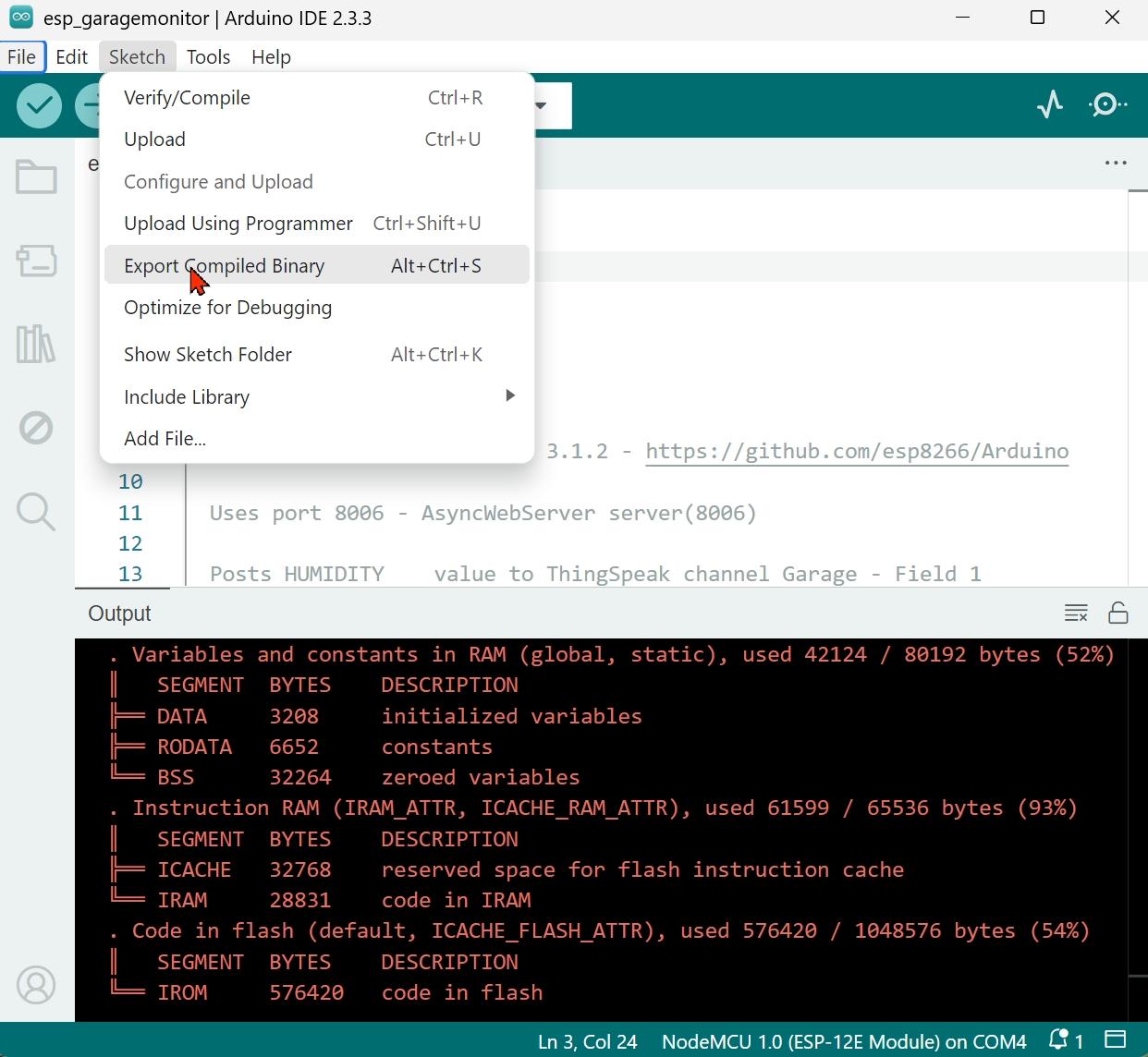


Over the Air Update (OTA)
ElegantOTA is an Arduino library designed to facilitate Over-The-Air (OTA) firmware updates for wireless microcontrollers like the ESP8266. It provides a user-friendly, interactive web interface for uploading new firmware or filesystem images to these devices wirelessly, typically via Wi-Fi. See ElegantOTA
Key Features and Functionality:
- Simplified OTA Updates: ElegantOTA simplifies the process of performing OTA updates compared to the built-in Arduino OTA functionalities, offering a more intuitive user experience.
- Web-Based Interface: It provides a sleek web portal that users can access through a web browser to upload .bin files containing firmware or filesystem images. This interface displays the status and progress of the update.
Update Procedure:
In Arduino IDE, click Sketch > Export Compiled Binary
- Open your browser to the IP address 192.168.1.X:8006/update
- In the ElegantOTA window, click Select File
- Navigate to the folder: Documents > Arduino > esp_garagemonitor > build > esp8266.esp8266.nodemcuv2
- Click the file esp_garagemonitor.ino.bin and click Open (to upload it to the ESP8266)
- Open your browser to the IP address 192.168.1.X:8006 to view the new code running on the ESP8266
Router Setup for Static IP and Port Forward


Wireless Network Watcher is a small utility that scans your wireless network and displays a list of devices that are currently connected to your network, including the internal/private/LAN (lan: Local Area Network) IP address of each device; for example, 192.168.1.240 may be assigned to your ESP8266.
What Is My IP Address will tell you your external/public/WAN (wan: Wide Area Network) IPv4 address that your Internet Service Provider (ISP) assigns to your router. This address is what allows your internal network to communicate with the external internet; for example, 103.52.23.70 may be assigned to your router. It is imperative that this IP is static; if it is dynamic and changes, there are ways around this but it gets a tad complicated. You can ask your ISP for a Static IP or use Dynamic DNS (DDNS), or DuckDNS. GROK is you friend if you need to go down this route.
If you simply want to access your Garage Monitor web page from your internal network, you open your browser and type in the internal IP address; for example, 192.168.1.240 and press Enter.
On the other hand, if you want to access your Garage Monitor web page from the external internet (say when you're out and about with your phone) you open your phone's browser and type in the external IP address followed by a colon and 8006; for example, 103.52.23.70:8006 and press Enter. The number 8006 is the port number for the AsyncWebServer that displays your Garage Monitor web page. In order for this to work; however, you must make two changes to your router.
- You must make the IP address assigned to your ESP8266 static rather than dynamic (DHCP).
- You must forward the port 8006.
If you need help making these changes, start by writing down the make and model of your router. Then go to Grok and type Router Setup for Static IP and Port Forward and press Enter. Grok will help you from there. If you tell Grok your exact router model (or ISP modem model), it can give you the exact clicks. And while you're there, thank Elon.
Dedication

For my friend Chevy