The Boomerang Blaster--Never Loose Your Darts Again
by tylerjacobsen03 in Circuits > Arduino
17 Views, 0 Favorites, 0 Comments
The Boomerang Blaster--Never Loose Your Darts Again

The Boomerang Blaster is a functioning proof of concept that began as a quest to build a web shooter and evolved into a nerf dart retreival system with automated firing. The project was separated into two main systems: The Rewind Sequence and The Firing Module.
Rewind Sequence
The rewind sequence uses an Arduino, mpu6050, motor and motor driver, and a capacitive touch sensor to mimic a web shooter’s rewind sequence. Theoretically (if used on an arm module), a press of a button on the hand will allow for the motor connected to a spool to rewind the web once the arm is pulled back at a chosen acceleration or higher.
Firing Module
The Firing Module uses a capacitive touch sensor in combination with a 12V capacity solenoid to fire out the projectile at a moments notice. Theoretically it would be mounted on the wrist and allow you to fire with the press of a finger.
Supplies
Rewind Sequence
- Arduino Uno (or compatible board)
- MPU6050 Accelerometer
- L298N Dual H-Bridge Motor Driver
- 12V DC Brushed Motor with wheel
- 12V Power Supply capable of .8 amps
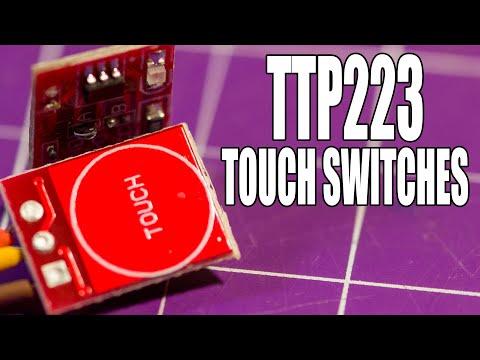
- TP223 Capacitive Touch Switch
- Male-to-female jumper wires (10–20 pcs)
- Male-to-male jumper wires (10–20 pcs)
- Female-to-female jumper wires (5–10 pcs)
- Screwdriver for L298N terminals
- Breadboard (optional but helpful)
- Thread
Firing Module
- Arduino Uno (only used for power supply so can use the same as rewind module)
- TTP223 Capacitive Touch Switch
- FQP30N06L Logic Level MOSFET
- 1N4007 Diode
- 12V capable Solenoid
- 10k Ohm Resistor
- 3 amp fuse (optional)
- 12V power supply
- Simple Nerf Gun
- Breadboard
- Male-to-male jumper wires (10–20 pcs)
Firing Module


)

This circuit is shown in much greater detail in the linked youtube video "Arduino Solenoid Tutorial" It has only been slightly modified to include a touch switch instead of a push button.
TTP223 Capacitive Touch Switch
The touch switch is where this circuit is activated. It essentailly is a button that requires no acutal movement of components in the system.
Wired connections: (See Schematic)
- Arduino 5V to Vcc on touch sensor
- Arduino Gnd to touch sensor gnd
- I/O to gate of MOSFET
FQP30N06L Logic Level MOSFET
The logic level mosfet is important because it can run off of an imput between 3.3V and 5.5V and trigger a system that runs off of higher voltage, in this case 12V. We use it to control the solenoid's connection between 12V+ and gnd. The youtube video explains the purpose of all these components.
Wired connections: (See Schematic)
- Gate of MOSFET to Gnd, connected with a 10k Ohm pull down resistor.
- Source of MOSFET to Gnd, connected with a 3A fuse.
- Drain of MOSFET to one end of the solenoid (wire orientation does not matter, either wire works)
12V Capable Solenoid
This is where the magic happens, the solenoid is what is actually going to fire our nerf gun and is the output of the circuit.
Wired connections: (See Schematic)
- Flyback diode connected in between wires of the solenoid.
- Common ground (Make sure to connect the ground of 12V power source and arduino together to create a common ground for the entire circuit)
The youtube video explains the purpose of this diode, but essentially it is protecting the circuit from it's own possible induced current from the solenoid. The best way to do this is to wire the solenoid onto a breadboard and run the diode intermediately between the connection points for the solenoid wires.
Nerf Gun Modification
This is where you will really have to get creative with things, I used the NERF Elite Junior Racer Easy Play Dart Blaster which is about $5 on amazon, but you can use most any nerf blaster you might have on hand or find for cheap. The challenge here is to attach your solenoid to the blaster in a way that allows the solenoid to activate it. What ended up working for me was drilling a hole in the back of the blaster where the trigger mechanism attached to the piston and wedging a small strip of sheet metal into it. Then using the solenoid I pushed the sheet metal away which allowed the blaster to fire. This is really a case by case situation and honestly has a lot of room for improvement.
Rewind Sequence


Motor Driver/Motor (See Motor + Motor Driver (L298N) picture)
The motor driver is required for the circuit to run properly. It gives the user control over the speed and functionality. This is the part that will wind the “web” back in.
Wired Connections: (See schematic)
• Motor driver 12V + → External 12V power supply +
• Motor driver GND → External 12V power supply –
• Motor driver GND → Arduino GND (common ground)
• Motor output A terminals → DC motor leads
• ENA Pins bridged → Arduino pin 9
• IN1 → Arduino pin 7
• IN2 → Arduino pin 8
MPU-6050 ( See MPU6050 Sensor picture)
The MPU-6050 is an accelerometer. We are using the MEMS technology to sense movement to tell the motor to wind in the web.
Wired Connections: (See schematic)
• MPU VCC → Arduino 5V
• MPU GND → Arduino GND
• MPU SDA → Arduino A4
• MPU SCL → Arduino A5
TTP223 Capacitive Touch Switch (See Capacitive Touch Sensor picture)
This sensor is a capacitive button that will activate the sequence to wind it in.
Wired Connections: (See schematic)
• Capacitive sensor VCC → Arduino 5V
• Capacitive sensor GND → Arduino GND
• Capacitive sensor OUT → Arduino digital pin (your chosen pin)
Physical set up
Once everything is wired correctly, upload the code found below to the Arduino. If the power supply is set to 12 v and .8 amps, it should run properly. While activating the touch sensor move the MPU-6050 fast enough to pass the acceleration threshold. This should spin the motor for 3 seconds and stop. This should not work if the touch sensor is not activated.
Connect a spool to the motor that has thread around it. Tie off the string to the top of the bullet. Secure the motor in place while it is spinning. Or have a person hold it to guide the thread. While shooting turn the spool so it spins perpendicular to the aim of the web and while rewinding turn the spool parallel to where it fired.
Rewind Sequence Code:
#include <Wire.h>
#include <MPU6050.h>
#include <L298N.h>
MPU6050 mpu;
// Motor pins
const int IN1 = 7;
const int IN2 = 8;
const int EN = 9;
// Touch sensor input
const int TOUCH_PIN = 4;// OUT pin from capacitive sensor
// Motor driver object
L298N motor(EN, IN1, IN2);
const float ACCEL_THRESHOLD = 25000.0;
const unsigned long MOTOR_RUN_TIME = 3000; // 3 seconds change based on how long needed to rewind
const unsigned long COOLDOWN_TIME = 1000; // 1 second pause
bool motorActive = false;
bool cooldownActive = false;
unsigned long motorStartTime = 0;
unsigned long cooldownStart = 0;
void setup() {
Serial.begin(9600);
while (!Serial) { }
Wire.begin();
mpu.initialize();
if (!mpu.testConnection()) {
Serial.println("MPU6050 connection failed!");
while (1);
}
Serial.println("MPU6050 Initialized");
pinMode(TOUCH_PIN, INPUT);
}
void loop() {
// Check cooldown first
if (cooldownActive) {
if ((unsigned long)(millis() - cooldownStart) >= COOLDOWN_TIME) {
cooldownActive = false;
Serial.println("Cooldown over, ready to trigger again.");
}
return;
}
// If motor is running, check if it's time to stop
if (motorActive) {
if ((unsigned long)(millis() - motorStartTime) >= MOTOR_RUN_TIME) {
Serial.println("Motor STOP");
motor.stop();
motorActive = false;
cooldownActive = true;
cooldownStart = millis();
}
return;
}
// ----- Check if touch sensor is being touched -----
bool touchPressed = digitalRead(TOUCH_PIN);
if (!touchPressed) {
// Not touched, do nothing
return;
}
// ----- Read MPU -----
int16_t ax, ay, az;
mpu.getAcceleration(&ax, &ay, &az);
float fx = ax;
float fy = ay;
float fz = az;
float accel_sq = fx*fx + fy*fy + fz*fz;
float thresh_sq = ACCEL_THRESHOLD * ACCEL_THRESHOLD;
// ----- Trigger motor if threshold exceeded -----
if (accel_sq > thresh_sq && !motorActive && !cooldownActive) {
Serial.println("TOUCH + MOTION -> MOTOR ON");
motor.setSpeed(255);
motor.forward();
motorActive = true;
motorStartTime = millis();
}
}