Snowman in the Middle - Pi Pico Cyber Greeting Card
by TomGoff in Circuits > Microcontrollers
156 Views, 1 Favorites, 0 Comments
Snowman in the Middle - Pi Pico Cyber Greeting Card


Each year I host a soldering social at my local Hackspace, Norwich Hackspace (https://norwichhackspace.org). I try to come up with something different each year, the first year, in 2023, I developed PCB Christmas trees with an Atmel 328p microcontroller (Arduino Uno or Nano) controlling an array of LEDs. In 2024 I designed a musical PCB bauble, again controlled by an Arduino 328p microcontroller flashing LEDs and playing music through a piezo buzzer. Having covered music and sound, for 2025 I decided I wanted to integrate a design with some kind of wireless communication.
I decided to depart from using my beloved, tried and trusted, Atmel 328p microcontroller and try out my new love, the Raspberry Pi Pico W development board, which uses the fantastic RP2040 microcontroller. One of the great features of the Raspberry Pi Pico dev board is that it is really easy to use it to host a webpage. This gave me the idea of hosting an online greetings card on the Pi Pico. To make life easier I wanted recipients to simply scan a QR code with their phone to see their seasonal greeting.
The Instructable guides you through the process of how I designed, built and coded this project. Please feels to hack, copy or adapt it any way you wish!
Check out the embedded video to see it work.
All of the files for the project are available if you follow this link. https://drive.google.com/drive/folders/1YnS_oBNWMFLJHQVA1XIPPKFZLlL_ugeX?usp=drive_link
Supplies

Here's a list of materials I used:
- Snowman Shaped PCB x 1
- Raspberry Pi Pico W Development Board x 1
- 1x20 2.54mm Pitch Female / Male Connector Strip x 2
- 1x20 2.54mm Pitch Male / Male Connector Strip x 2
- 5mm LEDs (colour of your choice) x 5
- 3mm LEDs (colour of your choice) x 2
- 1k ohm Resistors 10mm pitch x 8
- 2-Way Screw Connector Terminal x 1
- Piezo Buzzer 7.62mm pitch x 1 (optional)
- 3xAAA Battery Holder
- Copper Wire (for Arms)
- Solder
- PLA (For Base)
- Important!! Orange oven hardening modelling clay - for his nose x 1
Here's a list of the tools that I used:
- Laptop computer with Thonny IDE
- Soldering Iron
- Electronics Cutters
- Micro USB connector Lead
- Some Sticky Tack (to hold components in place when soldering)
- 3D Printer (for Base)
Software Design - Option 1: Pi Pico As an Access Point and Local Server

I designed this project with two options in mind, the first option sets up the Pi Pico as a stand alone Access Point, hosts the website and blinks the LEDs on the PCB. Option 2 connects to the local network, host the website and blinks the LEDs on the PCB. Option 1 is better if you have more than one Pi Pico in the area as they are not competing for access on the network. This step shows you how to write the Micropython code for the Pico as an access point, in summary it does the following:
- Turns your Pico W into an access point
- Serves your uploaded index.html and style.css.
- Blinks the LEDs as programmed.
- Runs any other components (such as the buzzer)
- Doesn’t connect to any other Wi-Fi networks
An overview of the Micropython code is as follows:
IMPORT MICROPYTHON MODULES AND LIBRARIES
The script begins by importing the key modules required for networking, timing, file handling, and GPIO control:
- network: used to configure the Pico W’s Wi-Fi interface in Access Point mode.
- socket: creates a lightweight web server that handles browser requests.
- time: provides delays used in the LED animation.
- os: allows checking and opening local files.
- machine.Pin: controls the GPIO pins used for the LEDs.
These imports give the Pico W everything it needs to run animations while also serving web pages.
TURN ON HIS EYES
The above code simple turns his eyes on all the time. I found it looked too weird if the eyes blinked or were part of the Larson Scanner.
LED SETUP – Larson Scanner (Knight Rider style)
A list of GPIO numbers defines the 7 LEDs used for the scanner effect. The pins for the LEDs were based on the PCB routing requirements.
Each GPIO pin is set as an output, and the larson_scanner() function animates them in sequence.
The function turns LEDs on one at a time from left to right, then back again (excluding the ends to avoid double-lighting). A delay value controls animation speed. This animation runs continuously in the main loop alongside the web server.
WI-FI ACCESS POINT SETUP
The code configures the Pico W as a Wi-Fi Access Point, creating its own network:
- essid="CyberXmasCard"
- password="HoHoHo2025"
The script waits until the AP becomes active, then prints connection instructions.
Once running, the user connects to 192.168.4.1 to access the hosted webpage.
HELPER FUNCTION – Detect File Type
The function get_content_type(filename) determines the correct MIME type for files served by the web server:
- .html → "text/html"
- .css → "text/css"
- other files → "text/plain"
This ensures browsers correctly interpret the content they receive.
START WEB SERVER
A simple HTTP server is created using sockets:
- It binds to port 80 on all network interfaces.
- listen(1) allows one connection at a time.
- A short settimeout(0.1) prevents blocking, allowing LED animation to continue even when no one is connected.
This sets up a non-blocking web server capable of serving files stored on the Pico.
MAIN LOOP – Run LEDs + Handle Web Requests
The main loop does two jobs simultaneously:
A. Run the Larson scanner
The LED animation runs continuously using larson_scanner().
B. Handle web requests
Inside a try block:
- The code attempts to accept a connection.
- If a client connects, their HTTP request is read.
- The requested path is extracted (defaulting to /index.html).
- The corresponding file is opened and sent to the browser in chunks.
- If the file doesn't exist, a 404 Not Found response is returned.
If no client connects, an OSError is raised by the timeout—this is ignored, allowing the LEDs to keep running.
If you want a copy of the code you can download it from this link.
https://drive.google.com/drive/folders/1YnS_oBNWMFLJHQVA1XIPPKFZLlL_ugeX?usp=drive_link
Software Design - Option 2: Pi Pico As a Local Server

This option is good if you only want to operate one Pi Pico Webserver on your network. I find this option actually responds to website requests much faster than option one. The disadvantage is that the router’s DHCP server assigns an IP address to the device. This means you have to connect the Pico to your laptop and Thonny to get the IP address. You are then at the mercy of your router’s DHCP server which may change the IP address in the future. It is fairly simple to setup a fixed IP address in your Python code however I have found this makes accessing the webpage less reliable.
Here's an overview of how this code works:
IMPORT MICROPYTHON MODULES AND LIBRARIES
As in option 1, the script begins by importing the necessary MicroPython modules:
- network – used to connect the Pico W to a Wi-Fi network.
- socket – allows the Pico W to act as a simple web server using TCP/IP sockets.
- time – used for delays, such as waiting while connecting to Wi-Fi.
- os – used for file handling (not heavily used here, but available).
- machine.Pin – allows control of the GPIO pins to operate the LEDs.
These modules provide the core hardware and networking features needed by the program.
TURN ON THE LEDs
This option is much simple and only turns the LEDs on, no blinking.
- A list of GPIO pin numbers (led_pins) is created to define which pins have LEDs attached.
- A list comprehension then creates Pin objects for each LED and configures them as outputs.
- A for loop turns them all on at startup:
CONNECTING TO THE LOCAL WI-FI AND CREATING A SOCKET
The SSID and Password are set as variables, these can be changed to suit your network.
The Pico W is placed in station mode (network.STA_IF) and activated.
It then attempts to connect to the Wi-Fi network using the provided SSID and password.
A loop waits until wlan.isconnected() becomes True, after which the assigned IP address is displayed.
Next, a TCP socket is created:
- socket.getaddrinfo('0.0.0.0', PORT) gets the network address to bind to (port 80).
- s.bind(addr) attaches the socket to that address.
- s.listen(1) tells the socket to wait for incoming browser connections.
At this point, the Pico W is running a basic web server.
THE MAIN LOOP
The program enters an infinite loop that handles web requests one client at a time:
- Accept a connection using s.accept().
- Receive the HTTP request from the browser.
- Check which file is being requested:
- If the request contains /style.css, serve the CSS file.
- Otherwise, serve index.html by default.
- Load the file from storage using get_file_content().
- If the file exists:
- Send an HTTP 200 OK header with the correct content type.
- Send the file contents.
- If the file is missing:
- Send a simple "404 Not Found" response.
The connection is then closed, and the loop waits for the next browser request.
The files for this code are available if you follow this link.
https://drive.google.com/drive/folders/1YnS_oBNWMFLJHQVA1XIPPKFZLlL_ugeX?usp=drive_link
QR Code Design

I wanted to create a QR code so that users can simply scan the QR code to connect to the Pi Pico and then open the webpage was a key requirement to my project.
The QR code logs you into the PI Pico Access Point and automatically fills in the password.
Python has an excellent library to help you produce your own QR Codes. The qrcode library is a third-party package used to generate QR codes programmatically.
To create the QR codes I simply wrote a python script as shown below:
To generate the QR codes I ran this python script in python, however you must run it on your local computer not on the Pi Pico.
To Install the needed libraries (only once) you will need to open Thonny’s Shell (bottom window) or your terminal and type:
This installs:
- qrcode → for generating QR codes
- Pillow (PIL) → for image editing/combining
After you run the script, you’ll have these three images in the same folder as your script:
- wifi_qr.png – connects to Wi-Fi
- web_qr.png – opens webpage
- CyberXmasCard_QR_Poster.png – a combined “poster” version
If you are using the "Option 2" of connecting the Pico to your local network. It's pretty easy to adapt this script. You will just need to delete the sections associated with the wi-fi access point and change the IP address to the one designated to you by your router’s DHCP server.
The files for this code are available if you follow this link.
https://drive.google.com/drive/folders/1YnS_oBNWMFLJHQVA1XIPPKFZLlL_ugeX?usp=drive_link
Website Design


Bells and whistles on a PCB are nice, but this project is all about creating a cyber greetings card hosted on the Pico. For this reason we need to a design a seasonal webpage.
The Pi Pico doesn't have much storage so you need to keep you webpage simple. adding images is possible but I found they slowed things down and were best avoided.
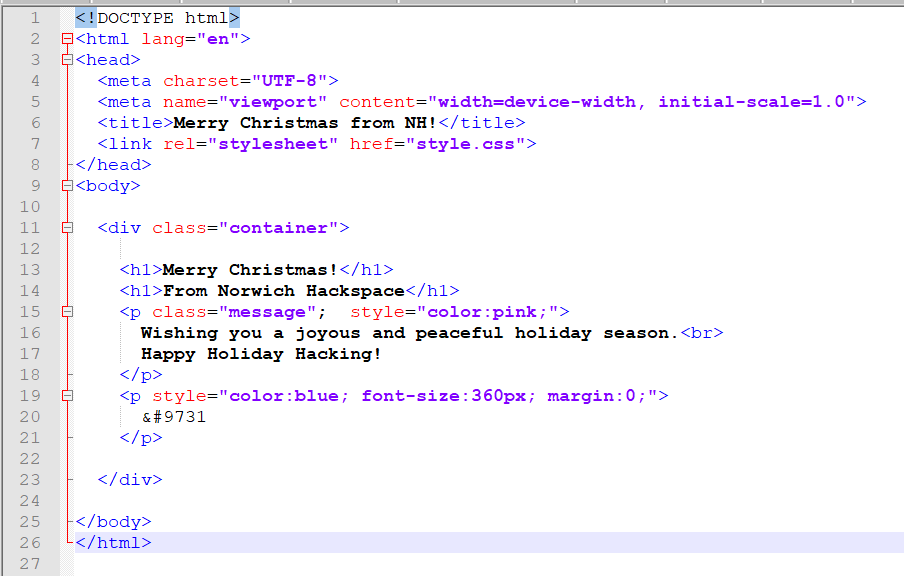
I have included the HTML script as an attachment for you to modify and use as you like together with the CSS. However, I think it's very important to actually understand the code you are using, so here's a quick overview of the website script.
Document Type + HTML Structure
<!DOCTYPE html> tells the browser this is an HTML5 document.
<html lang="en"> begins the page and declares that the site content is in English.
The <head> Section
The <head> contains important non-visible information:
- <meta charset="UTF-8">
- Ensures the page supports all standard characters (English, symbols, emojis, etc).
- <meta name="viewport"...>
- Makes the page scale correctly on phones and tablets (responsive layout).
- <title>
- Sets the browser tab name.
- <link rel="stylesheet"...>
- Loads the external CSS file (style.css) that styles the page.
The <body> Section
Everything visible on the page goes inside <body>.
A <div> is a general-purpose layout box.
This one uses the CSS class container to centre the content and apply styling.
Headings
Two large headings displayed inside the main container.
Their appearance is controlled by the CSS h1 style.
Festive Message Paragraph
<p class="message"> styles the text based on the .message rule in your CSS.
The inline style style="color:pink;" overrides the CSS colour.
<br> forces a line break between the two sentences.
Snowman Symbol
I originally wanted to add a nice image here but it took up too much storage. Instead I used a Unicode encoding, 9731 is a Unicode code point in decimal as it corresponds to U+2603, named SNOWMAN. It looks pretty good!
Displays a large snowman using the HTML entity ☃.
Because I always seem to end-up making spaghetti code I used some inline CSS that sets:
- blue colour,
- very large size (360px),
- no margin, so it sits neatly in the container.
End of Document
Closes the content container, page body, and HTML document.
The files for this code are available if you follow this link.
https://drive.google.com/drive/folders/1YnS_oBNWMFLJHQVA1XIPPKFZLlL_ugeX?usp=drive_link
PCB Design


As with previous designs, for the PCB I used two software packages, Fusion360 and KiCAD. Fusion360 was used to design the custom shape of the PCB and KiCAD was used add the components and connecting wire traces.
There are multiple PCB design tutorials online for Fusion360 and KiCAD and other PCB design software packages.
Designing the PCB and developing the software was an iterative process. This is because I found that when designing the PCB it made more sense to use different pins than used on the first revision of the software. I therefore had the update main.py program once I had placed all the components and routed the traces.
I added a Piezo buzzer to the PCB and connected it to GPIO 1o on the Pico. I have not used it on the software yet, however I wanted to have the option to use it in the future and for other people to hack. The is the same as for the push button connected to GPIO 24.
To power the PCB there's two options. You can attach a power bank to the Pi Pico USB port or you can connect a 4.5V (3xAA or 3xAAA) battery pack to the terminal connector which is connected to the VSYS pin. The VSYS has a minimum input of 1.8V and maximum of 5.5V.
Please follow these links if you want the design files or to directly order a PCB.
The files for this code are available if you follow this link.
https://drive.google.com/drive/folders/1YnS_oBNWMFLJHQVA1XIPPKFZLlL_ugeX?usp=drive_link
3D Printed Base


I decided to design this festive PCB to be either hung from a tree using some ribbon tied through the hole in the top left hand corner of the snowman's hat or free-standing on a base.
I used Fusion360 to design a small cone shaped base with a slot in it to hole the PCB. The base only took a matter of 10-minutes to design with Fusion360, simply drawing two circles separated by 25mm and then turned into a cone using the Fusion360 loft command. I then added a 20mm x 1.6mm slot in the slot, removing the material using a negative extrusion.
The final job was to use the Fusion360 Export facility to save my design as a .stl file.
I could have done the hole job in Fusion360, however old habits die hard and I still use Cura to slice my design and set it up for printing with my old faithful Ender3 Pro 3D printer.
My cone base was really only a prototype and I'm sure the 3D printing aficionados in the Norwich Hackspace will print out something multi-coloured and far more attractive using the facilities in our hackspace.
The 3D CAD file for the base it attached.
Downloads
Soldering and Assembly


When I solder the components to a PCB I usually start with the physically lowest components (such as the resistors) and then work up to the highest components (the LEDs) as it makes it easier. The order I soldered the components was:
- 2 x 2x20 pin male header pins (to the Raspberry Pi Pico).
- 7 x 1K ohm LED
- 7 x LEDs
- 1 x momentary push buttons
- 2 x 2x20 pin female header pins.
- 1 x Piezo Buzzer.
- The Screw Connector on the back.
- The copper wire for the snowman's arms
Top Tip! I found that if I first soldered the male/male pins to the Pi Pico, then push-fitted the female/male pins onto the Pico male/male pins and then finally located the male side of the female/male ins to the PCB it helps locate the pins perfectly.
On the front of the PCB all the resistors are 8 x 1K ohm resistors near the LED positions (R1 to R7) and need to be positioned in their holes. Once I've pulled the leads through I bend them outwards at 45 degrees to stop the resistor falling out of the PCB. I then solder all the leads in place and trim off the excess lead.
To solder the connection remember to heat the connection of the PCB and the lead and then feed in just enough solder to make a neat joint. Then pull the soldering iron away and let the joint cool making sure not to move it.
The resistors are there to limit the current going to the LEDs and prevent it from becoming damaged and failing. They also mean your battery can last longer. When you place the resistors on the PCB in doesn't matter which way round they go.
The LEDs are a diode which means current can only go through them in one direction so it's very important they are put in the correct way round. An LED has two wires from it, usually called legs, and one is longer than the other. the Long leg goes to the positive and the short leg goes to the negative. If you look carefully at the PCB the LED position has two holes. One hole is surrounded by a square shape, this hole is for the negative LED lead (the short lead).
The momentary push button will only fit one way round so it's important that they are placed correctly. You may have to bend the pins a very small amount but not too much.
The Piezo Buzzer also needs to be installed the correct way round. Make sure the + terminal on the buzzer is placed in the hole marked with a + symbol.
The copper wire is soldered into the two holes named J1 and J2. This is your chance to be creative, you can bend and solder the arms to your own design.
A really useful tip for soldering components to a PCB is to place them in the correct position and then hold them there temporarily with blue tack. This enables you to turn the PCB upside-down without all the components falling out. This is how I soldered the microcontroller socket.
When you finally screw in the battery pack power leads ensure the red wire goes to the positive terminal and the black wire goes to the negative terminal.
To finish off the design I made a little carrot for his nose out of some orange oven hardening modelling clay.