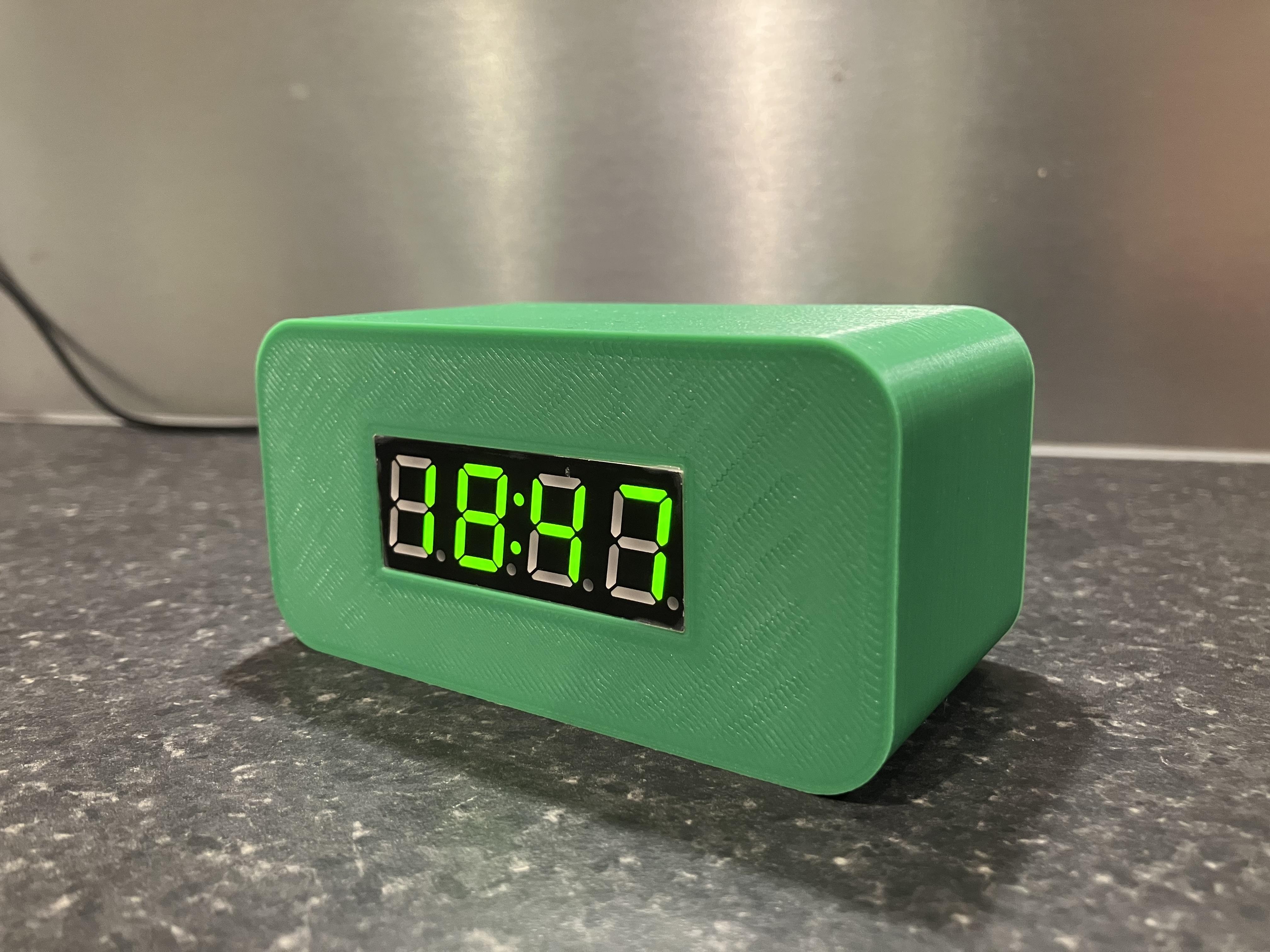
To set and upload the code on ESP32 card I used VS code with PIO Home plugin and the following configuration for platformio.ini file. Don't forget to update your upload port.
Below is the C++ code I used.
You have to set you Wifi SSID and password, the ntp server and the time zone (here configured for Europe/Paris).
You can also set the brightness, and choose flashing or constant colon.
Notice there is a lot of serial outputs for debugg, you can remove them for the final version.
#include <WiFi.h>
#include <TM1637Display.h>
#include "time.h"
// --- Set here ---
const char* ssid = "yourssid";
const char* password = "yourpassword";
// Choose output pin
#define CLK_PIN 2
#define DIO_PIN 3
TM1637Display display(CLK_PIN, DIO_PIN);
// Time zone and DST rules for Europe/Paris
// "CET-1CEST,M3.5.0/02:00:00,M10.5.0/03:00:00"
const char* ntpServer = "ntpserver";
const char* tzString = "CET-1CEST,M3.5.0/02:00:00,M10.5.0/03:00:00";
void printLocalTime(){
struct tm timeinfo;
if(!getLocalTime(&timeinfo)){
Serial.println("Error on getLocalTime");
return;
}
char buf[64];
strftime(buf, sizeof(buf), "%Y-%m-%d %H:%M:%S", &timeinfo);
Serial.println(buf);
}
// Animation function for init - Display moving segment
void animateSegment(uint8_t segment) {
uint8_t seg1[] = {segment, 0, 0, 0};
uint8_t seg2[] = {0, segment, 0, 0};
uint8_t seg3[] = {0, 0, segment, 0};
uint8_t seg4[] = {0, 0, 0, segment};
static int animCount = 0;
animCount++;
if (animCount % 4 == 1) {
display.setSegments(seg1);
} else if (animCount % 4 == 2) {
display.setSegments(seg2);
} else if (animCount % 4 == 3) {
display.setSegments(seg3);
} else {
display.setSegments(seg4);
}
}
void setup() {
Serial.begin(115200);
delay(1000);
Serial.println("Début setup");
display.setBrightness(0x0f); // 0x00..0x0f : brightness mini to maxi
display.clear();
// WiFi Connection
Serial.print("WiFi Connection");
Serial.print(ssid);
WiFi.begin(ssid, password);
unsigned long start = millis();
int dotCount = 0;
while (WiFi.status() != WL_CONNECTED) {
delay(250);
Serial.print('.');
dotCount++;
// Animation during Wifi connection
animateSegment(SEG_D);
if (millis() - start > 15000) { // timeout 15s
Serial.println("\nImpossible to connect to WiFi");
break;
}
}
Serial.println();
Serial.print("WiFi status: ");
if (WiFi.status() == WL_CONNECTED) {
Serial.println("OK");
// Display 200 when WiFi is connected
display.showNumberDecEx(200, 0, false, 4, 0);
} else {
Serial.println("KO");
// Display 500 when WiFi cannot connect
display.showNumberDecEx(500, 0, false, 4, 0);
delay(3000); // 3 seconds delay for error message
Serial.println("Impossible to connect to Wifi - Reboot...");
display.clear();
}
Serial.flush();
// NTP and timezone configuration
struct tm timeinfo;
int ntpAttempts = 0;
const int MAX_NTP_ATTEMPTS = 3;
bool ntpSuccess = false;
// NTP configuration, one time
configTzTime(tzString, ntpServer);
while (ntpAttempts < MAX_NTP_ATTEMPTS && !ntpSuccess) {
ntpAttempts++;
Serial.print("Looking for NTP server (try ");
Serial.print(ntpAttempts);
Serial.print("/");
Serial.print(MAX_NTP_ATTEMPTS);
Serial.println(") ");
// Animation during NTP synchronization (timeout 10s)
unsigned long ntpStart = millis();
int ntpDotCount = 0;
while (!getLocalTime(&timeinfo) && (millis() - ntpStart < 10000)) {
delay(250);
Serial.print('.');
ntpDotCount++;
animateSegment(SEG_G);
}
Serial.println();
if (getLocalTime(&timeinfo)) {
ntpSuccess = true;
Serial.println("NTP server OK !");
printLocalTime();
} else {
if (ntpAttempts < MAX_NTP_ATTEMPTS) {
Serial.println("NTP attempt failure, retry...");
delay(2000); // 2 seconds wait before retry
}
}
}
if (!ntpSuccess) {
Serial.println("NTP server does not respond after 3 retries.");
}
}
unsigned long prevSec = 0;
bool colonOn = true;
void loop() {
struct tm timeinfo;
if(!getLocalTime(&timeinfo)){
// si pas d'heure, afficher "----"
uint8_t segNoTime[] = {SEG_G, SEG_G, SEG_G, SEG_G};
display.setSegments(segNoTime);
delay(1000);
return;
}
printLocalTime();
int h = timeinfo.tm_hour;
int m = timeinfo.tm_min;
int toDisplay = h * 100 + m;
// If you want colon flashing every second
// unsigned long now = millis();
// if (now - prevSec >= 500) { // toggle 0.5s for flashing
// colonOn = !colonOn;
// prevSec = now;
// }
// Or keep colon on all the time
uint8_t colonMask = colonOn ? 0b01000000 : 0;
display.showNumberDecEx(toDisplay, colonMask, true, 4, 0);
// Update every 200 ms
delay(200);
}