Outer Wilds Signalscope Inspired Planet Finder!
by Areeeeen in Circuits > Microcontrollers
9961 Views, 68 Favorites, 0 Comments
Outer Wilds Signalscope Inspired Planet Finder!


I am Areen Phaltankar, studying in 12th grade at Mastermind Highschool, Bhosari, Pune, India
For those who’ve played Outer Wilds, I bet it was a magical and formative experience. It’s much more than just a game—it’s an immersive journey you can truly appreciate only once: on that very first playthrough. I made this project in hopes of capturing a bit of that whimsy in reality, a way to hold onto a relic from the masterpiece by Alex Beachum, the creator of Outer Wilds.
Of all the gadgets in Outer Wilds, the Signalscope always stood out to me. Maybe it’s because it’s the first significant tool you receive at the start of the game, or maybe it’s the simple charm of its HUD when you’re tuning into signals. Either way, I knew that if I was going to bring something from Outer Wilds into the real world, it had to be the Signalscope—reimagined here as a Planet Finder.
While I could’ve stuck to its original functionality—detecting frequencies—I wanted the device to exude a sense of cosmic connection. Which is how i landed on making a planet finder themed around the Signalscope
Features
- Identifies which planet (from the solar system) you’re aligned with while pointing the device in a direction
- Visual “lock-on” arcs (on the display) that merge into a full circle when perfectly aligned with a planet
- Plays discrete audio tracks from Outer Wilds for each planet, with volume that adjusts based on pointing accuracy
- Works completely offline using RTC, GPS, and SD card storage
- Boots with a custom splash/loading screen
Github Project Link (https://github.com/Areeeeen/OW_Signalscope_Planet_Finder/tree/main)
Github Account Link (https://github.com/Areeeeen)
Supplies
Electronic components-
- ESP32-WROOM Devkit x1
- ICM20948 IMU x1
- MAX98357a DAC x1
- 30Ω Speaker (50mm diameter) x1
- NEO6M GPS with Ceramic antenna x1
- DS1307 RTC x1
- TP4056 USB-C Charging module x1
- 3.7v to 5v Boost converter x1
- 3.7v Li-Po battery x1
- 0805 SMD 100Ω Resistors x2
- ILI9341 2.8 inch TFT Display x1
- 3-pin Lever Switch x1
- 4-8 GB SD card x1
- 10mm Leds: Red x1 - Green x1
- SIGNALSCOPE PCB (file attached below) x1
3D Models-
- Main body (file attached below)
- Handle (file attached below)
Screws, Nuts and Heated Inserts-
- M2.5 sized
- Screws - 3mm - x2
- Inserts - 4mm - x2
- M3 sized⠀⠀⠀⠀ Length
- Screws - 10mm - x22
- Inserts - 10mm - x22
- M4 sized
- Screws - 4mm - x4
- Inserts - 4mm - x4
- M6 sized
- Screws - 6mm - x2
- Nuts - x2
Connectors and Wires
- Male/Female JST Connectors/Wires
- 3 pin - 2.54mm pitch - 15cm length - x1
- 4 pin - 2.54mm pitch - 30cm length - x1
- 7 pin - 2.54mm pitch - 30cm length - x1
- 8 pin - 2.54mm pitch - 30cm length - x1
- Female header strips
- Male header strips
- Loose Wires
3D Printed Enclosures


the entire model consists of 3 colors: White, black and brown.
Signalscope_STL_v1.0.stl - either print in white and black simultaneously using a multi-color filament printer for a cleaner look, or print it in white and paint the black sections afterward.
Handle_STL_v1.0.stl - either print it in brown, or paint it brown afterward.
As for the material, use PLA for both prints.
Painting the Models (If You Used Single Filament Printer)


Once you have printed the parts, you can paint it first if you printed it all in white.
Refer to the image above to see which colors to use where.
Inserting the Brass Inserts
.jpg)
.jpg)


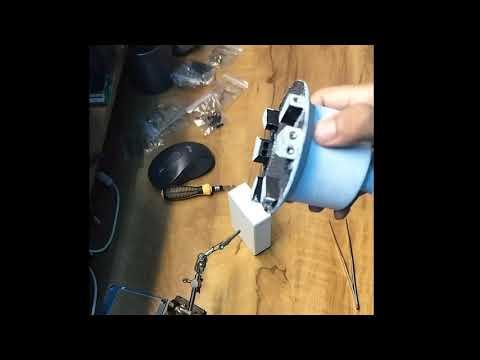
Use a heated soldering iron to push the brass inserts into the designated holes in the models
Uploading the Code


The libraries needed to be installed are-
- TFT_eSPI
- ICM20948_WE
- RTClib
- ESP8266Audio
- TinyGPSPlus and TinyGPSPlusPlus
- PNGdec
Before uploading the code, make sure the User_Setup.h from the TFT_eSPI library folder has these lines in them -
#define TFT_MOSI 15
#define TFT_SCLK 14
#define TFT_CS 22 // Chip select control pin
#define TFT_DC 21 // Data Command control pin
#define TFT_RST -1
Make sure that the folder containing the Signalscope_v2.0.ino file is in a folder called Signalscope_v2.0, along with the following files
- loading.h
- astronomy.h
- astronomy.c
Don't forget to fill in important details at the top of the code for the device to work properly.
NOTE: Make sure that the ESP32 is not plugged into the PCB while uploading code to it.
NOTE: If you are getting an "i2c master..." error (or any error which allows the code to get flashed to the esp, but doesnt run), try to
- go to boards manager in Arduino IDE
- search for esp32
- under the versions list, select and install v3.1.3
- DO NOT click on the update button when prompted to update to v3.3.0
Get the files from here (https://github.com/Areeeeen/OW_Signalscope_Planet_Finder/tree/main/firmware/v2.0/Signalscope_v2.0)
Setting Up the PCB for Assembly


The first step to making the Signalscope would be to assemble the SIGNALSCOPE PCB.
The female header strips will hold the modules and the ESP32 microcontroller itself, while the JST connectors will be used for the peripheral devices, i.e. the display, SD card slot and speaker. The male header strips will be used for the status LEDs, which will be installed in a later step
Get the PCB Gerber files from here - Github (https://github.com/Areeeeen/OW_Signalscope_Planet_Finder/tree/main/PCB%20design%20files/Compositus/v1.1/Gerber)
Making the Power Circuit

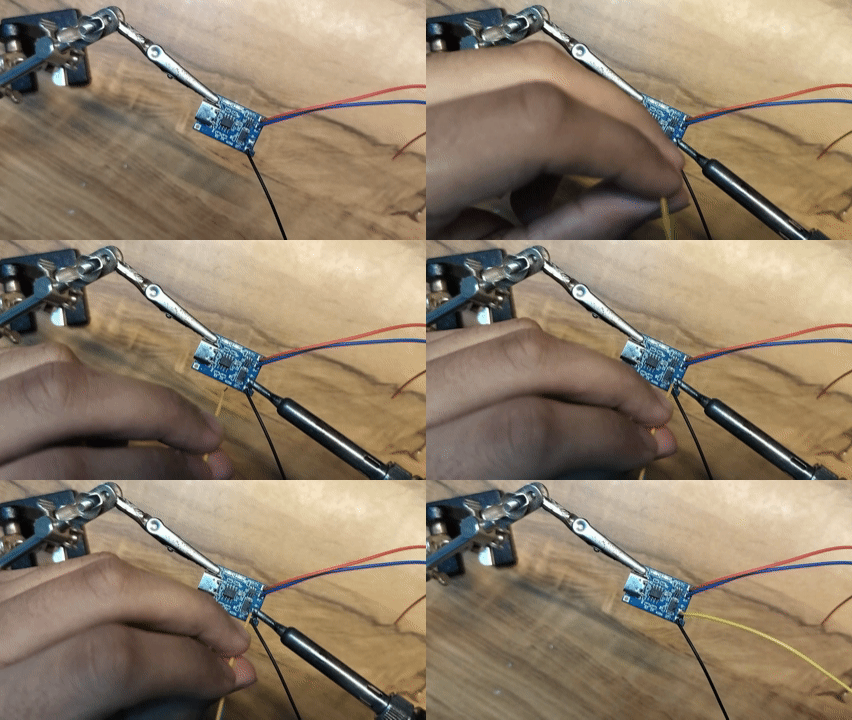

Since the USB-C charging module will be out of the PCB, it will require external circuitry to work
follow the wiring as shown in the image above. The boost converter converts the 3.7v from the lipo battery to 5v, which we can then feed the ESP32 to power it and its peripherals.
The lever switch connects (when flipped on) or disconnects (when flipped off) the Ground of the battery to the Ground of the ESP32 and the boost converter, working as a power switch. This arrangement allows the battery to be charged even when the device is powered off.
NOTE: the battery is not connected to this circuit directly, but rather through the PCB. Therefore, no changes need to be made to this circuit when replacing the battery.
PCB Assembly


ESP32 Placement
- The ESP32 development board must be mounted with its USB port pointing towards the bottom edge of the PCB.
- Ensure the board is fully seated and aligned with the header pins.
Antenna Placement
- The GPS antenna should be secured to the PCB using double-sided tape.
ICM20948 Orientation
- The positive X-axis marking on the IMU module must be oriented towards the top of the PCB.
The Peripherals:
- Speaker
- TFT display
- Status LEDs:
- Green LED - lights up with intensity depending on how closely you're pointing at a planet
- Red LED - lights up when esp32 is powered on and starts up
Dumping Audio Files to the SD Card

The audio that will play from the speakers will be files from the SD card.
Get the files from here (https://github.com/Areeeeen/OW_Signalscope_Planet_Finder/tree/main/SD%20card%20files/Audio%20Tracks)
Assembling the Speaker Unit


These are the instructions to assemble the speaker unit of the Signalscope
NOTE: When soldering the JST wires to the MAX98357a, make sure that the pins correctly correspond to the place it will fit on the JST connector's order on the PCB
Assembling the Display Unit


These are the instructions to assemble the display unit of the Signalscope
NOTE: When soldering the JST wires to the TFT display, make sure that the pins correctly correspond to the place it will fit on the JST connector's order on the PCB
Final Assembly


Charging the Signalscope
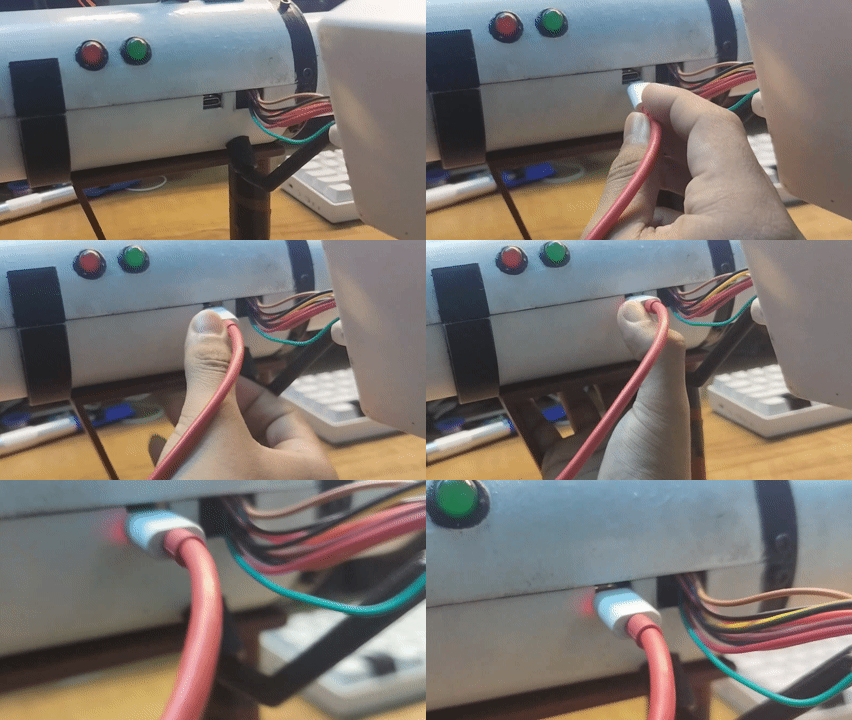
use a USB-C charger with a 5v DC output.
A solid red light means that the battery is charging
A flickering red light means that the battery is disconnected
Adding Stickers!


While functionally the device is now ready to be powered on and to be used to find planets in the cosmos, it lacks the visual charm of the original Signalscope from the game.
For which, I have made a PDF with images that you can get printed on sticker/adhesive paper to later stick on your new Signalscope!
Enjoy! :D
Downloads
How It Works
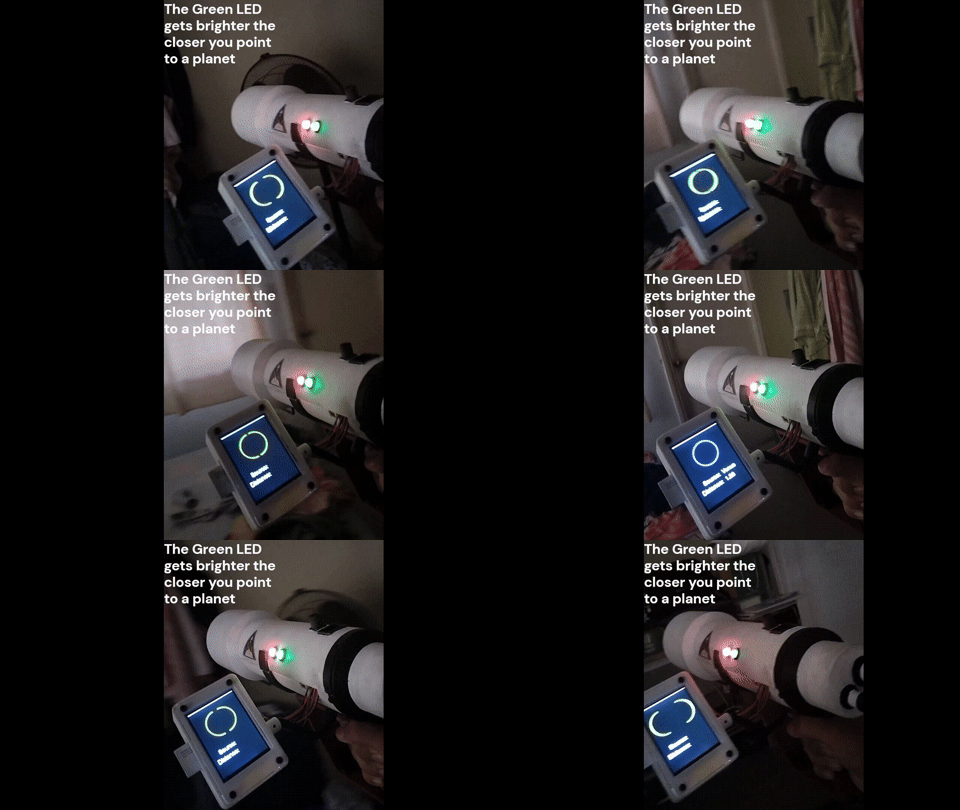


When you point the Signalscope at the sky, the IMU (Inertial Measurement Unit) senses its orientation. The microcontroller then uses the real-time clock to calculate planetary positions for that exact moment and location.
It calculates the device's altitude (angle deviated from horizon) and azimuth (angle deviated from horizon) angles and compares them to the azimuth and altitude of the planets from the solar system. The lesser the difference between them, the closer the semi-circles on the display get, until eventually forming an entire circle and turning blue; implying that you are pointing directly at a planet. The display then shows you which planet you're looking at, along with the distance between Earth and that planet.
Each planet is mapped to a unique soundtrack which will play when pointed at, and at varying volume levels depending on how close you are to pointing directly at said planet.