Orbit - World's First Orbital Clock. Fully Customizable
by Anton_F in Circuits > Clocks
660 Views, 7 Favorites, 0 Comments
Orbit - World's First Orbital Clock. Fully Customizable
.jpeg)


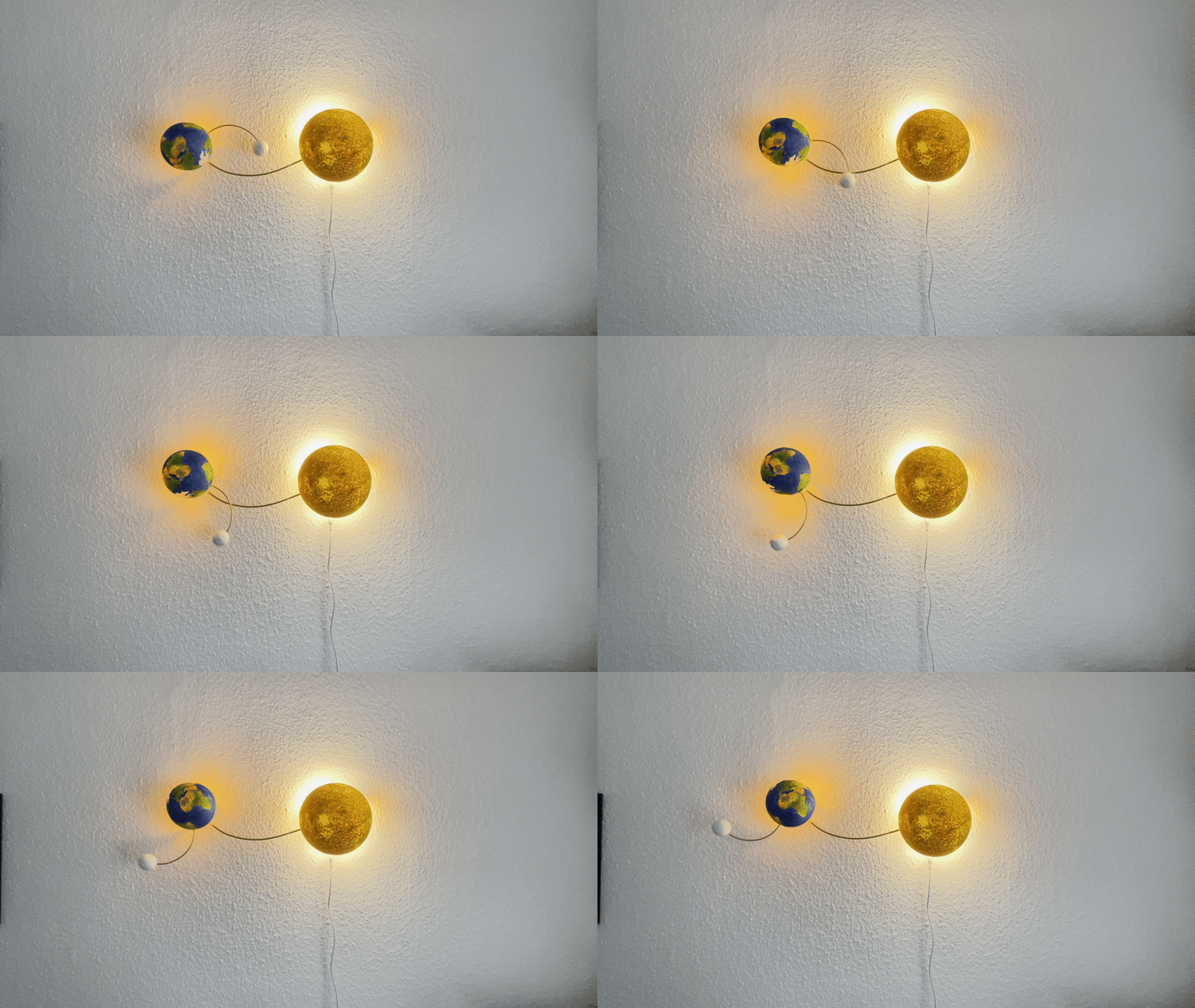
What if a clock would not only be a tool to track time, but also a medium that inspires people for something greater than one self?
With this clock design, I aim to inspire the observer to reach for the stars and wonder about the beauty of the universe. Be it our solar system, a star and its planet trapped in the orbit of a black hole, or the never ending birth and destruction of Cixin Liu´s Trisolarian civilization.
Create and customize this clock and tell your own story!
Supplies

This project ended up to be way more complex than I expected. So make sure to have a lot of patience in your toolbox!
What you need:
- For the brain:
- ESP32 controller
- 0,96 inch OLED Dysplay
- 2 x KY-035 Hall Sensor
- 2 x 10x3mm Magnets
- 2 x 10k Ω Ohm resistor
- For the hour hand:
- 670:1 Worm geared Nema 17 motor
- TMC2209 Stepper driver
- Connecting cables for the motor (mostly included with the motor)
- 5 mm diameter brass tube, 500mm length
- 8x1mm steel tube, 45mm long
- 8x1mm steel tube, 30mm long
- 2 x 20 tooth GT2 pulley, 8mm inner bore
- 6mm, 140mm, 707 tooth GT2 Belt (GT2-6-140-A)
- 2 x 8mm skate bearings
- 1 x M10 plain washer
- For the minute hand:
- 28BYJ-48 Stepper Motor + Drive Controller
- 8 channel cable
- 8 channel slip ring
- 3 mm diameter brass tube, 200mm length
- Power delivery:
- DC-DC Buck Converter 3,2-46V
- 5,5mm DC power connector
- 12V 2A power supply
- Tools & other supplies:
- Screwdriver set
- Hex screws + nuts from M2 to M4 (get a set, it's easier)
- Hot glue
- Zip ties (for cable management)
- Fire resembling LEDs + flexible LED
- Pipe cutting tool
- Cordless drill (optional)
- Soldering iron + soldering supplies
- Shrink tube
- Colored cables for soldering everything together
- Patience
- 3D printer+
- Aquarelle colors (cheap ones are enough)
- Brushes
- 3mm steel rods
- 3D printed parts:
- Base
- Washer adapter
- Hour arm coupling
- Minute arm coupling
- Minute planet coupling
- End planet coupling
- Planet models
- Personal Skills:
- Soldering skills
- Arduino/ESP + basic electronics and programming knowledge
- Painting with aquarelle
- 3D printing
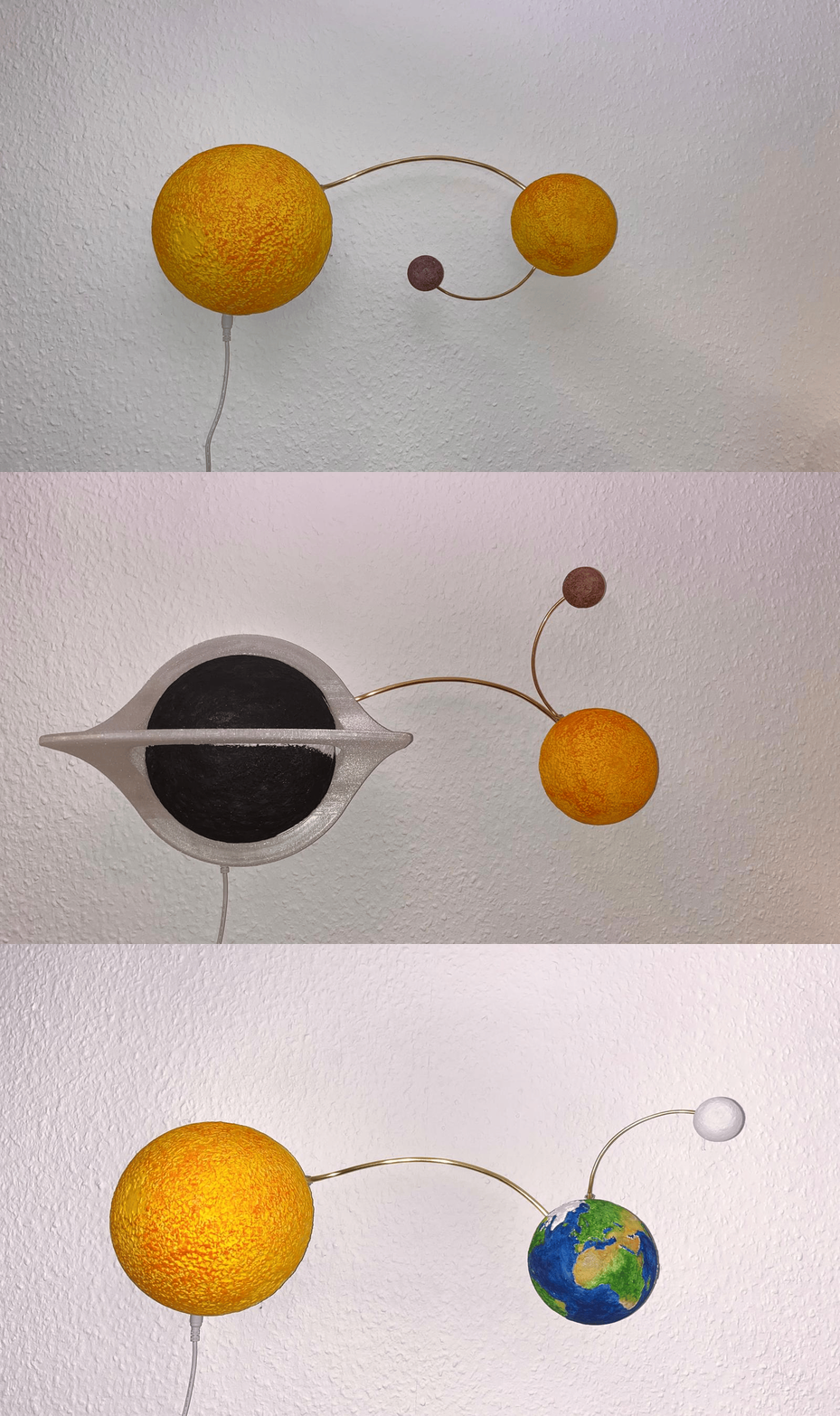
How to Read the Clock


The clock is based on a "piggy bag" principle, where the minute hand is carried on with the hour hand. The movements are continuos, so you wont see the clock making an abrupt movement from one minute to the other.
To read Orbit, you read it as every other normal clock, by first reading the minute hand -which in this case is the moon that orbits around the earth-; then you read the hour - which is the earth rotating around the sun-.
To better understand how to read it, I attached some schematic drawings.
- In the first case, we have 12 O´clock, as both the minute and the hour are at position 12
- As time passes, the minutes rotate around the hour. In the 2nd picture, we read, in this case 15 minutes past 12
- As time passes, both minute and hour move, reaching half past 3 (03:30); a quarter to 7 (06:45); 9 O´clock (09:00).
Preparing for Soldering the Electronics


Before you start connecting everything together, we have to prepare the minute motor for the assembly.
For that:
- Insert the 8 channel wire in the 5mm brass tube, with enough wire length looking out from both sides for easier handling when soldering
- mount the washer on the base, where the bearings go
- mount the bearings on the base. 1 goes all the way to the bottom; the other just on the surface
- insert the 8mm 45mm long steel pipe in the bearings
- mount the slip ring (it needs 3x M3x10mm screws). Make sure to put the cables of the twisting side through the steel pipe
Soldering


Ok, this is the most difficult task of the entire assembly. But don't worry. It just needs some patience and some soldering. Go slow ad take your time.
Solder the components together like this:
Power and Logic Distribution
- Connect the NEMA 17 Driver (TMC2209) VS (or VM) pin to the 12V DC rail from your Power Supply Unit (PSU).
- Connect the ESP32 Breakout VCC pin to the 5V DC rail (from your Buck Converter).
- Connect the TMC2209 VIO pin to the ESP32 3V3 pin.
- Connect the ULN2003 Driver + (VCC) pin directly to the ESP32 3V3 pin. This is essential for the ULN2003 to reliably accept the ESP32's 3.3V logic signals.
- Connect the Hall Sensors VCC pin (middle pin) to the ESP32 3V3 pin.
- Connect all GND pins (PSU, ESP32, Drivers, Sensors) together to the Common Ground rail.
Signal Wiring (Direct Connections)
- Hour Motor (NEMA 17 / TMC2209)
- ESP32 GPIO 25 connects to the TMC2209 STEP pin.
- ESP32 GPIO 26 connects to the TMC2209 DIR pin.
- ESP32 GPIO 27 connects to the TMC2209 EN (Enable) pin.
- Minute Motor (28BYJ-48 / ULN2003)
- ESP32 GPIO 16 connects to the ULN2003 IN1 pin.
- ESP32 GPIO 17 connects to the ULN2003 IN2 pin.
- ESP32 GPIO 18 connects to the ULN2003 IN3 pin.
- ESP32 GPIO 19 connects to the ULN2003 IN4 pin.
Hall Sensors (End-stops)
- ESP32 GPIO 34 (Hour Sensor) connects to the Hour Sensor Signal (S) pin. You must install a 10kΩ Pull-Up Resistor between GPIO 34 and 3V3.
- ESP32 GPIO 35 (Minute Sensor) connects to the Minute Sensor Signal (S) pin. You must install a 10kΩ Pull-Up Resistor between GPIO 35 and 3V3.
Motor Connections
- NEMA 17 Motor: Connect the two coil pairs to the TMC2209's A1/A2 and B1/B2 terminals.
- 28BYJ-48 Motor: Plug the 5-pin connector directly into the ULN2003 driver board's socket.
NOTE: The 28BYJ-48 Motor and 1 Hall Sensor are connected through the slip ring. So make sure to respect the color codes of the cables to keep track of everything.
Assemble the Components on the Base


Once everything is soldered together, you can proceed and assemble everything on the base. (As this task is easier to understand with the pictures, I write up the sequence I used)
NOTE: Soldering and assembly on the base can also be done gradually and fluently. You can also first assemble one component on the base and then solder it. This will eventually help with cable management (not like me, thou)
- Start with the DC-DC converter
- Mount then the ESP
- then the OLED schreen
- The TMC2009
- The hall sensors (base + minute arm)
- The controller for the 28BYJ-48 Motor
- The Nema 17 and its drive assembly (see pictures)
- Add the coupling for the minute motor. It has openings on the sides, so that you can first solder everything and then assemble. Makes the task of adjusting easier later on
- the lights.
- the couplings on the minute motor and on the minute arm
- Bend the hour and the minute arms in the shape you like and that works for you to make it turn 360°
- Glue the magnets on the arms to trigger the hall sensors
Upload the Code


Congratulations! You are done with the hard part. Now it´s just a matter of uploading the code and customize your clock!
Before uploading the code, I´ll explain briefly how it works, so that you can understand it:
Step 1: Initialization and Homing
Once you turn on the clock:
- The ESP32 starts up and immediately runs the Homing sequence.
- Both the NEMA 17 (Hour Hand) and the 28BYJ-48 (Minute Hand) motors move backward until they trigger their respective Hall Sensors.
- The moment the sensors are triggered, the clock knows the absolute zero position for both hands.
- I installed the hall sensors in such a way, that they point at 12:00. But you can customize that if needed
Step 2: Time Setting
After the hands are homed:
- The ESP32 connects to your Wi-Fi network and contacts an NTP server to fetch the current atomic time.
- The code calculates the shortest path (in steps) from the zero position to the current time.
- Both motors move quickly to the correct current time position.
- The ESP32 then disconnects from Wi-Fi to save power.
Step 3: Normal Run Mode
Once the time is set, the clock is running:
- The motors receive constant small step commands to track the time.
- The clock continues to run without Wi-Fi, relying on the ESP32's internal timer.
- Every few hours (e.g., 6 hours), the clock automatically reconnects to Wi-Fi for a moment to resynchronize the time and correct any minor drift, ensuring long-term accuracy.
Step 4: Demo Mode Toggle
- Pressing the BOOT button once activates Demo Mode. Both motors start spinning quickly for a fun display.
- Pressing the BOOT button a second time immediately stops the demo, forces the clock to re-Home, and then quickly resets the hands to the current, correct time.
The code (just copy and past it):
#include <WiFi.h>
#include <NTPClient.h>
#include <WiFiUdp.h>
#include <AccelStepper.h>
// --- WiFi & Time Settings ---
const char* ssid = "YOUR_WIFI_NETWORK_NAME";
const char* password = "YOUR_WIFI_PASSWORD";
const long utcOffsetInSeconds = 3600; // Germany (CET, UTC+1)
// NTP client setup
WiFiUDP ntpUDP;
NTPClient timeClient(ntpUDP, "pool.ntp.org", utcOffsetInSeconds);
// --- 1. HOUR HAND (NEMA 17 + TMC2209) ---
#define HOUR_STEP_PIN 25
#define HOUR_DIR_PIN 26
#define HOUR_EN_PIN 27
#define HOUR_SENSOR_PIN 34 // Input-only pin
const long HOUR_HAND_STEPS_PER_REVOLUTION = 1072000; // Calibrate this value
AccelStepper stepperHour(AccelStepper::DRIVER, HOUR_STEP_PIN, HOUR_DIR_PIN);
// --- 2. MINUTE HAND (28BYJ-48 + ULN2003) ---
#define MINUTE_IN1_PIN 16
#define MINUTE_IN2_PIN 17
#define MINUTE_IN3_PIN 18
#define MINUTE_IN4_PIN 19
#define MINUTE_SENSOR_PIN 35 // Input-only pin (requires 10k pull-up)
const long MINUTE_HAND_STEPS_PER_REVOLUTION = 2038; // Calibrate this value
// Manual Stepper Variables
long minute_target_steps = 0;
long minute_current_position = 0;
int minute_step_number = 0;
// Speed control for manual motor
const int MIN_STEP_DELAY_MICROS = 1200;
unsigned long lastStepTime = 0;
// Task handle and Demo Mode Flag
TaskHandle_t MotorControlTask;
volatile bool demoModeActive = false;
// --- Manual 8-Step Logic (Your Working Code) ---
void stepMinuteMotor(bool forward) {
if (forward) {
minute_step_number++;
if (minute_step_number == 8) { minute_step_number = 0; }
} else {
minute_step_number--;
if (minute_step_number < 0) { minute_step_number = 7; }
}
switch (minute_step_number) {
case 0: digitalWrite(MINUTE_IN1_PIN, HIGH); digitalWrite(MINUTE_IN2_PIN, LOW); digitalWrite(MINUTE_IN3_PIN, LOW); digitalWrite(MINUTE_IN4_PIN, LOW); break;
case 1: digitalWrite(MINUTE_IN1_PIN, HIGH); digitalWrite(MINUTE_IN2_PIN, HIGH); digitalWrite(MINUTE_IN3_PIN, LOW); digitalWrite(MINUTE_IN4_PIN, LOW); break;
case 2: digitalWrite(MINUTE_IN1_PIN, LOW); digitalWrite(MINUTE_IN2_PIN, HIGH); digitalWrite(MINUTE_IN3_PIN, LOW); digitalWrite(MINUTE_IN4_PIN, LOW); break;
case 3: digitalWrite(MINUTE_IN1_PIN, LOW); digitalWrite(MINUTE_IN2_PIN, HIGH); digitalWrite(MINUTE_IN3_PIN, HIGH); digitalWrite(MINUTE_IN4_PIN, LOW); break;
case 4: digitalWrite(MINUTE_IN1_PIN, LOW); digitalWrite(MINUTE_IN2_PIN, LOW); digitalWrite(MINUTE_IN3_PIN, HIGH); digitalWrite(MINUTE_IN4_PIN, LOW); break;
case 5: digitalWrite(MINUTE_IN1_PIN, LOW); digitalWrite(MINUTE_IN2_PIN, LOW); digitalWrite(MINUTE_IN3_PIN, HIGH); digitalWrite(MINUTE_IN4_PIN, HIGH); break;
case 6: digitalWrite(MINUTE_IN1_PIN, LOW); digitalWrite(MINUTE_IN2_PIN, LOW); digitalWrite(MINUTE_IN3_PIN, LOW); digitalWrite(MINUTE_IN4_PIN, HIGH); break;
case 7: digitalWrite(MINUTE_IN1_PIN, HIGH); digitalWrite(MINUTE_IN2_PIN, LOW); digitalWrite(MINUTE_IN3_PIN, LOW); digitalWrite(MINUTE_IN4_PIN, HIGH); break;
}
}
// Function to move the minute motor one step towards its target
void minuteMotorRun() {
if (minute_current_position == minute_target_steps) return;
if (micros() - lastStepTime >= MIN_STEP_DELAY_MICROS) {
lastStepTime = micros();
bool forward = (minute_target_steps > minute_current_position);
stepMinuteMotor(forward);
if (forward) {
minute_current_position++;
} else {
minute_current_position--;
}
}
}
// --- Homing Function ---
void homeClock() {
Serial.println("Homing Minute Hand...");
// Homing for manual motor (move backwards until sensor hit)
while (digitalRead(MINUTE_SENSOR_PIN) == HIGH) {
stepMinuteMotor(false); // Move backward (false)
delayMicroseconds(MIN_STEP_DELAY_MICROS * 2);
}
minute_current_position = 0;
// Move slightly off the sensor
for (int i=0; i<100; i++) {
stepMinuteMotor(true);
delayMicroseconds(MIN_STEP_DELAY_MICROS * 2);
minute_current_position++;
}
Serial.println("Minute Hand homed.");
Serial.println("Homing Hour Hand...");
stepperHour.setMaxSpeed(2000);
stepperHour.moveTo(-HOUR_HAND_STEPS_PER_REVOLUTION);
while (digitalRead(HOUR_SENSOR_PIN) == HIGH) {
stepperHour.run();
}
stepperHour.setCurrentPosition(0);
stepperHour.moveTo(1000);
while(stepperHour.distanceToGo() != 0) stepperHour.run();
Serial.println("Hour Hand homed.");
// Restore normal speeds
stepperHour.setMaxSpeed(5000);
}
// --- WiFi Connection Function ---
void connectToWiFi() {
Serial.print("Connecting to ");
Serial.println(ssid);
WiFi.mode(WIFI_STA);
WiFi.begin(ssid, password);
int timeout = 30;
while (WiFi.status() != WL_CONNECTED) {
delay(1000);
Serial.print(".");
timeout--;
if (timeout == 0) {
Serial.println("\nFailed to connect to WiFi. Clock will run from 12:00.");
return;
}
}
Serial.println("\nWiFi connected.");
}
// --- Time Setting Function ---
void moveToCurrentTime() {
if (WiFi.status() != WL_CONNECTED) {
Serial.println("No WiFi. Cannot set time.");
return;
}
timeClient.begin();
if (!timeClient.forceUpdate()) {
Serial.println("Failed to get time from server.");
return;
}
Serial.print("Current Time: ");
Serial.println(timeClient.getFormattedTime());
int hours = timeClient.getHours();
int minutes = timeClient.getMinutes();
if (hours >= 12) hours -= 12;
if (hours == 0) hours = 12;
long targetMinuteSteps = (minutes / 60.0) * MINUTE_HAND_STEPS_PER_REVOLUTION;
float totalMinutes = (hours * 60.0) + minutes;
long targetHourSteps = (totalMinutes / 720.0) * HOUR_HAND_STEPS_PER_REVOLUTION;
Serial.println("Moving hands to correct time...");
stepperHour.moveTo(targetHourSteps);
minute_target_steps = targetMinuteSteps;
// Block and wait until both steppers are in position
while (stepperHour.distanceToGo() != 0 || minute_current_position != minute_target_steps) {
stepperHour.run();
minuteMotorRun();
}
Serial.println("Hands are set.");
}
// --- Core 0: Motor Control Loop (Specialist) ---
void motorLoop(void * pvParameters) {
for (;;) {
if (demoModeActive) {
// Demo mode: spin minute motor fast
stepMinuteMotor(true);
vTaskDelay(1); // Small delay for speed
} else {
// Normal mode: move minute motor to target
minuteMotorRun();
}
// NEMA 17 is managed by Core 1 (loop())
vTaskDelay(1);
}
}
// --- Core 1: Main Setup (Boss) ---
void setup() {
Serial.begin(115200);
Serial.println("\nClock Booting Up...");
// --- 1. Setup Pins ---
pinMode(HOUR_EN_PIN, OUTPUT);
digitalWrite(HOUR_EN_PIN, LOW);
pinMode(HOUR_SENSOR_PIN, INPUT);
pinMode(MINUTE_SENSOR_PIN, INPUT);
pinMode(MINUTE_IN1_PIN, OUTPUT);
pinMode(MINUTE_IN2_PIN, OUTPUT);
pinMode(MINUTE_IN3_PIN, OUTPUT);
pinMode(MINUTE_IN4_PIN, OUTPUT);
pinMode(0, INPUT_PULLUP); // BOOT button check
// --- 2. Setup Steppers ---
stepperHour.setMaxSpeed(5000);
stepperHour.setAcceleration(500);
// --- 3. Home The Clock ---
homeClock();
// --- 4. Connect to WiFi & Get Time ---
connectToWiFi();
// --- 5. Move to Correct Time ---
moveToCurrentTime();
// --- 6. Disconnect WiFi ---
Serial.println("Disconnecting WiFi.");
WiFi.disconnect(true);
WiFi.mode(WIFI_OFF);
// --- 7. Start the Motor Control Loop on Core 0 ---
Serial.println("Homing complete. Starting main loop on Core 0.");
xTaskCreatePinnedToCore(
motorLoop,
"MotorControlTask",
10000,
NULL,
1,
&MotorControlTask,
0);
}
// --- Core 1: Main Loop (Boss) ---
void loop() {
// This loop handles NEMA 17 movement, time updates, and button press
stepperHour.run();
// Check BOOT button for demo mode toggle
if (digitalRead(0) == LOW) {
delay(50); // Debounce
if (digitalRead(0) == LOW) {
demoModeActive = !demoModeActive;
if (demoModeActive) {
// Activate Demo Mode
Serial.println("Demo Mode Activated.");
stepperHour.setMaxSpeed(7000);
stepperHour.moveTo(stepperHour.currentPosition() + 10000000);
} else {
// Return to Homing Mode (Your requested logic)
Serial.println("Demo Mode Deactivated. Re-homing...");
homeClock();
connectToWiFi();
moveToCurrentTime();
WiFi.disconnect(true);
WiFi.mode(WIFI_OFF);
stepperHour.setMaxSpeed(5000); // Restore normal speed
}
while (digitalRead(0) == LOW); // Wait for release
}
}
// Time update logic
static unsigned long lastTimeUpdate = 0;
if (millis() - lastTimeUpdate > 10000 && !demoModeActive) {
lastTimeUpdate = millis();
// Re-sync time every 6 hours (reliability fix)
if (WiFi.status() != WL_CONNECTED && timeClient.getHours() % 6 == 3 && timeClient.getMinutes() == 0) {
connectToWiFi();
}
if (WiFi.status() == WL_CONNECTED) {
if(timeClient.update()) {
Serial.println("Periodic time sync complete.");
}
WiFi.disconnect(true);
WiFi.mode(WIFI_OFF);
}
// Calculate New Target Positions
int hours = timeClient.getHours();
int minutes = timeClient.getMinutes();
if (hours >= 12) hours -= 12;
if (hours == 0) hours = 12;
long targetMinuteSteps = (minutes / 60.0) * MINUTE_HAND_STEPS_PER_REVOLUTION;
float totalMinutes = (hours * 60.0) + minutes;
long targetHourSteps = (totalMinutes / 720.0) * HOUR_HAND_STEPS_PER_REVOLUTION;
// Send New Targets
stepperHour.moveTo(targetHourSteps);
minute_target_steps = targetMinuteSteps;
}
delay(1);
}
NOTE: You have to add your own WIFI login data in the code, so that the ESP connects automatically:
// --- WiFi & Time Settings ---
const char* ssid = "YOUR_WIFI_NETWORK_NAME";
const char* password = "YOUR_WIFI_PASSWORD";
Customize It!


.jpeg)

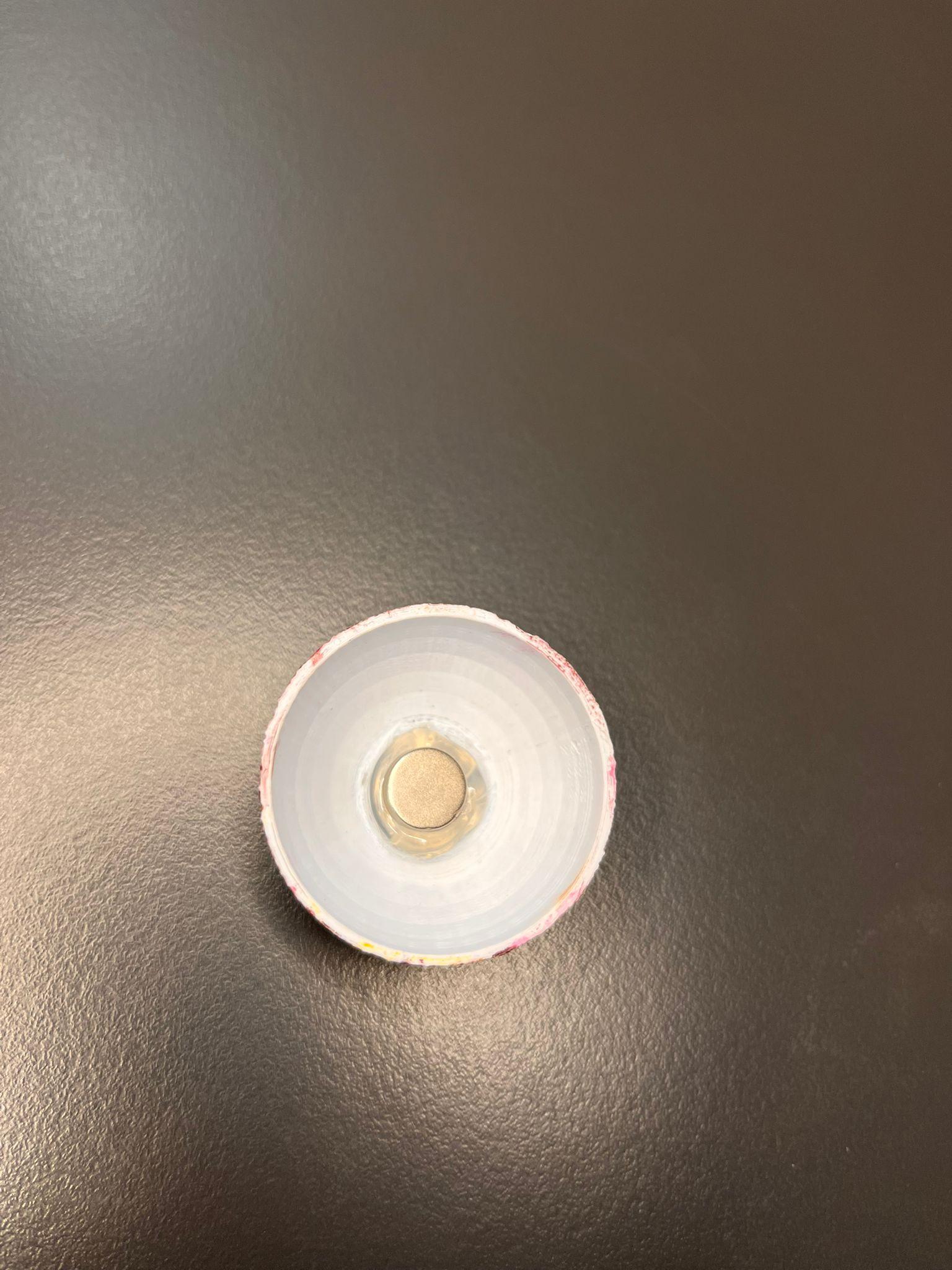

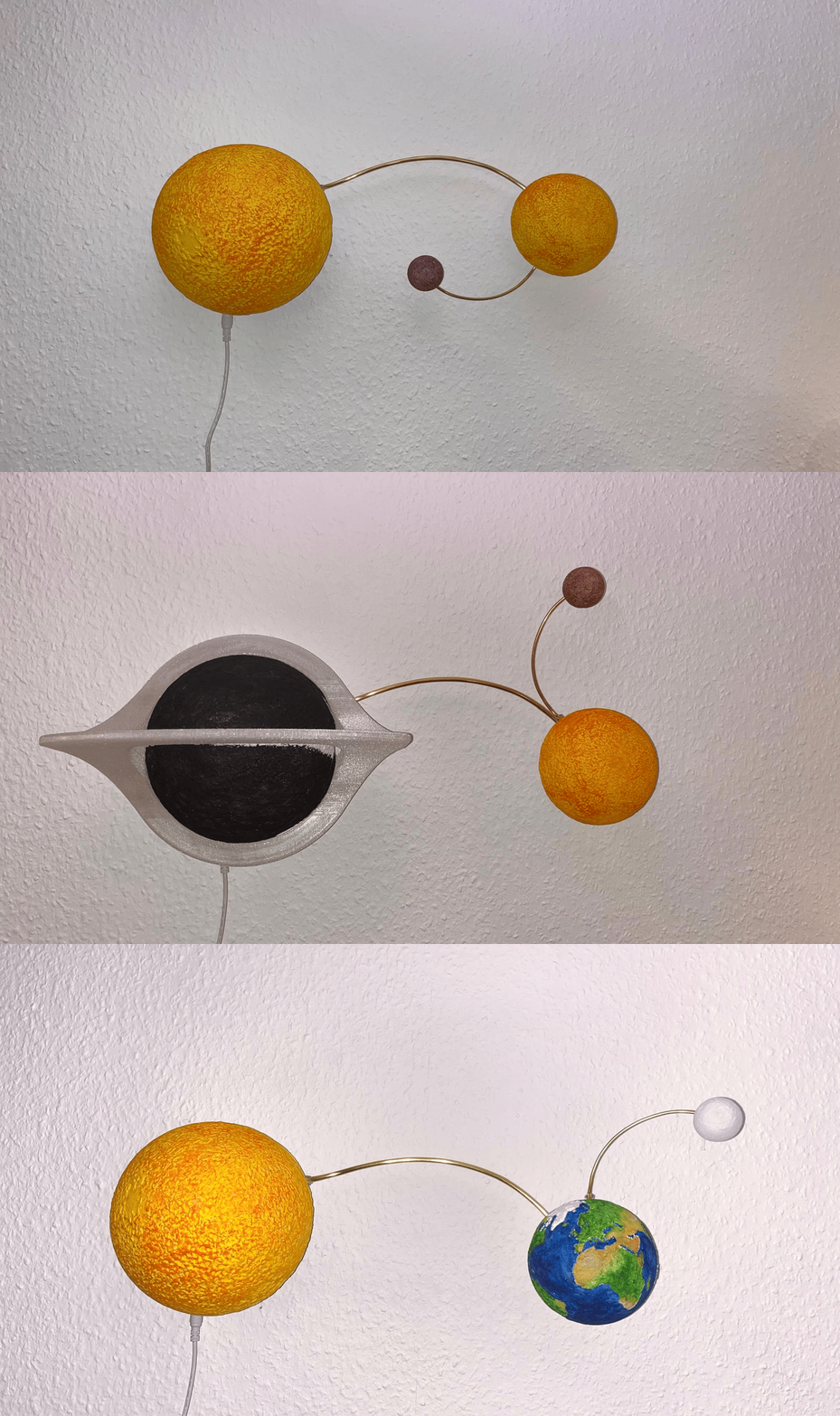
You are ready to customize your clock! Download some planets, print them and have fun with your fantasy! :)
Here some quick tips:
- You can just download any planets you want. I used this ones:
- Just half them in the slicer and print them with as little layer height you can
- Don't worry about screwing up a paint job. With aquarelle, it's super easy: just brush the error with some water and it goes away! :)
- You can use some magnets and/or some 3mm Bearings, glued on the back of your planets to attach them on the clock.
Have Fun!
Done! Enjoy your clock! :)