Making Traffic Light With CloudX
by OgboyeG in Circuits > Microcontrollers
322 Views, 1 Favorites, 0 Comments
Making Traffic Light With CloudX
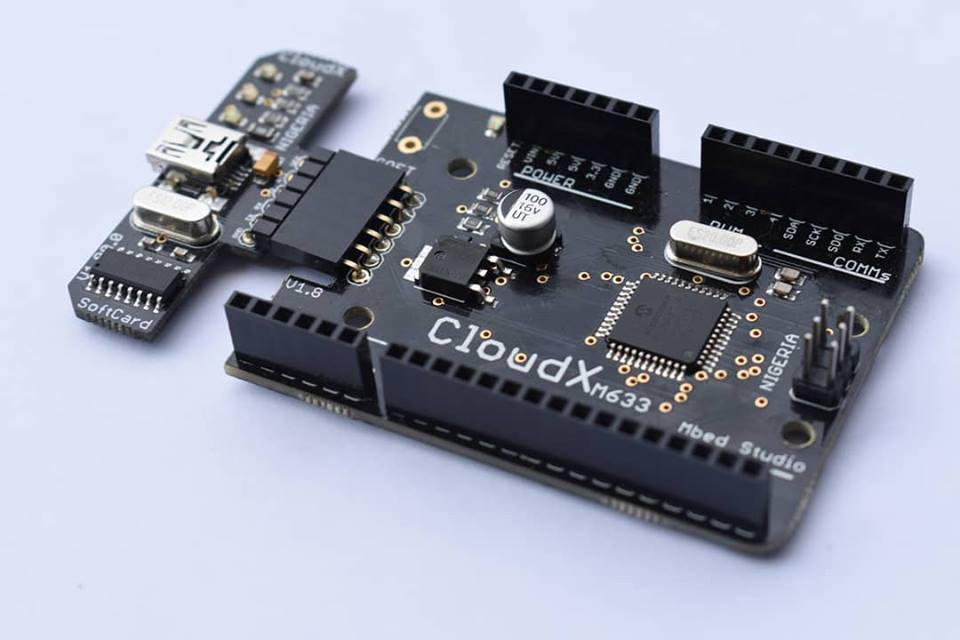
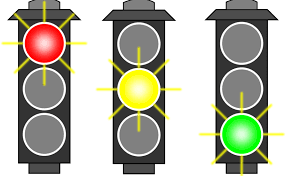
I made this.
FOUR WAY TRAFFIC LIGHT WITH CLOUDX MICROCONTROLLER
Using CloudX development board for traffic control is as simple as ABC; its as eazy as "Every one can do It".
On this project, i have implemented functions in this project for both educational purpose and industrial use. None the less, it is better as a programmer, it helps in debugging. The code is simple to read, modify and implement.
NOTE: for more info on CloudX follow this link
So it goes thus:
/* <br> * File:   main.c
 * Author: Ogboye Godwin
 *
 * Created on June 25, 2018, 12:12 PM
 */
#include <CloudX/M633.h>

#include <CloudX/Serial.h><br><cloudx m633.h=""><cloudx serial.h="">
setup(){</cloudx></cloudx>
int answer,x;
for(x=0; x<32; x++){
answer=answer+x;
}
int dfr;
dfr=x;
loop(){}
}*/
#define R1 pin1
#define Y1 pin2
#define G1 pin3
#define R2 pin4
#define G2 pin5
#define Y2 pin6
#define R3 pin7
#define G3 pin8
#define Y3 pin9
#define R4 pin10
#define Y4 pin11
#define G4 pin12
int active; void blinka(){
if(active==1){
for(int yu=0; yu<10; yu++){
delayms(1000);
Y1 =~ Y1;
Y2 =~ Y2;
    }
}
if(active==2){
for(int yu=0; yu<10; yu++){
delayms(1000);
Y2 =~ Y2;
Y3 =~ Y3;
}
}
if(active==3){
for(int yu=0; yu<10; yu++){
delayms(1000);
Y3 =~ Y3;
Y4 =~ Y4;
}
}
if(active==4){
for(int yu=0; yu<10; yu++){
delayms(1000);
Y4 =~ Y4;
Y1 =~ Y1;
}
}
}
all_off(){
R1 = OFF; R2 = OFF; R3 = OFF; R4 = OFF;
Y1 = OFF; Y2 = OFF; Y3 = OFF; Y4 = OFF;
G1 = OFF; G2 = OFF; G3 = OFF; G4 = OFF;
active=0;
}
all_on(){
R1 = ON; Y1 = ON; G1 = ON;
R2 = ON; Y2 = ON; G2 = ON;
R3 = ON; Y3 = ON; G3 = ON;
R4 = ON; Y4 = ON; G4 = ON;
active=0;
}
road1_go(){
R1 = OFF; Y1 = OFF; G1 = ON;
R2 = ON; Y2 = OFF; G2 = OFF;
R3 = ON; Y3 = OFF; G3 = OFF;
R4 = ON; Y4 = OFF; G4 = OFF;
active=1;
}
road2_go(){
R1 = ON; Y1 = OFF; G1 = OFF;
R2 = OFF; Y2 = OFF; G2 = ON;
R3 = ON; Y3 = OFF; G3 = OFF;
R4 = ON; Y4 = OFF; G4 = OFF;
active=2;
}
road3_go(){
R1 = ON; Y1 = OFF; G1 = OFF;
R2 = ON; Y2 = OFF; G2 = OFF;
R3 = OFF; Y3 = OFF; G3 = ON;
R4 = ON; Y4 = OFF; G4 = OFF;
active=3;
}
road4_go(){
R1 = ON; Y1 = OFF; G1 = OFF;
R2 = ON; Y2 = OFF; G2 = OFF;
R3 = ON; Y3 = OFF; G3 = OFF;
R4 = OFF; Y4 = OFF; G4 = ON;
active=4;
} setup(){
for(int cv=1; cv<13; cv++)
pinMode(cv, OUTPUT);
for(int cv=0; cv<5; cv++){
all_off();
delayms(700);
all_on();
delayms(400);
}
loop(){
road1_go();
delayms(10000);
blinka();
road2_go();
delayms(10000);
blinka();
road3_go();
delayms(10000);
blinka();
road4_go();
delayms(10000);
blinka(); } }
Steps You Should Follow
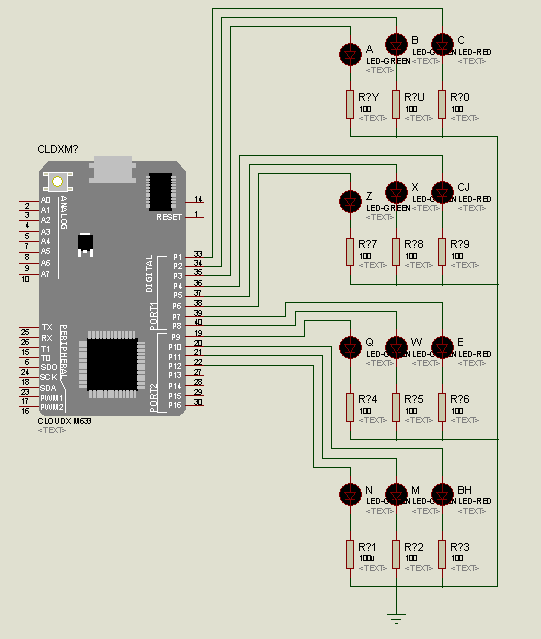
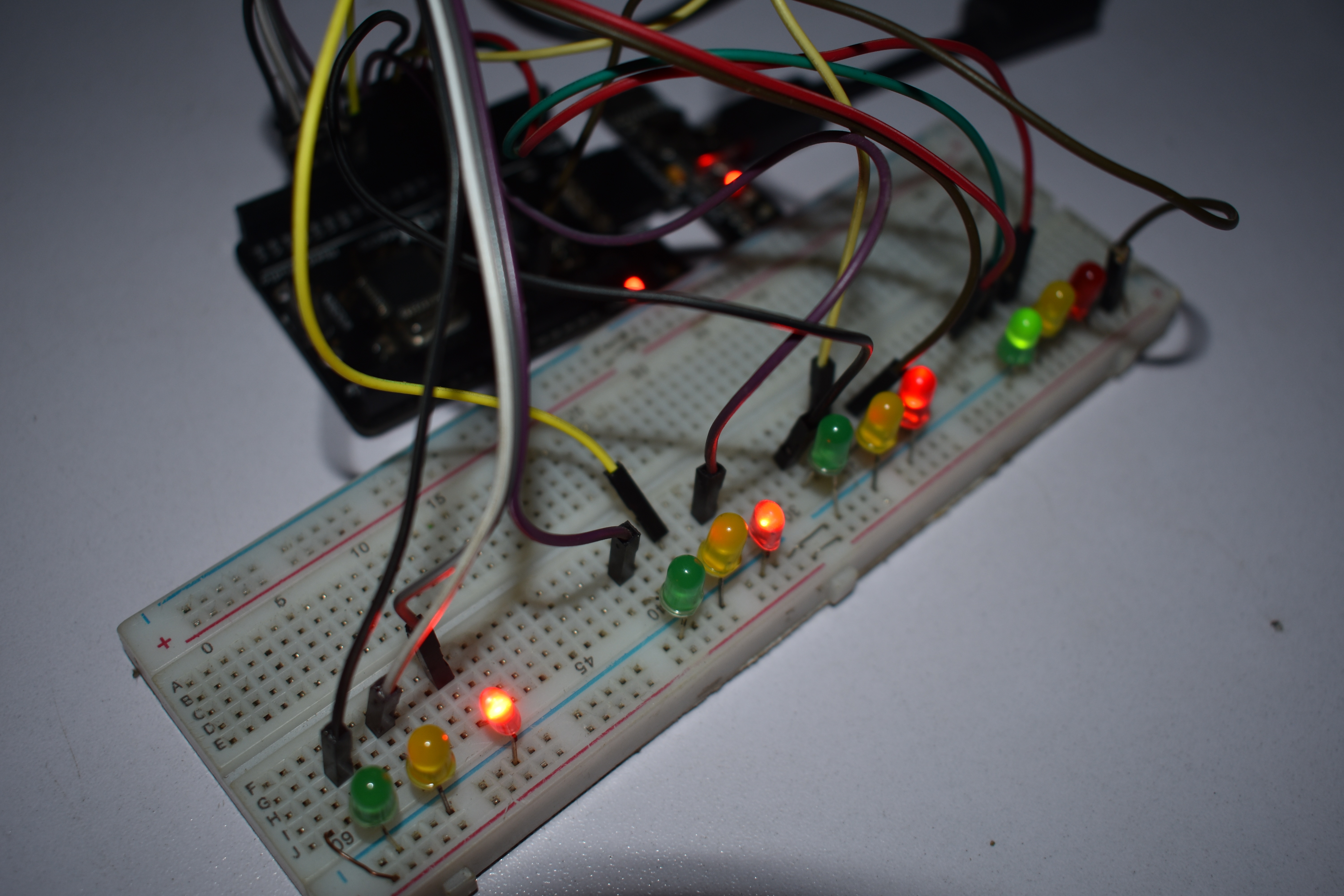
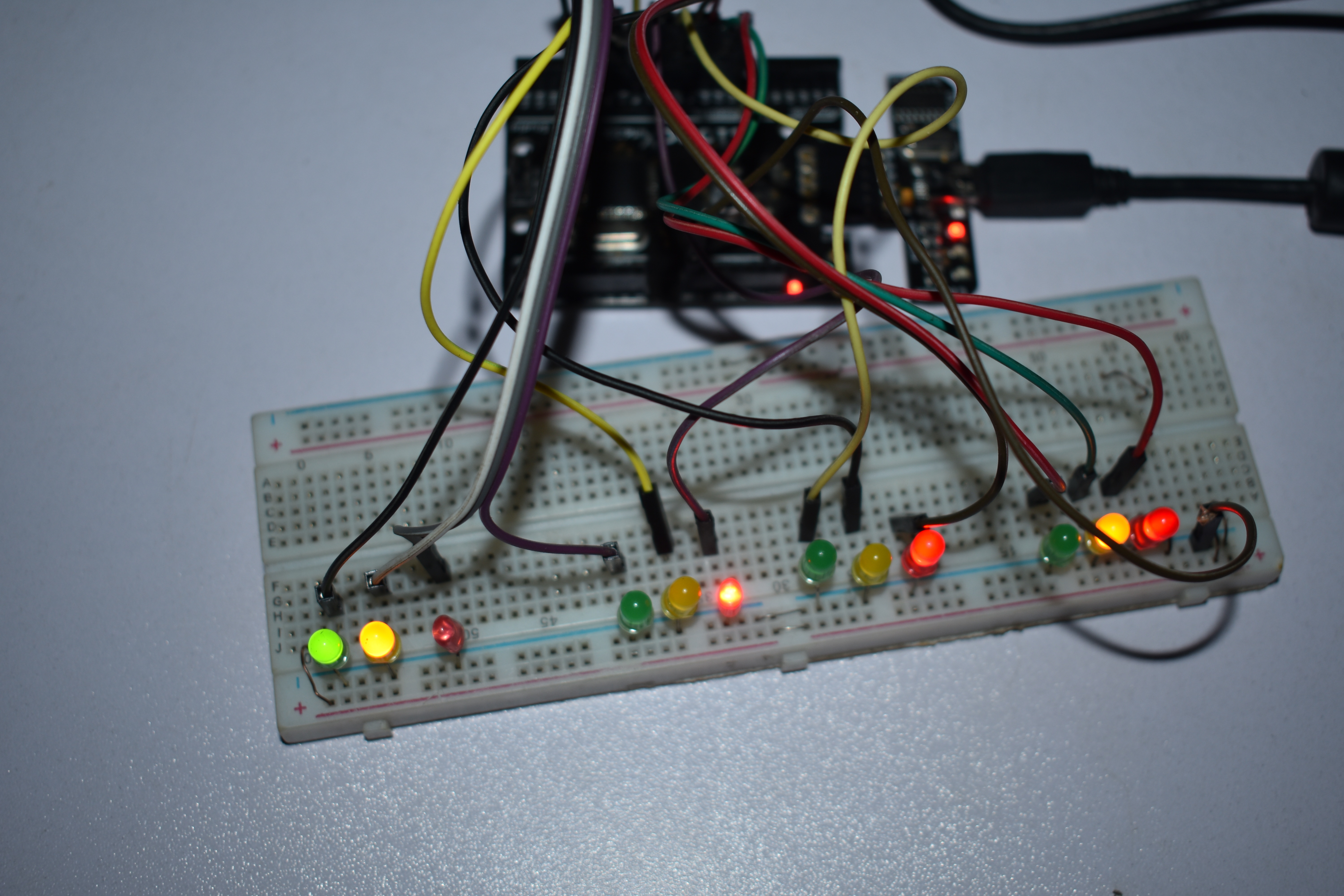
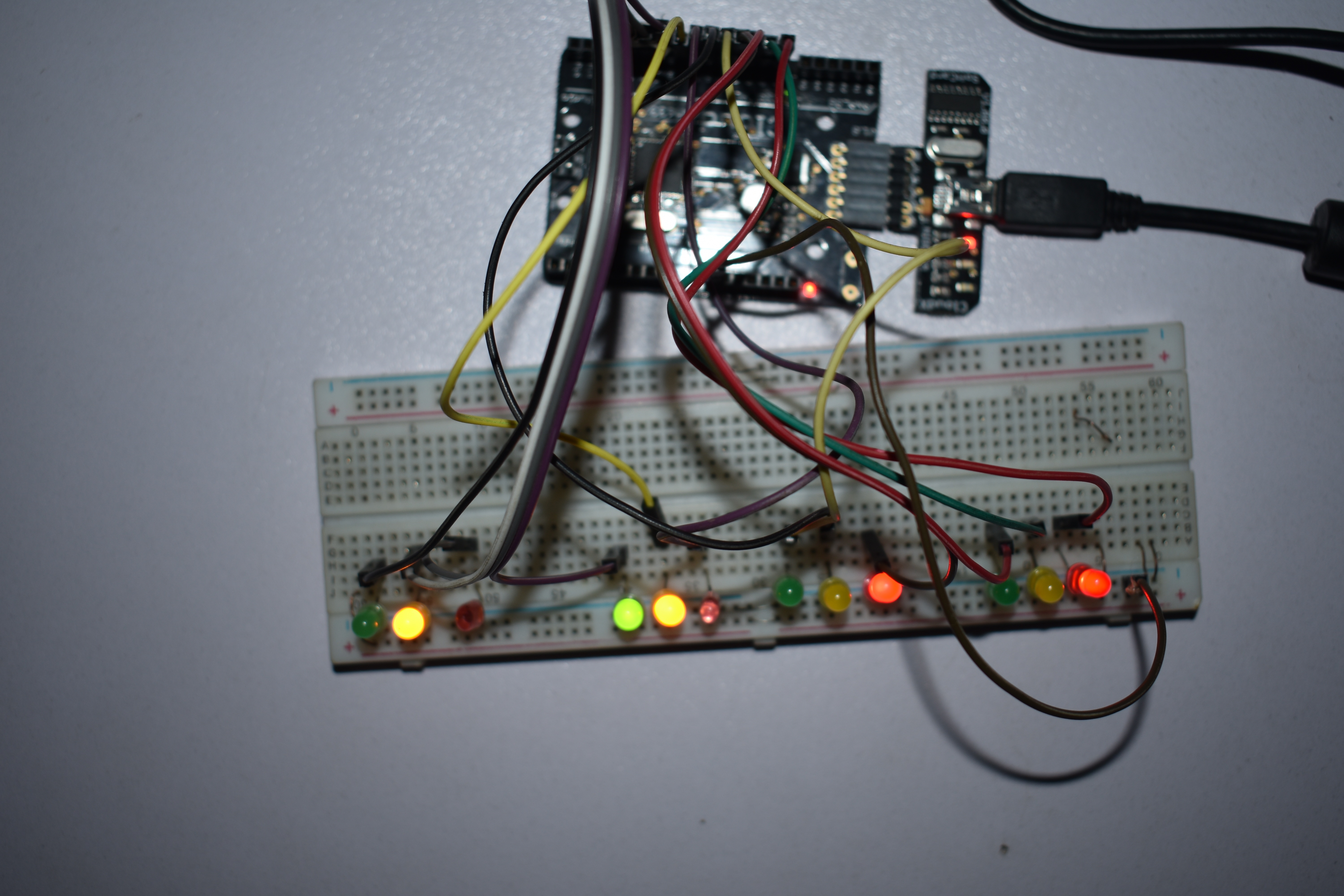
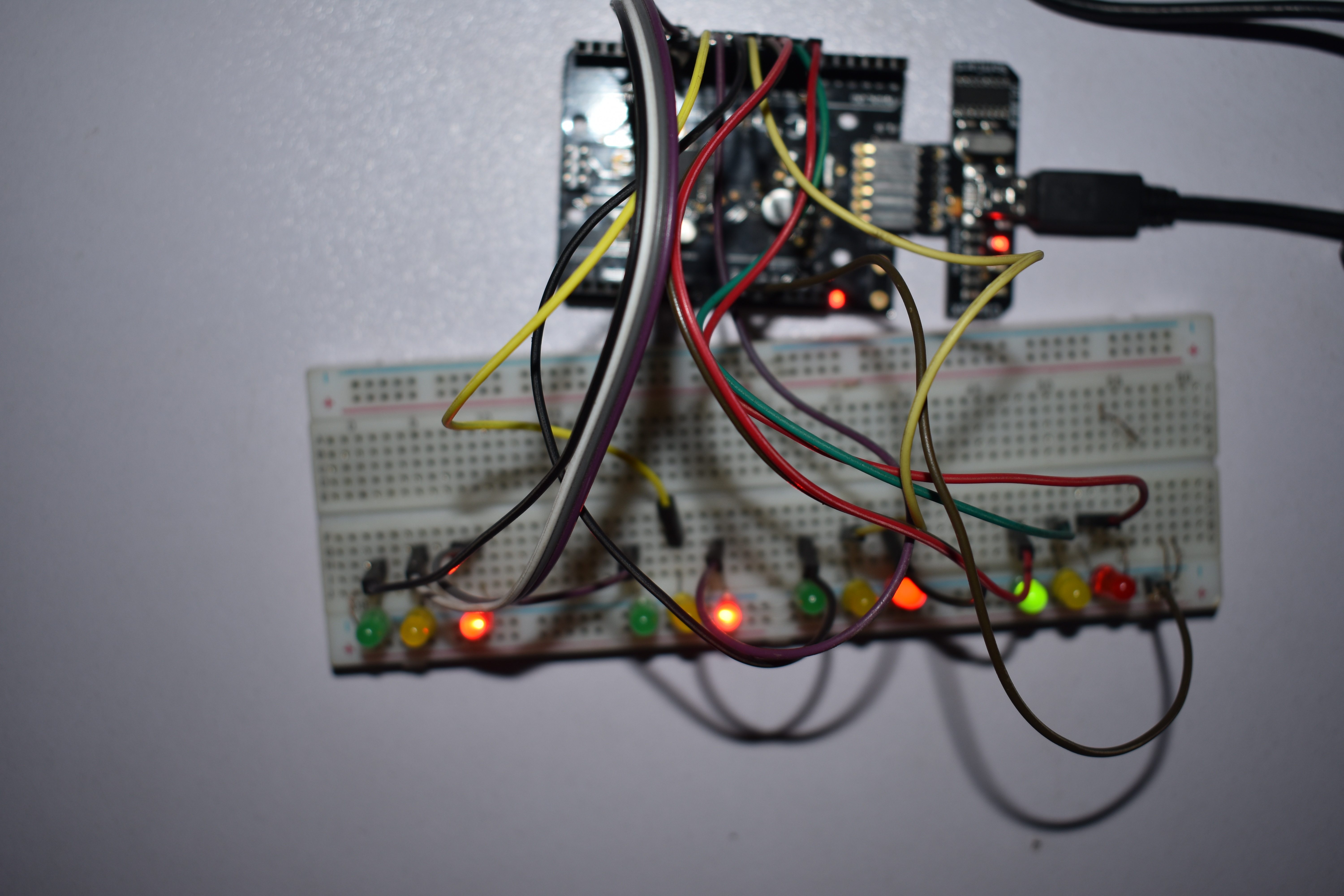
Having your CloudX board and 12 LEDs(4 red, 4 green, and 4 yellow), connect the every thing as shown
1. Open the CloudX IDE,
2. Start a new project with an empty ,
3. copy the above code and paste it into the empty page,
4. compile and upload to your board.