Limelight: DIY Lime-Shaped Presentation Timer With LED Segments
by mrao9 in Circuits > Arduino
46 Views, 1 Favorites, 0 Comments
Limelight: DIY Lime-Shaped Presentation Timer With LED Segments

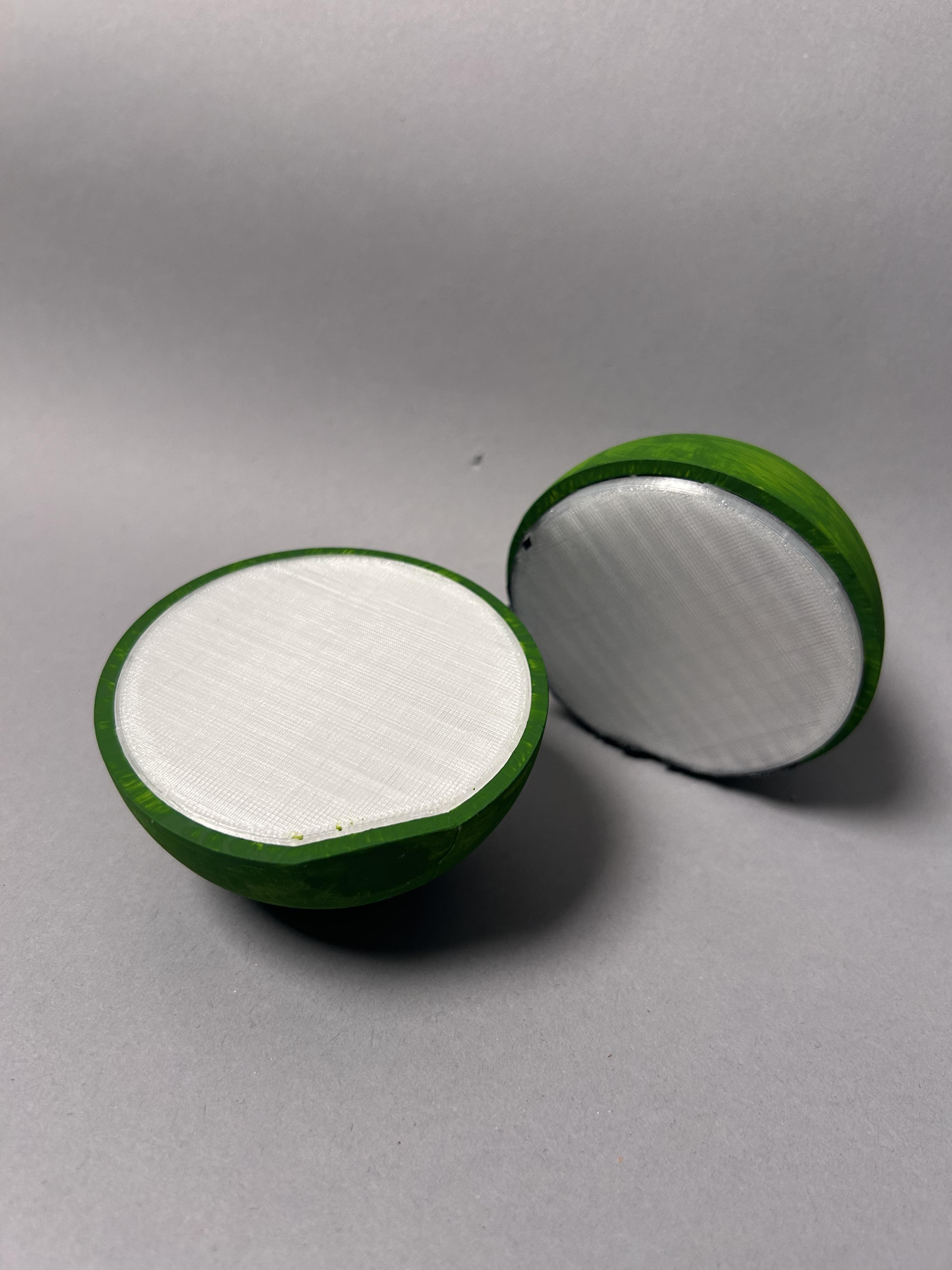


Limelight is a unique, lime-like timing device designed to provide presenters with a subtle, non-distracting way to monitor their speaking time. Sitting quietly on the podium, it communicates time through progressive illumination of its segmented face, using custom NeoPixel Mini Button LEDs. The device is constructed using dual-filament 3D printing: an opaque material forms the structural main body (housing the electronics and internal segmentation), while a translucent filament is used for the display sections, allowing the LED light to shine through with a soft, uniform glow.
The physical design is one of Limelight’s signature features. The timer is split into two halves, held together by tiny magnets, creating a clean, segmented structure. The entire form—including the internal walls that sectionalize each minute segment—is integrated into the single 3D-printed body, ensuring precision and durability. The timer will begin intuitively upon the magnetic separation of the two halves, ensuring a seamless and elegant start to the presentation.
Limelight is designed to be a quiet, professional tool that leverages modern fabrication for a polished aesthetic.
Supplies
Electronics
Gemma M0 Microcontroller
6-8× NeoPixel Mini Button LEDs (One per lime segment)
Hall Effect Sensor (Detects magnetic separation to start timer)
TP4056 Li-poly Battery Charger Module
3.7V Li-Poly Battery
USB-C Breakout board
For this project you will need to install:
Adafruit NeoPixel library
Hall sensor library
Housing
3D Printer
3D Printer Filament - Translucent (White or Green) and Opaque (White or Green)
(If using a white filament, Green acrylic paint is needed)
CAD Software
2 Small Neodymium magnets
Tools
3D printer
Soldering iron
Solder
Super glue (For magnets)
Wire strippers
Wire cutters
Design the 3D Model


We used the Autodesk Fusion 360 Software to model the LimeLight.
Here, we're creating the 3D model of the two hollow lime halves that you'll use to house all your electronics.
A total of 4 parts will be modeled, 2 hemispheres for the outer body and 2 discs with sections that extrude from the face, dividing it into 8 wedge segments. These sections are where your light will separate visually.
The STL file of the 4 parts is below.
3D Print the LimeLight


Use the .stl file to upload the object to a 3D printer. We used the Prusa Mini FDM Printer.
Solder the Electronics


Gemma M0: - 3.3V → NeoPixel Data In - GND → NeoPixel GND, Hall Sensor GND - D0 (or chosen pin) → NeoPixel Data - D1 (or chosen pin) → Hall Sensor Signal - VBAT → TP4056 OUT+ - GND → TP4056 OUT- TP4056: - B+ → Battery Positive - B- → Battery Negative - OUT+ → Gemma VBAT - OUT- → Gemma GND - IN+ → USB-C Breakout VCC - IN- → USB-C Breakout GND NeoPixels: - Chain them: Data Out → next Data In - All share common 3.3V and GND
Solder NeoPixel chain: Connect 8 NeoPixels in series
Attach Hall Sensor: Position near magnet location, solder wires
Wire Gemma to components: Follow diagram above
Connect battery to TP4056: Red to B+, Black to B-
Mount Electronics Inside the Housing

Half A (with Hall sensor):
- Mount Gemma M0 on interior posts with hot glue or screws
- Secure battery with double-sided tape or velcro
- Position TP4056 near the opening for charging access
- Mount Hall sensor near magnet alignment point
Half B (with magnet trigger):
- Install neodymium magnets aligned with Hall sensor
- Secure with epoxy (they must stay in place)
- Lighter electronics load, potentially just wiring pass-through
LED Positioning
- Position each NeoPixel behind its corresponding segment
- Apply electrical tape backing
- Secure with hot glue to mounting posts
- Ensure LEDs are centered
Assemble the Parts


Lock all pieces into their respective positions.
Program the Gemma M0
We want
- the LEDs to light up progressively (at 1-minute intervals),
- the hall sensor to detect separation
- and for the timer to reset when the halves are reconnected
Once the code is pasted into Arduino, upload the code to Gemma and it should start working!
Enjoy Your LimeLight!


Let us know how it goes!
Watch Our Video Instructable
