Laser Oche for Darts USB
by point25print in Workshop > 3D Printing
317 Views, 3 Favorites, 0 Comments
Laser Oche for Darts USB


I created this laser oche to replace my worn dart mat that had split and deteriorated from years of tripping over it and vacuuming around it. A solid raised oche would be a trip hazard, and tape just wasn't a suitable replacement for a proper throw line. This USB-powered laser projector provides a clear, visible line on the floor at the regulation distance without any obstruction or wear issues.
Supplies


Hardware/Fasteners
- 4mm diameter x 20mm long countersunk wood screws (x2) - for wall mounting
- 2.87mm x 11mm long (9mm thread) pan head self-tapping screws (x4) - for assembly
- M6 flange nuts (x2) - for tilt adjustment
- M6 x 20mm long joint connector screws (x2) - for tilt mechanism
Tools Required
Essential
- 3D Printer
- Soldering iron
- Screwdriver to suit wood screws
- Screwdriver to suit self-tapping screws
- Allen key to suit M6 screws
- Tape measure
- Wire cutters or knife
- Heat gun (or hair dryer/paint stripper) for heat shrink
- Multimeter - Critical for identifying USB wire polarity
Optional
- Spirit level
- Power drill and drill bits
- Rawl plugs (for wall mounting)
- Vernier calipers (for measuring drill bits, screws, etc.)
Electronics
- Laser Module: Red Line Diode with Focusable Lens, 650nm, 5mW, 5V (12mm x 12mm x 40mm)
- USB Cable: Any unused spare USB-A cable, approximately 1.2m long (depends on where you plug it in)
- Solder: Light duty hobbyist solder
- Heat Shrink Tubing: 6mm or 8mm diameter
- Insulation Tape: Standard electrical tape
3D Printed Parts (PLA)
- Total Weight: Approximately 78g
- Total Filament: 9.88 metres
- Total Print Time: 6 hours for all 3 parts
- Print Settings:
- Material: PLA
- Infill: 20%
- Layer Height: 0.2mm
- Supports: Required in screw holes on base and box parts
- Parts Printed:
- Lid
- Box/Housing
- Base with tilt mechanism
3D Print the Parts

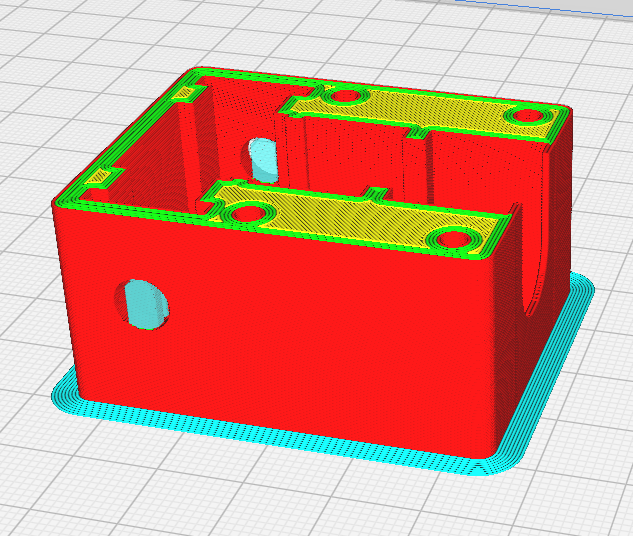
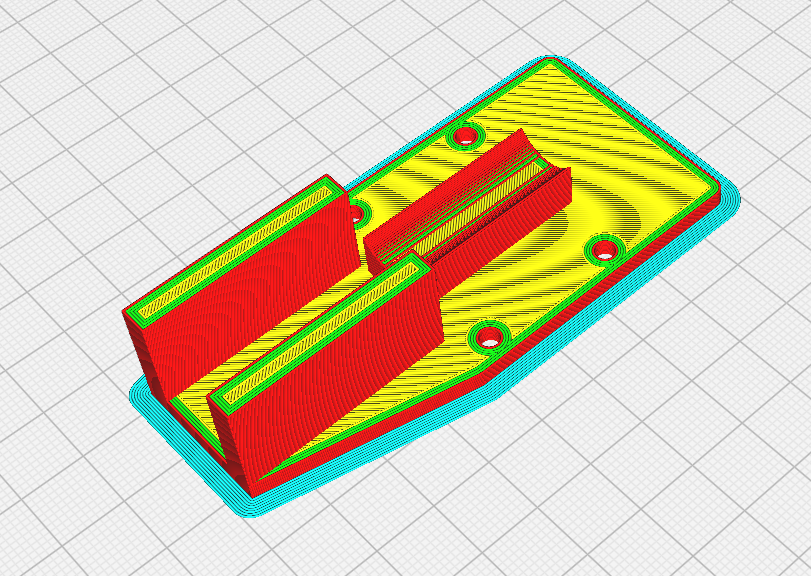
Print the three components using the settings above.
See images for print orientation :
- Lid - Print flat as shown
- Base with tilt brackets - Print with brackets upright
- Box/Housing - Print with the back face down
Important: Enable supports for the screw holes in the base and box parts to ensure clean threads.
Files Available: Download STL and STEP files from Thingiverse: https://www.thingiverse.com/thing:7251011
Prepare the USB Cable & Identify Wires
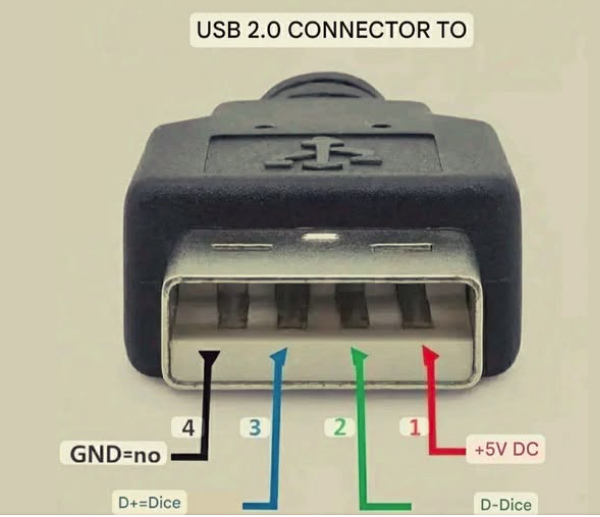
CRITICAL: USB cable wire colors are NOT standardized between manufacturers. You MUST test to identify positive and negative wires.
Understanding USB Pinout:
See the USB pinout diagram image - this shows the correct orientation when looking into the USB-A connector. Make sure you're viewing it the right way up, or pins 1 and 4 will be reversed!
The USB-A connector always has the same pinout when viewed correctly:
- Pin 1 (rightmost): +5V DC - This is POSITIVE
- Pin 2: D+ Data - Not needed
- Pin 3: D- Data - Not needed
- Pin 4 (leftmost): GND - This is NEGATIVE/GROUND
IMPORTANT: However, the wire colors inside your cable may be completely different from the diagram! Manufacturers use varying colors (black, orange, brown, blue, red, white, etc.). You MUST use a multimeter to identify which wire connects to which pin - never assume based on color!
Process:
- Cut off the non-USB-A end of your spare cable
- Strip back the outer insulation to expose the internal wires (you'll typically see 4 wires - my cable had black, orange, brown, and blue instead of the standard colors)
- Use a multimeter to identify which wire connects to which pin:
- Plug the USB-A end into a USB power source
- Set multimeter to DC voltage (20V range)
- Look at the USB-A connector carefully - refer to the pinout diagram image to ensure you're viewing it correctly (not upside down!)
- Carefully probe each exposed wire while looking at the USB-A connector pins
- The wire that connects to Pin 1 (rightmost pin) is your POSITIVE (+5V)
- The wire that connects to Pin 4 (leftmost pin) is your NEGATIVE (GND)
- You can verify by measuring voltage between them - should read approximately 5V
- Mark or note which wires are positive and negative - write it down or label them with tape
- Cut off the 2 unused data wires (the ones connected to pins 2 and 3) - you only need power and ground for this project
Solder Laser to USB Cable
Safety First
Work in a well-ventilated area and avoid breathing solder fumes.
Process:
- Before soldering, slide a piece of heat shrink tubing over the USB cable - long enough to cover your soldering area (you won't be able to add it after!)
- Identify the laser wire colors:
- Red wire = Positive (+)
- Black wire = Negative (-)
- Solder the connections:
- Solder the identified positive USB wire to the laser red wire
- Solder the identified negative USB wire to the laser black wire
- Insulate the joints:
- Wrap insulation tape around one or both of the solder joints to prevent shorts
- Position the heat shrink tubing over both joints and the taped area
- Apply heat using a hair dryer, heat gun, or paint stripper to shrink the tubing and make the connection electrically sound
Test the Laser
BEFORE ASSEMBLY - TEST YOUR WORK
- Aim the laser downwards at the floor or a safe surface
- DO NOT look directly into the laser beam
- Plug the USB cable into a power source (computer, USB wall adapter, power bank)
- Verify the laser projects a line (not just a dot)
- Check that the focusable lens rotates to adjust the line width
If everything works, proceed to assembly. If not, check your solder joints and wire connections.
Assemble the Laser Housing

- Pass the laser diode through the hole on the underside of the box (the 12mm diameter opening designed for the laser body)
- Route the USB cable through the cable exit port in the box
- Roughly focus the laser by rotating the lens - don't worry about perfect focus yet, as the lens will rotate during this step
- Position the laser so it sits properly in the housing
- Attach the lid using the 4x self-tapping screws (2.87mm x 11mm)
- Fine-tune the laser rotation by gently turning the lens through the lid opening to level the projected line horizontally
Attach the Tilt Mechanism
- Slide the M6 flange nuts (x2) into the slots on the sides of the box housing - they should slide into the captive nut slots designed into the printed part
- Position the assembled box between the two upright stays (brackets) on the base - the flange nuts should align with the holes in the stays
- Insert the M6 joint connector screws (x2) through the base bracket holes and thread them into the captive flange nuts in the box
- Don't fully tighten yet - leave them loose enough for adjustment. The M6 screws allow you to adjust the downward angle for aiming the laser
Mount to Dartboard

Positioning:
- Measure 50mm (2 inches) below the dartboard center - this is where your laser oche unit will mount
- Mark the mounting holes for the 2x countersunk wood screws
- Optional: Use a spirit level to ensure the mount is horizontal
- For solid walls: Pre-drill holes and use rawl plugs if needed
- Mount the unit using the 4mm x 20mm countersunk wood screws
Regulation Distances (refer to diagram):
- Dartboard center height: 5'8" (1.73m) from floor
- Horizontal oche distance: 7'9¼" (2.37m) from wall/board face
- Hypotenuse distance (laser path): 9'7⅜" (2.93m)
Adjust and Calibrate

This is where precision matters!
Adjustment Process:
- Plug in the USB cable to power the laser
- Loosen the M6 screws on the tilt mechanism
- Adjust the tilt angle downward until the laser line hits the floor
- Use a tape measure to verify the hypotenuse distance of 9'7⅜" (2.93m) from the dartboard center to where the line hits the floor
- Fine-tune the laser lens focus:
- The focusable lens rotates the line as you adjust it
- Get it roughly focused first
- Make small adjustments to get a sharp, thin line
- Rotate the lens slightly to ensure the line is perfectly horizontal/level
- Once positioned correctly, tighten the M6 screws to lock the tilt mechanism in place
- Verify the line is level - visually check that the line runs parallel to floor tiles/boards or other straight edges on your floor
Tips & Safety Notes
Safety
- Never look directly into the laser beam - even low-power lasers can damage eyes
- Keep the laser aimed downward when testing
- Ensure children understand not to look into or point the laser at faces
- This is a Class 2 laser (5mW, 650nm) - safe for brief exposure but avoid prolonged viewing
Usage Tips
- The USB power means you can plug it into a PC, laptop, or USB wall adapter
- Cable length should reach your nearest USB power source - 1.2m is usually sufficient
- Consider cable management - use clips or ties to keep the USB cable tidy
- The laser is always-on when powered - use a switched USB hub if you want easy on/off control
- PLA is suitable for indoor use but avoid direct sunlight which can soften the plastic
Maintenance
- If the line becomes dim, the laser may be reaching end of life and should be replaced
Troubleshooting
- No laser output: Check USB power connection, verify voltage with multimeter, check solder joints
- Line is not level: Rotate the focusable lens slightly to adjust the line orientation
- Wrong distance: Adjust tilt mechanism angle
- Line too wide/narrow: Rotate the focusable lens
- Flickering: Check for loose connections or poor solder joints
Files & Downloads

3D Print Files on Thingiverse: https://www.thingiverse.com/thing:7251011
Includes:
- STL files (ready to print)
- STEP files (for customization in CAD software)
- Print orientation reference images