How to Setup a Wi-Fi Network
by TravisP20 in Circuits > Wireless
1929 Views, 9 Favorites, 0 Comments
How to Setup a Wi-Fi Network

.
Downloads
What You Will Need to Complete the Setup Process:

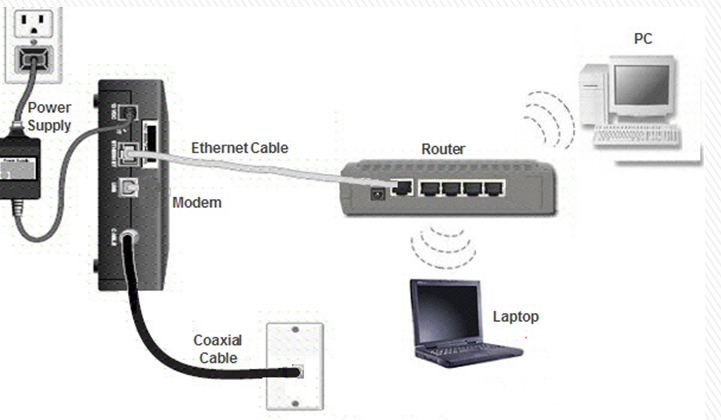
Connect the Coax Cable From the Wall Jack (located in the Coax Wall Plate) to the Modem.

Using the Ethernet Cable, Connect the Modem to the Wireless Router.

Connect the Router’s Power Adapter to the Router, and the Modem’s Power Adapter to the Modem. Now Plug Them Into the Wall.

Turn on the Computer and Locate Your Web Browser. Go to Www.google.com to Verify You Have Internet.


There Are Two Methods to Set Up the Router.

You can use the WIFI setup disc. If so, skip to step 7.
OR
Visit the routers website, which is the preferred method.
Log into the router by entering 192.168.1.1 in the web address field of your internet browser. If you are prompted to enter a user name and password, enter admin for both.
In the Wireless Name (SSID) field enter the name of your router - a name of your choice.
In the WPA-PSK key field enter a password of your choice.
Make Sure the Firmware Is Up to Date. to Do This Check the Top Right of the Page. If You See a Yellow Exclamation Point, Click That and Then Click “update Now.” a Box Will Ask You to Confirm - Click “OK.”


You Should See a Loading Bar With an Estimated Time. When the Update Is Finished, You May Be Asked to Log Back In. If So, Please Log In. Now Check to See If the Yellow Exclamation Point Is Gone. If It Is Gone, There Are No Other Updates.


Insert the Setup Disc Into Your Computer and Follow the on Screen Instructions to Set Up Your Wi-Fi Network.

Log In


Once you have setup your router and you have updated your settings, you are ready to log into your wireless internet.
At the bottom right of your computer you will see an icon that looks similar to a bar graph with an “x” – Click on the icon.
In the list of wireless networks, find the one with the name that you selected during your setup. Click on that and click connect.
If you made up a password then you will be requested to enter it. Enter the password and click “OK.”
Note: You can check the connect automatically box so you don’t have to log into the internet every time.
When You’re Done Setting Up the Hardware It Should Look Like This.