Girl Relaxing in the Pool


I spent a whole day creating a small animation in Blender of a girl relaxing in the pool.
While it is currently winter in the northern hemisphere, with snow outside, I'm missing summer. Sitting outside, soaking in the sun while floating in a pool, lake, or the ocean.
So I created this animation to help cope.
Supplies
.png)
.png)
For this project, I used Blender 5.0 and After Effects
Blender is completely free and open-source, while After Effects is a paid program. However, there are many free editing programs that can be used as alternatives.
Inspiration


The look I'm going for is similar to the low-poly style of the early 3D Pokémon games. Additionally, this artist, @Priichu (pictured on the right), creates low-poly models with flat, stylized 2D textures.
I don't usually create any concept art and prefer to change is as a go along and just go from the vision in my mind
Model Guidelines


I imported this guideline into blender
It's important to remember when modeling a person that their height is usually 8 heads tall.
Torso


Using a cube, I deleted the top and bottom faces and started to make a basic torso
Legs


using similar methods as the torso, I created the legs, however, I used a mirror modifier to make both legs at the same time
I know I want to keep the model simple and low-poly, so I won't model any detailed toes.
While working throughout, I keep tweaking the torso as well
Make sure you work on both the front angle and the side angle
Arms


using the same idea as the legs, I made the arms; however, I didn't follow the guideline because I knew I needed to rig this model, so I left it in an A pose
I know I want to keep the model simple and low-poly, so I won't model any detailed hands or fingers.
Head


Now here is the hard part: modeling the head
I created a side guideline using the grease pencil and started to model it. I continue to tweak the shape throughout modeling and ensure that I don't work in one view for too long.
I knew I would draw on the eye texture and create a 2D blink, so I didn't need to model eye holes or a detailed, complex mouth.
Additionally, I created a sphere for the back of my head to follow loosely.
Final Model

This is the final model, ready to be textured and rigged
Head Texture


For the textures, I started with a simple solid color base for all parts
For the hea,d I had to UV unwrap it and then drew out a guide with grease pencil and followed that
Hair


After brainstorming for a bit, I decided to create a plane for the hair
I started with a very low-poly plane that roughly made the shape, and then I beveled it with Ctrl + B and made it smoother
The black and white image is an alpha map, which helps create light and streaky hair without me needing to model it intensely
I copied this idea to the other areas of the head.
Swimsuit


For the swimsuit, I duplicated the torso and made an alpha texture to erase certain areas, creating a swimsuit shape without needing to edit the model
Blink Expression


For the blink animation:
I copied the eye area from the head
created a unique texture for it
created a shape key that hides the eyes, and another shape key to position it on top of the head.
Creating a blink effect
Rigging


For the rig, I used the free Blender addon Rigify and deleted certain parts of the rig, such as the face and hands.
Then I used automatic weight painting for the model
Pool Model and Texture


To create a basic pool, I created a cube, sized it to be shallow, and pressed E to extrude the top face down to create a dip
Then, I added a brick texture from Blender's built-in texture library to create the tiles in the pool
Pool Water Set Up


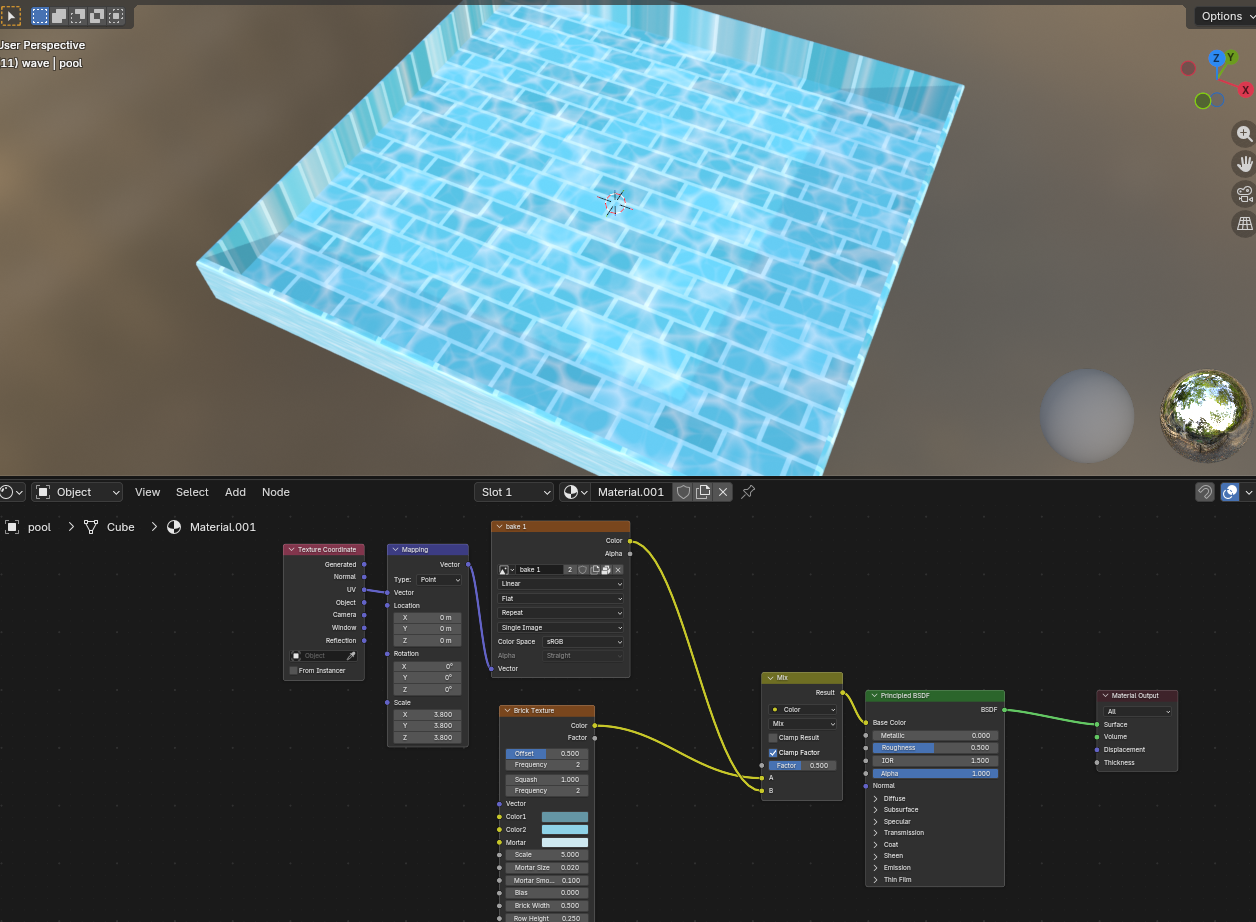


For the water, I created a plane, created this texture setup with a Voronoi texture and a mix color node to create a marbling water look
I then used Blender's built-in ocean modifier to create the waves.
To animate the waves, I keyframed the time box. Ensure that the keyframes are set to linear to have them move at a consistent speed.
Movement


Parent an empty to a vertex on the water,
Then I will make a child of constraint on the girl and the floatie connected to the empty, and they will follow the wave motion
Donut Floatie


The donut floaty is a very simple torus model, with a painted donut texture applied to the model.
I created 3 different textures to make a non-destructive workflow. a solid color texture, a shadow, and a light.
Pose

At this point, I pose the model
Blink Expression

create shapekeys for the blink and animate the sliders to create a blinking animation
Hair Movement

After struggling with a few different solutions, i decided to use a lattice to easily and simply move the hair 'in the breeze' using shapekeys on the lattice
Water Droplets

Using spheres with transparency and a blue color as makeshift water, I had animated small beads of water on the donut and the girl
Render

final render from blender
Post-editing in After Effects


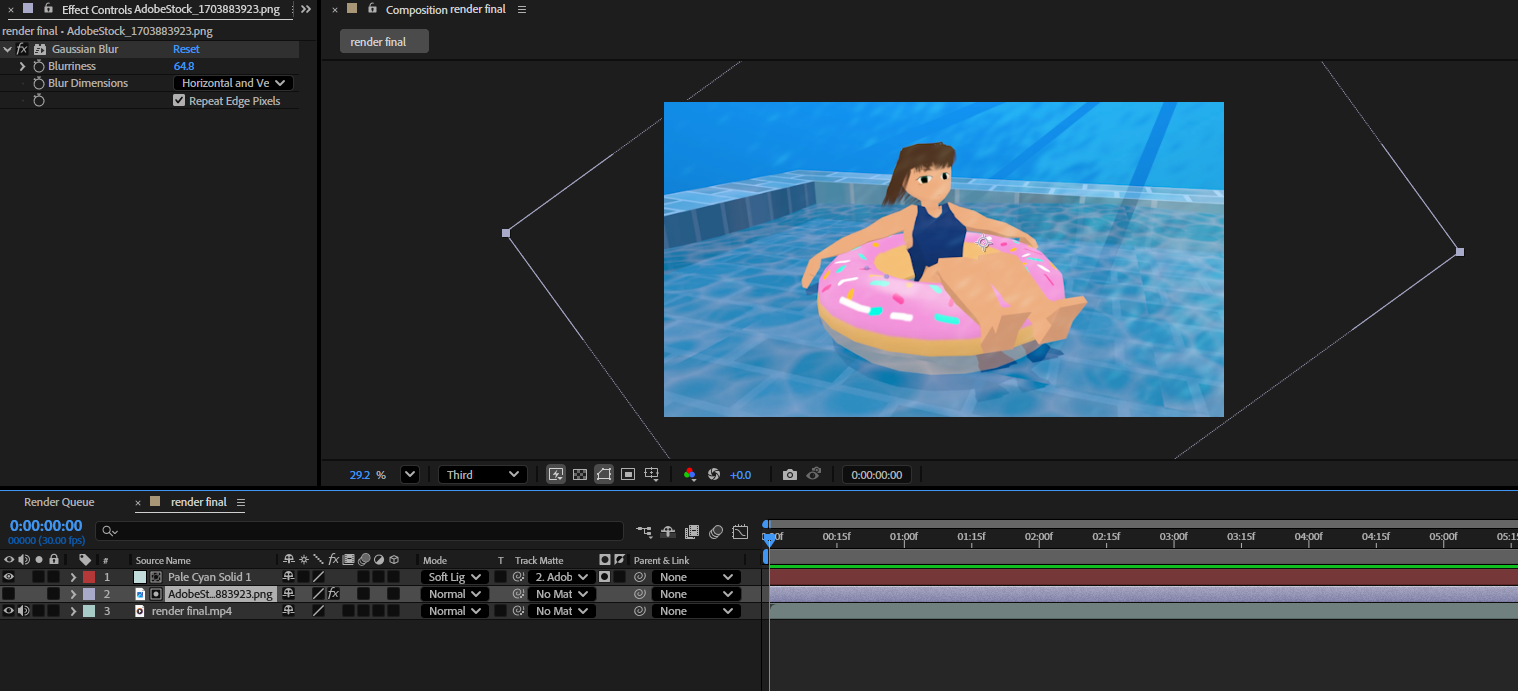

Using After Effects, I utilized an Adobe Stock image I had on hand and applied some masks to create light streaks.
I then created a white solid layer and added circular masks to create light areas, adding depth.
Final

After all that hard work, it is done!