Digitial-Analog Desk Clock (Alarm Clock)
by Edisonqk in Circuits > Clocks
3966 Views, 47 Favorites, 0 Comments
Digitial-Analog Desk Clock (Alarm Clock)


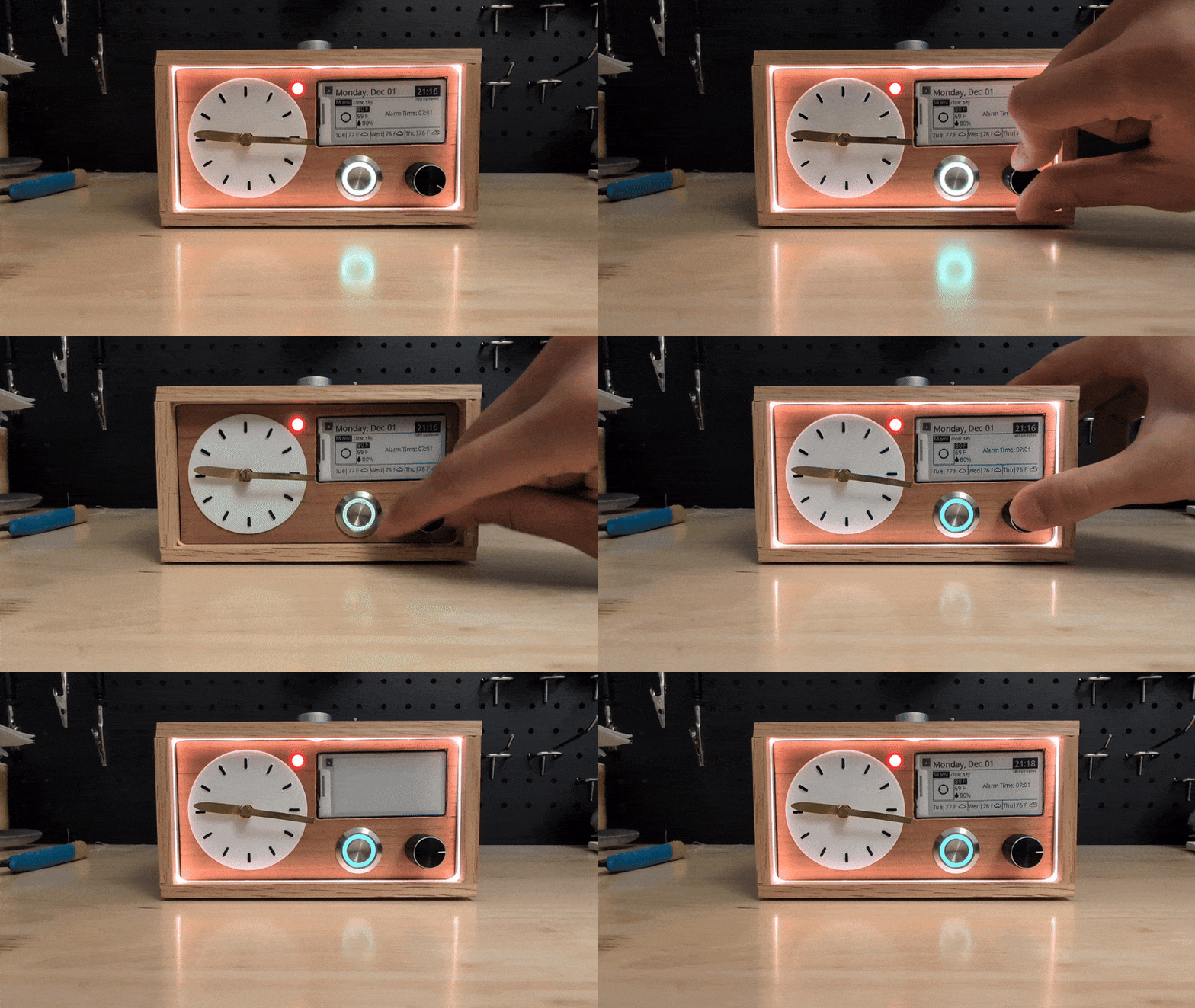
Integrating modern technologies with natural aesthetics, I have designed an Analog Alarm Clock with an E-Paper display to show weather forecasts, entirely driven digitally. That means, in theory, it should not experience any clock drift! I initially intended to use this as an alarm clock on my nightstand so I added a LED Noodle and latching RGB button (indicating alarm is active) dimmable by the Encoder, to see in the dark.
The weather forecast uses a free API from https://openweathermap.org/api and updates every hour, but you can update it manually by short pressing the Encoder Button. There is plenty of unused space on the e-paper for any additional APIs or custom information!
The clock is fully disassemblable making it easy to repair should any of the components fail.
Modes:
By long pressing the Encoder Button, you can enter “calibrate mode”, whereby turning the Encoder you can move the hands of the clock to 00:00 | 12:00, or manually set the clock hands to 00:00 | 12:00. Then by long pressing the Encoder Button again, it will return to "idle mode" automatically displaying the real time after calibration.
By long pressing the Snooze Button, you can enter “set alarm mode”, whereby turning the Encoder, you can move the hands of the clock to whatever time you want to set the alarm to, then by long pressing the Encoder Button, it saves that time as the alarm time, then automatically returns to "idle mode" displaying the real time. Alternatively you can always set the alarm time in the code.
When the alarm goes off, short press the Snooze Button to snooze the alarm for 5 minutes, and long press to turn it off. If the RGB button is still on, the alarm is still ‘active’ and will trigger the next day. In addition, if the alarm goes off for 10 minutes uninterrupted, the alarm will automatically turn off for the day. Snooze duration can be modified in the code.
Supplies

I had the Adeept RFID Starter Kit for Raspberry Pi, so most of the components came from there. I will denote those materials with a *
Materials:
Raspberry Pi Zero 2W
PiSugar 2 (Optional)
2.13inch E-Ink display HAT for Raspberry Pi
5mm Axel rod (can substitute with a 5mm nail)
(30mm x 70mm) perfboard
*330Ω Resistor
*Square tactile button and cover
*Active Piezo Buzzer
*1N4001 Diodes (2)
*Diffused 5mm Led - PM indicator
*Female Breadboard jumper wires
Solid core 22g Wire
M3 8mm Screws (5) and two nuts
1/ 4” wood plank (wood case)
1/ 8” wood sheet (clock face and back)
Tape
Wood Glue
Pin headers
Tools:
Solder iron and accessories
Circular saw
3d Printer
Jewler's saw
Dremel
Sandpaper/Files
Pliers
Making Wood Case Pt.1


Using the circular saw, cut the board to the desired depth dimensions (I did 80mm). Then cut a slot down the length of the 1/ 4” board as a slot for the LED Noodle to fit into (should be snug).
Then cut the board into the top, bottom and side panels.
Making Wood Case Pt.2


On the top panel, drill a hole where the snooze button will be (3d print clock frame and assemble upper perf board first) then carve a path to the hole (so that you can slide the whole clock into the frame) and carve a small slot from the LED Noodle slot to the path (to feed the LED Noodle into the clock)
Tape the edges of the panels, apply a thin layer of wood glue and glue the frame together (i would keep the plastic frame inside to make sure it will still fit later). Wait to dry, and sand as needed.
Upper Perf-board


Using the 30mm x 70mm pcb, solder the square tactile button, 1N4001 Diodes and 330 ohm resistor as depicted in the diagram.
On the Bottom of the same pcb, solder the active piezo buzzer and pin headers as depicted in the diagram.
Make sure nothing is higher than the square tactile button, otherwise it may interfere when sliding into the wood case.
Make sure when you put the perfboard into the clock frame, and the clock frame into the wooden case, the square tactile button aligns with the hole in the top panel.
Print 3d Files


Print the 3d Files.
I would reccomend printing the gears separate from the main clock frame.
I would reccomend atleast a 15% infill on the clock frame, and 20% infill on the gears.
For Gear0 which connects directly to the stepper motor, I did 100% infill
File any ridges in the gears as any additional friction can impact the rate at which the clock hands turn and lead to inaccurate time readings.
ChromaTek RGB Button


Connect ‘c’ to ‘4’ to share ground. Strip and solder solid core 22g wire to ‘1’, ‘2’, 'NO' and the combined ‘gnd’.
You can then hook up the female jumper wires or solder to the female jumper wires
Rotary Encoder Button
I connected the Rotary Encoder Button to a small perfboard cut to size. Connect the GND together and add either header pins or solid core wire and female jumper wires leading from the GND, SW, CLK, and DT.
you could also just directly connect female jumper wires to the legs of the Rotary Encoder button and keep the ground separate. I didn’t observe any problems connecting the grounds, but you could keep the separate as well, there should be unused ground pins.
LED Noodle

I soldered solid core wire to each end of the LED Noodle, for additional length, and also to make it easier to thread the ends through the clock mechanism later.
Clock Hands and Axels


Cut 2 thin strips from the metal sheet (1 for the clock minute hand, 1 to fashion a locking pin)
Cut an “L” shape from the metal sheet, and curl one side into a tight circle using pliers and bend the other up to be the hour hand. either cut or dremel the hour hand to shape
From the 5mm diameter rod, cut into 2 ~35mm sections, and on one of them, cut down the end to hold the minute hand in place using the Jewler's Saw. Put the minute hand into the cutout in the axel, and solder in place.
Clock Assembly Pt.1


Slide the stepper motor into place and secure it with M3 screws and nuts.
On the clock face board, put the chromatek RGB button in place, thread the wires through the clock frame, through the Chromatek nut, then up through the wire bridge.
Thread the wires of the e-paper and Rotary Encoder through the clock frame (not through the clock face board), and up through the wire bridge. You can also screw the ULN2003 stepper driver board in place with one of the M3 screws (not all the way through, just enough to keep in place)
Clock Assembly Pt.2


Press G0 gear directly onto the stepper motor and slide G3 gear down through the front
Slide the 5mm diameter axel through the hole to the side of the stepper motor, through the G1/2 gear. Make sure it hits the other side of the clock frame. It should be slightly loose, because if the tolerance was too tight, it could drastically increase friction and the stepper motor has low torque. Lock in place with the thin strip of metal and bend until it cannot be shook loose.
Clock Assembly Pt.3


Add the bearing to the front of the clock frame over the G3 gear tube and the PM Diffused LED (cathode on the right), then secure the clock face board to the clock frame via the Chromatek nut and Rotary Encoder nut.
Bend the legs of the diffused PM led upwards and guide it through the upper Perfboard module. Bend the cathode so it is in proximity to the 330 ohm resistor, bend the anode so it is in proximity to the ground diode, and solder the connections.
Clock Assembly Pt.4


Connect female jumper wires to Perfboard module header pins and guide through wire bridge. Connect the 28BYJ-48 stepper motor to the ULN2003 driver module and connect female jumper wires on the ULN2003 driver module ‘IN1’, ‘IN2’, ‘IN3’, ‘IN4’, ‘-’, ‘+’. Screw the Raspberry Pi Zero2w along with the Pisugar2 using the screws provided by the Pisugar2
Connect all of the female jumper wires to the Raspberry Pi Zero2w
Attach the hour hand to the G3 gear protruding from the clock face board, and insert the minute hand rod into the G3 gear, making sure a good connection with the G0 gear.
Clock Assembly Pt.5


Embed the LED Noodle into the wood case, with the ends lining up in the middle of the top panel of the case
Slide the clock frame into the wood case then thread the ends of the LED Noodle through the front and connect them in the back to female jumper wires and to the Raspberry Pi.
Clock Assembly Pt.6


Align the clock frame within the wood case so that the square tactile snooze button is aligned to the hole in the top panel of the wood case, and attach the button cover. You can also attach something larger to the plastic button cover so long as it does not dig too deep into the button. I had an adjustable desk foot laying around which I attached to the plastic button cover.
Then add the back panel to the clock and fix with screws.
Raspberry Pi Zero2W OS
when flashing the OS onto the SD card for the Raspberry Pi Zero2w select
Raspberry Pi OS (Legacy, 32-bit) Debian Bookworm.
Raspberry Pi Zero2W Setup
Configure Raspberry Pi Zero2W Settings
SPI must be enabled for the e-paper to work, and GPIO.board.d18 for neopixel
select interface options >
SPI >
Enable>
then exit
go to line dtparam=audio=on, and either delete or comment out by putting '#' in front of it
save and exit, the sudo reboot
Copy and Edit Files

copy and paste the files from github, make sure they are run directly in the user folder, just one below home
obtain an API key from openWeather, and put your unique key into the f_update.py file at line 120, as well as your city name, your prefered units 'imperial or metric', and your exact latitude and longitude where it says 00.00 and 00.00
Set Main.py to Run on Start Up
copy and paste this file
reload systemd to apply new file
enable system to run at boot and start manually, and you're all done!