Cuckoo Peek-A-Boo Desk Clock Organizer
by creativebythecreek in Circuits > Arduino
50 Views, 1 Favorites, 0 Comments
Cuckoo Peek-A-Boo Desk Clock Organizer


For years, I’ve been fascinated by the charm of traditional cuckoo clocks, the intricate mechanisms and the joyful moment when the little bird emerges. That fascination slowly turned into a personal goal: to build one myself. Over time, the idea evolved and with 3D printing, electronics, and programming. Bringing this modern-meets-classic cuckoo clock to life and the build reflects that journey combining handmade craftsmanship with custom-designed parts using 3D software (Plasticity), a real-time clock module, a servo-driven bird, and a display that keeps time with precision. It’s a project that represents both nostalgia and innovation, and finally seeing it come together has been incredibly rewarding.
Supplies


• Raspberry Pi Pico
• DS3231 RTC module
• OLED (SSD1306/SSD1309)
• Micro Servo 9g (SG90 or MG90S)
• TTP223 touch sensor for time-setting
• Wires (male-female jumper)
• 2 - Wago Lever Nuts (Used for the Ground and the Hot Wires)
• Hot glue (I used black)
• CA Glue to attach bird to linkage arm
• USB Cable for Raspberry Pi Pico
Components & Equipment

I used the Bambu X1C to print all the parts for the Cuckoo Clock. Arduino IDE for the code to flash to the Raspberry Pico Pi.
3D Printing
Print 1: Clock Body (Main Housing)
- Contains: bird opening, display window, button holes
- Use supports only around the bird tunnel
Print 2: Cuckoo Bird
- Print upright
- No supports
Print 3: Servo Mount Tray
- Holds the micro servo
- Print with supports
Print 4: Bird Linkage Arm
- Small piece that attaches to servo horn
- Print flat for strength
Print 5: Back Cover
- Push on the back of the main body
Print 6: Pen Holder and Phone/Organizer
- Optional to print but adds to the design
Downloads
The Code
Code to Copy and Paste in Arduino IDE:
#include <Wire.h>
#include "RTClib.h"
#include <Adafruit_GFX.h>
#include <Adafruit_SSD1306.h>
#include <Fonts/FreeSans24pt7b.h>
#include <Servo.h>
// -------- OLED (SSD1309 in SPI mode) --------
#define SCREEN_WIDTH 128
#define SCREEN_HEIGHT 64
#define OLED_MOSI 19 // GP19
#define OLED_CLK 18 // GP18
#define OLED_DC 16 // GP16
#define OLED_CS 17 // GP17
#define OLED_RESET 20 // GP20
Adafruit_SSD1306 display(SCREEN_WIDTH, SCREEN_HEIGHT,
OLED_MOSI, OLED_CLK, OLED_DC, OLED_RESET, OLED_CS);
// -------- RTC --------
RTC_DS3231 rtc;
// -------- Servo --------
Servo birdServo;
#define BIRD_SERVO_PIN 13
const int BIRD_DOWN = 0;
const int BIRD_UP = 170;
// -------- Touch Sensor (TTP223) --------
#define BUTTON_PIN 12
// Modes for clock
enum ClockMode {
MODE_NORMAL,
MODE_SET_HOUR,
MODE_SET_MINUTE
};
ClockMode mode = MODE_NORMAL;
// Time-setting working values (24-hour)
uint8_t setHour = 0;
uint8_t setMinute = 0;
// For auto-cuckoo
int lastCuckooHour = -1;
// For display refresh (minutes only)
int lastMinuteShown = -1;
// Touch handling
bool lastTouchState = false;
unsigned long touchPressStart = 0;
const unsigned long LONG_PRESS_MS = 800; // ms threshold for long press
// -------- Function Prototypes --------
void updateClockDisplay(uint8_t hour24, uint8_t minute, const char *label);
void birdPopOnce();
void birdCuckooForHour(uint8_t hour24);
void handleShortPress();
void handleLongPress();
void setup() {
Serial.begin(115200);
delay(2000);
// ------------- RTC Setup (I2C on GP4/GP5) -------------
Wire.setSDA(4);
Wire.setSCL(5);
Wire.begin();
if (!rtc.begin()) {
Serial.println("RTC not found!");
while (1);
}
// If RTC lost power, you can choose to set a default time here,
// then use the touch sensor to adjust as needed.
// if (rtc.lostPower()) {
// rtc.adjust(DateTime(2025, 1, 1, 0, 0, 0));
// }
// ------------- OLED Setup -------------
if (!display.begin(SSD1306_SWITCHCAPVCC)) {
Serial.println("SSD1309 (SPI via SSD1306 driver) init failed");
while (1);
}
display.clearDisplay();
display.setTextColor(WHITE);
display.display();
// ------------- Servo -------------
birdServo.attach(BIRD_SERVO_PIN);
birdServo.write(BIRD_DOWN);
// ------------- Touch Sensor -------------
pinMode(BUTTON_PIN, INPUT); // TTP223 output (active HIGH)
// Initial display from RTC
DateTime now = rtc.now();
updateClockDisplay(now.hour(), now.minute(), "");
lastMinuteShown = now.minute();
}
void loop() {
// Read current RTC time
DateTime now = rtc.now();
uint8_t hour24 = now.hour();
uint8_t minute = now.minute();
uint8_t second = now.second();
// ---- Handle touch sensor (short vs long press) ----
bool pressed = (digitalRead(BUTTON_PIN) == HIGH);
// simple debounce on state change
if (pressed != lastTouchState) {
delay(10);
pressed = (digitalRead(BUTTON_PIN) == HIGH);
}
// Just pressed
if (!lastTouchState && pressed) {
touchPressStart = millis();
}
// Just released
if (lastTouchState && !pressed) {
unsigned long pressDuration = millis() - touchPressStart;
if (pressDuration >= LONG_PRESS_MS) {
handleLongPress();
} else {
handleShortPress();
}
}
lastTouchState = pressed;
// ---- Update display and run cuckoo logic ----
if (mode == MODE_NORMAL) {
// Update display once per minute
if (minute != lastMinuteShown) {
updateClockDisplay(hour24, minute, "");
lastMinuteShown = minute;
}
// Auto-cuckoo at the top of the hour
if (minute == 0 && second == 0 && hour24 != lastCuckooHour) {
birdCuckooForHour(hour24);
lastCuckooHour = hour24;
}
if (minute != 0) lastCuckooHour = -1;
} else {
// Time-setting modes: always show the working time + label
const char *label = (mode == MODE_SET_HOUR) ? "SET HOUR" : "SET MIN";
updateClockDisplay(setHour, setMinute, label);
}
delay(50);
}
// ---------------------------------------------------
// Handle short press (tap)
// ---------------------------------------------------
void handleShortPress() {
if (mode == MODE_NORMAL) {
// In normal mode, tap = manual bird pop
birdPopOnce();
} else if (mode == MODE_SET_HOUR) {
// Increment hour (24-hour)
setHour = (setHour + 1) % 24;
} else if (mode == MODE_SET_MINUTE) {
// Increment minute
setMinute = (setMinute + 1) % 60;
}
}
// ---------------------------------------------------
// Handle long press (hold)
// ---------------------------------------------------
void handleLongPress() {
if (mode == MODE_NORMAL) {
// Enter time-setting mode, start at current time
DateTime now = rtc.now();
setHour = now.hour();
setMinute = now.minute();
mode = MODE_SET_HOUR;
} else if (mode == MODE_SET_HOUR) {
// Move from setting hour to setting minute
mode = MODE_SET_MINUTE;
} else if (mode == MODE_SET_MINUTE) {
// Save new time to RTC (keep same date, seconds = 0)
DateTime cur = rtc.now();
DateTime newTime(cur.year(), cur.month(), cur.day(), setHour, setMinute, 0);
rtc.adjust(newTime);
// Back to normal mode
mode = MODE_NORMAL;
lastMinuteShown = -1; // force refresh on next loop
lastCuckooHour = -1; // reset cuckoo tracker
}
}
// ---------------------------------------------------
// Clock Display: show HH:MM (12-hour) and optional label
// ---------------------------------------------------
void updateClockDisplay(uint8_t hour24, uint8_t minute, const char *label) {
// convert to 12-hour format
uint8_t hour = hour24;
if (hour == 0) hour = 12;
else if (hour > 12) hour -= 12;
char timeStr[8];
sprintf(timeStr, "%d:%02d", hour, minute);
display.clearDisplay();
// ---- Draw label if needed (small font) ----
bool showLabel = (label && label[0] != '\0');
if (showLabel) {
display.setFont(); // small built-in font
display.setCursor(0, 12);
display.print(label);
}
// ---- Draw main time (large font) ----
display.setFont(&FreeSans24pt7b);
int16_t x1, y1;
uint16_t w, h;
display.getTextBounds(timeStr, 0, 0, &x1, &y1, &w, &h);
// Vertical centering:
// - If label is visible, shift time slightly downward
// - If no label, time is perfectly centered
int16_t yOffset = showLabel ? 10 : 0;
int16_t x = (SCREEN_WIDTH - w) / 2 - x1;
int16_t y = (SCREEN_HEIGHT - h) / 2 - y1 + yOffset;
display.setCursor(x, y);
display.print(timeStr);
display.display();
}
// ---------------------------------------------------
// Bird Animation
// ---------------------------------------------------
void birdPopOnce() {
birdServo.write(BIRD_UP);
delay(600);
birdServo.write(BIRD_DOWN);
delay(300);
}
void birdCuckooForHour(uint8_t hour24) {
uint8_t count = hour24 % 12;
if (count == 0) count = 12;
for (uint8_t i = 0; i < count; i++) {
birdPopOnce();
}
}
Wiring

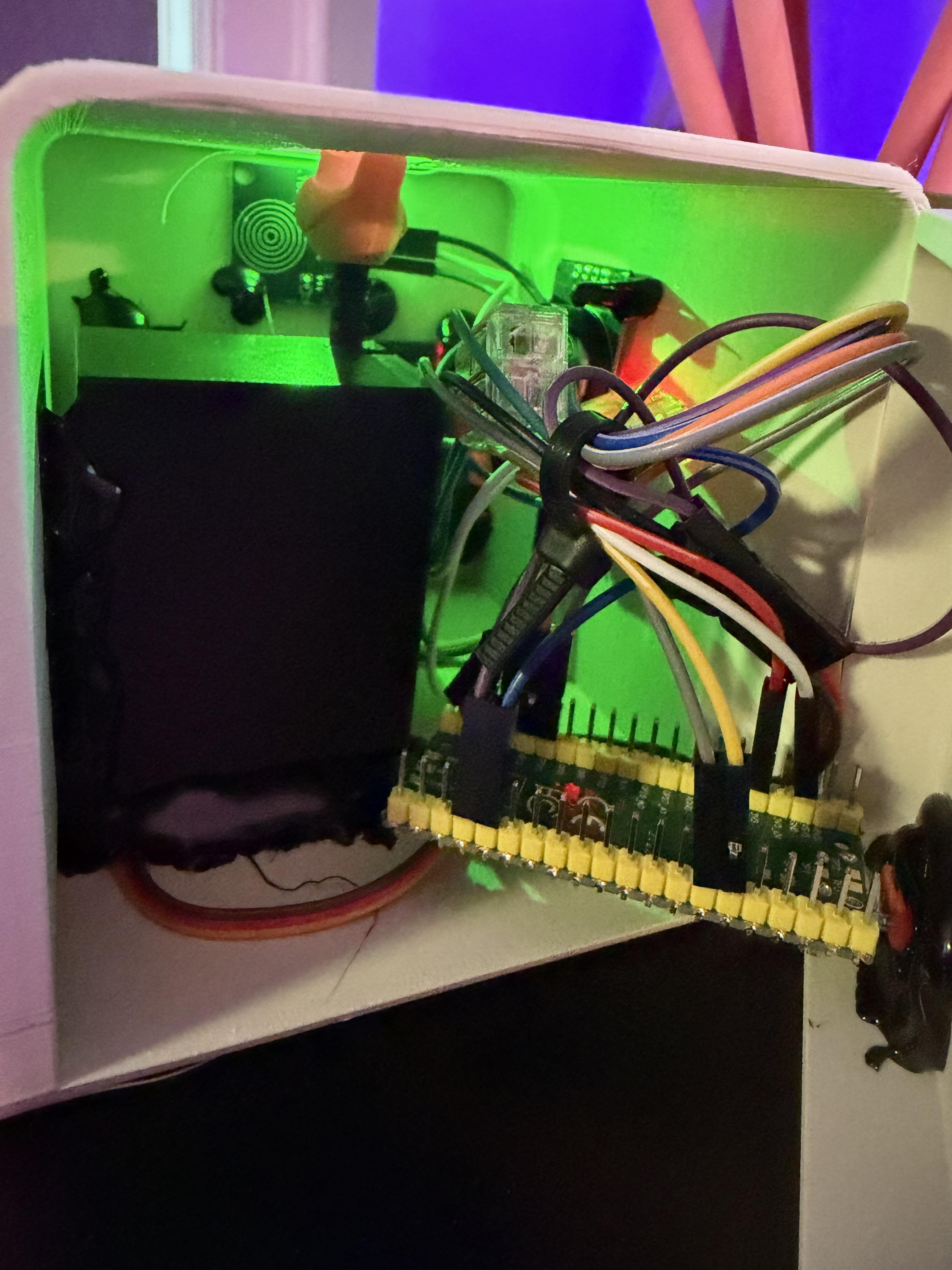

All components are Hot Glued into place inside the main clock housing. There are pegs in the main housing that the components mount to for precise placement. It is a tight fit for all the components. The back of the main housing has no latch, just pushes on and that is it.
Setting the Time
Enter Time-Setting Mode
- Press and hold the time-set button (3 seconds) and release - Bird on front of 3D Print is controlled by the touch sensor hot glued inside 3D print.
- The time blinks → now in hour-set
Set the Hour
- Tap button → hour increases
- Bird does NOT move during this mode
Set the Minutes
- Hold button again 2 seconds and release
- Minutes blink
- Tap to increase
Save and Exit
- Hold again 3 seconds and release
- Time stops blinking
- Clock runs normally