5-Fader Per-App Volume Control Mixer With Motorized Faders!
by CHWTT in Circuits > Computers
533 Views, 7 Favorites, 0 Comments
5-Fader Per-App Volume Control Mixer With Motorized Faders!
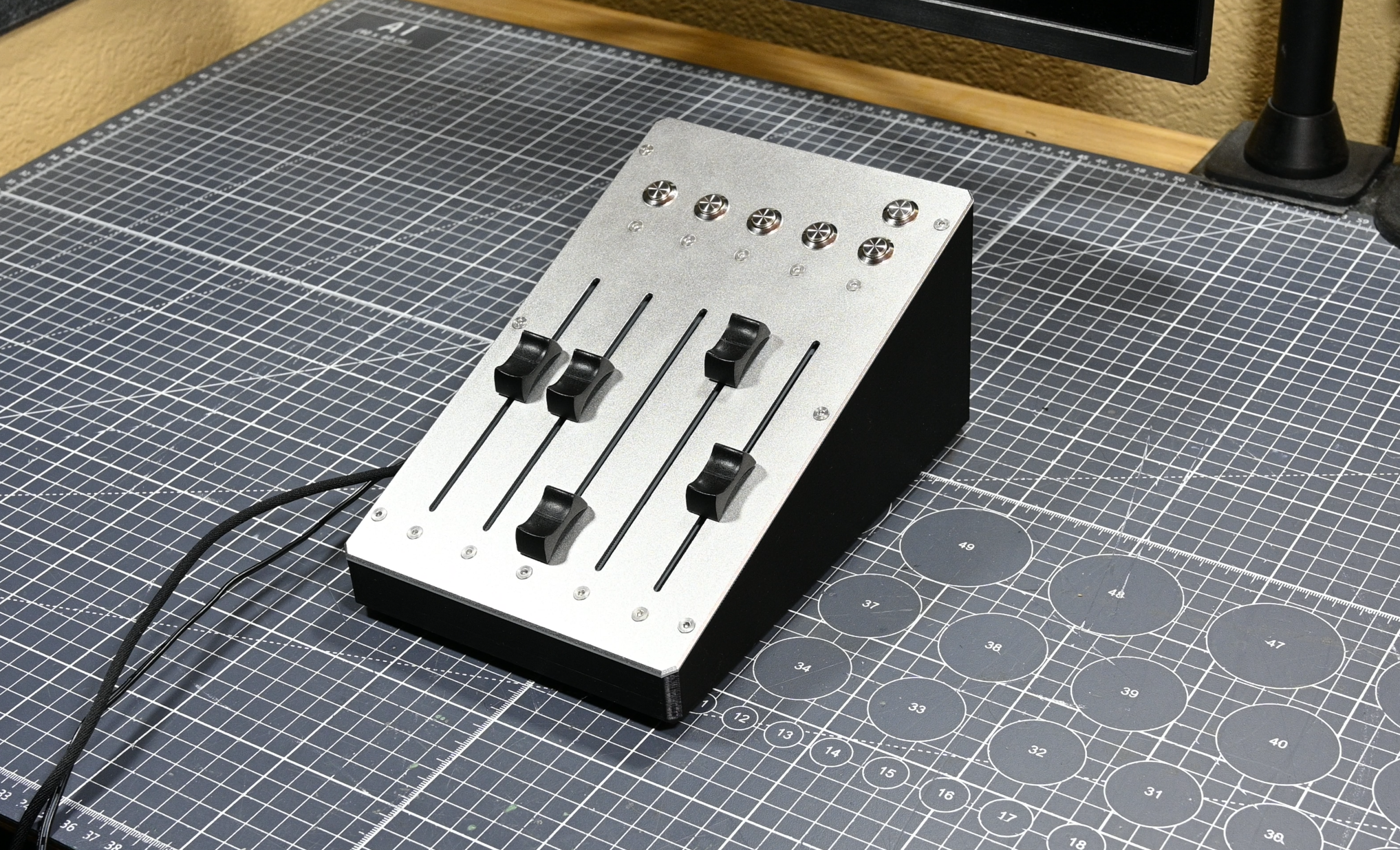
Hello there and welcome to my Instructable. In this Instructable, I'll be walking you through how to build and set up this DIY volume mixer for your PC! This mixer has 5 faders that allow you to control up to 5 individual volume levels on your PC via the software MIDI Mixer. You can control individual apps, groups of apps, your main audio output, even your microphone input! Plus, this thing has motorized faders and 5 recallable presets that can be stored onboard. So, you can have up to 5 separate mixes stored that can be pulled up with the press of a single button - and the faders will move to their respective positions so you can edit the mixes however you want once they're loaded.
If you think this is a cool sounding project, keep reading and check out how to build one of these mixers for yourself!
Supplies

Here's all the supplies and tools that are needed to make this project! All links except the PCBWay PCB link are non-affiliate links and do note that PCBWay is my YouTube Sponsor.
Tools:
Soldering Iron
Screwdriver with hex bits or set of Allen Keys
Heat gun/lighter/something to shrink heat shrink with
Needle Nose pliers
Wire cutters/strippers
Electronic Components:
3x 22uF 25V Electrolytic Capacitor
6x 10k Resistor
1x Micro-USB Male to USB-C Female Cable
6x 12mm Metal Panel-Mount Push Button
5x Behringer X32 Motorized Fader
DuPont Wires (Female to Female)
Hardware:
4x M3x6 Socket Head Screws
2x M3x12 Socket Head Screws
10x M3x12 Countersunk Screws
10x M3 Hex Nuts
6x M3x6 Countersunk Screws
These two kits cover all of these requirements:
Custom Parts:
Custom PCB - Here's a link to a PCBWay shared project where you can get the custom PCB used in this project. Do note that PCBWay is my YouTube sponsor, and if you purchase the PCB directly through this link, I get a small kickback from your purchase. Recommended settings: Defaults plus whatever color solder mask makes you happy
Custom CNC Lid - Provided in this Instructable is a .STEP file for the CNC machined lid. You can have this 3D printed, though I would be concerned about it feeling cheap and nasty to use, and also it not having enough structural integrity. I recommend having this CNC machined from PCBWay, and for surface finish I chose a bead blast + anodized clear finish, but you can choose whatever you want.
3D Printed Fader Knobs (highly recommend resin printing these) - Linked is the Thingiverse page for the fader knobs that I used in this build, as they are not designed by me. I highly recommend having these resin printed, whether that be with your own resin printer or with PCBWay's 3D printing service. If you go the PCBWay route, I recommend the PWR Dark Black Resin, which is what I used.
3D Printed Chassis - This is the main chassis for this design, and regular FDM printing is perfectly fine for this. It fits on the bed of an Ender 3 (barely), and by using a 0.6mm nozzle, 0.4mm layer height, and 85mm/s print speed, you can print it in a little under 8 hours. Since the main chassis isn't much of a touch surface on this design, lower print quality isn't too much of an issue, at least in my opinion. STL provided in this Instructable.
3D Printed USB Port Mount - This is used to hold the USB port in the back of the device and can be 3D printed however you want. It's identical to the model used in my DIY Stream Deck Studio Video/Instructable. STL Provided in this Instructable.
Watch the YouTube Video!

As with all of my projects, I have a YouTube video on my channel for this project! It goes over a lot of things regarding it and is a great way to figure out more about what this project is, and what building it will entail. If you're considering building this yourself, please watch the video, as it will give you a ton of helpful information.
Assemble the PCB


The first step to assembling this project is to solder all of the components on the PCB. There aren't too many components, and there isn't anything very special that has to be done to assemble the board. If you have female headers, I recommend putting the Arduino Micro in a socket in case you want to remove it for some reason, but this isn't necessary. The only notes that I have to guide you in soldering the components to the PCB is to make sure your L293D ICs are oriented correctly and to make sure that the USB port on the Arduino Micro is facing away from the row of headers for the Fader connections, and is facing towards the end of the PCB that has the header for the button connections. Also, a PDF of the schematic is provided here in case you need to reference it while assembling your board!
Downloads
Prepare the Faders for Installation


The 5 Behringer X32 faders that are used in this project need to be prepared before they can be mounted to the top panel. In particular, they need female Dupont connectors and extension wires soldered to their motor connections and their fader potentiometer connections.
To prepare the motor wires for installation, take two female-to-female Dupont jumper wires and cut them in half. This will give four ~5-inch-long wires with female Dupont connectors on the ends. This is enough to prep two faders' motors. Cut the connector off of the motor's wires, and splice one of the Dupont leads to each wire with some heat shrink tubing to avoid shorts. Do this for all 5 faders, and that's it for the motors. Let's move on to the fader potentiometer connections.
Some of the pins on the potentiometer parts of the faders are labeled 1, 2, 3, and 4. We will solder wires to pins 1, 2, and 3, and pin 1 will be positive, 2 will be wiper, and 3 will be negative. Use sets of 3 Dupont wires for these, and I recommend soldering the wires to the potentiometers so that their ends line up with the wiper in the middle, positive on the left and negative on the right. These wires will be easier to work with if they're longer, and instead of cutting the Dupont jumpers in half like I did before, I cut them about 1 inch of wire away from one end and then used the long piece for these connections. The stubby pieces will be used in the next step for the buttons.
Prepare the Buttons for Installation

Next, we will use the stubby bits of wire with female Dupont connectors on them to get the buttons ready for installation. All 6 buttons need one Dupont connector soldered to one of their wires, the other wires can be left the way they are. I made a mistake when I built my mixer and soldered Dupont wires to both of the wires on each of the buttons, so if you see that during another step in this Instructable, feel free to ignore it as it's not quite correct.
Install the PCB in the Main Chassis

Now that everything is prepped, we can begin putting things together! The first part of this process is mounting the PCB into the 3D printed main chassis. Make sure that the Arduino's USB port is facing the rear of the chassis and then use four M3x6 socket head screws to secure the PCB in place.
Install the USB Port


I used a similar design in this project to the design used in my DIY Stream Deck Studio project with the USB port. I chose to use a short extension/conversion cable to provide the rear USB port with a nicer connector and to make positioning the PCB inside the chassis easier on myself. Take the 3D printed USB port mount and push the extension cable through from the flat side until the USB-C female end is securely seated in the mount.
Then, the mount can be screwed to the inside of the chassis with two M3x12 socket head screws. Next, plug the Micro-USB end of the cable into the Arduino Micro. If the cable is terribly twisted like in the last photo shown on this step, unscrew the port holder, flip it, and screw it back in.
Install the Barrel Jack

Mount the barrel jack for the external power supply to the hole in the back of the 3D printed main chassis with its included nut and washer. Then, use some extra wire and heat shrink to securely connect the center terminal of the barrel jack to the screw terminal input labeled as positive on the PCB. Then, connect the outer connection of the barrel jack to the screw terminal input labeled as negative on the PCB.
Mount the Faders to the Top Plate


Now we can mount all 5 faders to the top CNC machined plate. Each fader will need two countersunk M3x12 screws with matching M3 nuts to get mounted to the plate. Ensure that the faders are oriented so that their motors are closer to the holes for the buttons. It also doesn't matter which fader goes in which slot, as they should all be identical. Finally, when tightening the nuts that hold the faders in place, make sure not to absolutely crank them, as they will deform the steel frame around the fader if tightened too hard. This can cause the pulleys that the motor mechanism uses to rub against the metal plate, stopping the fader from moving properly.
Mount the Buttons to the Top Plate

Next let's mount the buttons to the plate! The buttons used in this project come with O-rings for making their mounting watertight, but that's not important to this project, and it makes them protrude from the CNC plate in an ugly way. So, for these buttons, just push the button through the hole and tighten the nut on its backside with some needle nose pliers.
As for button orientations and placements, it doesn't matter where each button goes, as they're all the same. However, it might be helpful to orient them so that all of the wires that don't have Dupont connectors soldered onto them face the same way, as we'll be soldering all of these wires together in the next step and it might help clean up cable management.
Solder the Common 5V Connection for the Buttons

This is the final step in this project where soldering is required! Take all of the connections from the buttons that don't have Dupont connectors on them, so one wire from each of the buttons, and solder them together to one point alongside a single female Dupont connector cable. This will create the common 5V connection for the buttons that they will then use to send signals to the Arduino Micro.
Plug Everything Into the PCB!
Now it's time to plug everything into the PCB and wrap up the wiring! Here's how to connect everything:
Buttons: Connect to 7-pin header labeled "Buttons Input" on PCB.
Common 5V - Pin labeled 5V
Row of 5 buttons from left to right on the panel: Pins labeled 1, 2, 3, 4, and 5 respectively
Button in the top right corner of panel: Pin labeled "S"
Fader Motors: Connect to the set of 5 2-pin headers on the right side of the PCB.
Fader 5: Top header
Fader 1: Bottom header
Ensure that the wire coming from each motor with the red stripes on it gets connected to the positive outputs of each motor header on the PCB. From left to right, each motor connector is +, then -.
Fader Potentiometers: Connect to the row of 5 3-pin headers across the front of the PCB.
Fader 1: Leftmost header
Fader 5: Rightmost header
From left to right, each header is +, wiper, -. Ensure that the pins on the fader labeled 1, 2, and 3 get connected in this order to the headers, or your faders won't work or will end up backwards:
1 -> +
2 -> Wiper
3 -> -
Sorry I don't have any good photos of this, hopefully the wiring all makes sense in text form though. Plus, I ensured to put descriptive silkscreen on the PCB that should be helpful.
Close the Lid!


You're basically done! Go ahead and close the lid, you might have to pack the wires in a little bit, but that should be fine. Then, use 6 M3x6 countersunk screws to tighten the lid down in place over the 3D printed chassis. At this point as well, you can pop the fader caps on but be careful not to push them on so hard that they sink down and drag against the CNC plate. With that, the physical build is done! Next, we'll upload the code to the board and set it up in MIDI Mixer!
Plug It in and Upload Some Code

Plug the USB port into a computer and the barrel jack into the 5V external power supply. Then, open Arduino IDE and upload the code attached to this step to the board. Ensure that you select the right board type, and install the MIDIUSB library as well as the EEPROM library if they're not already installed
Downloads
Download and Install MIDI Mixer
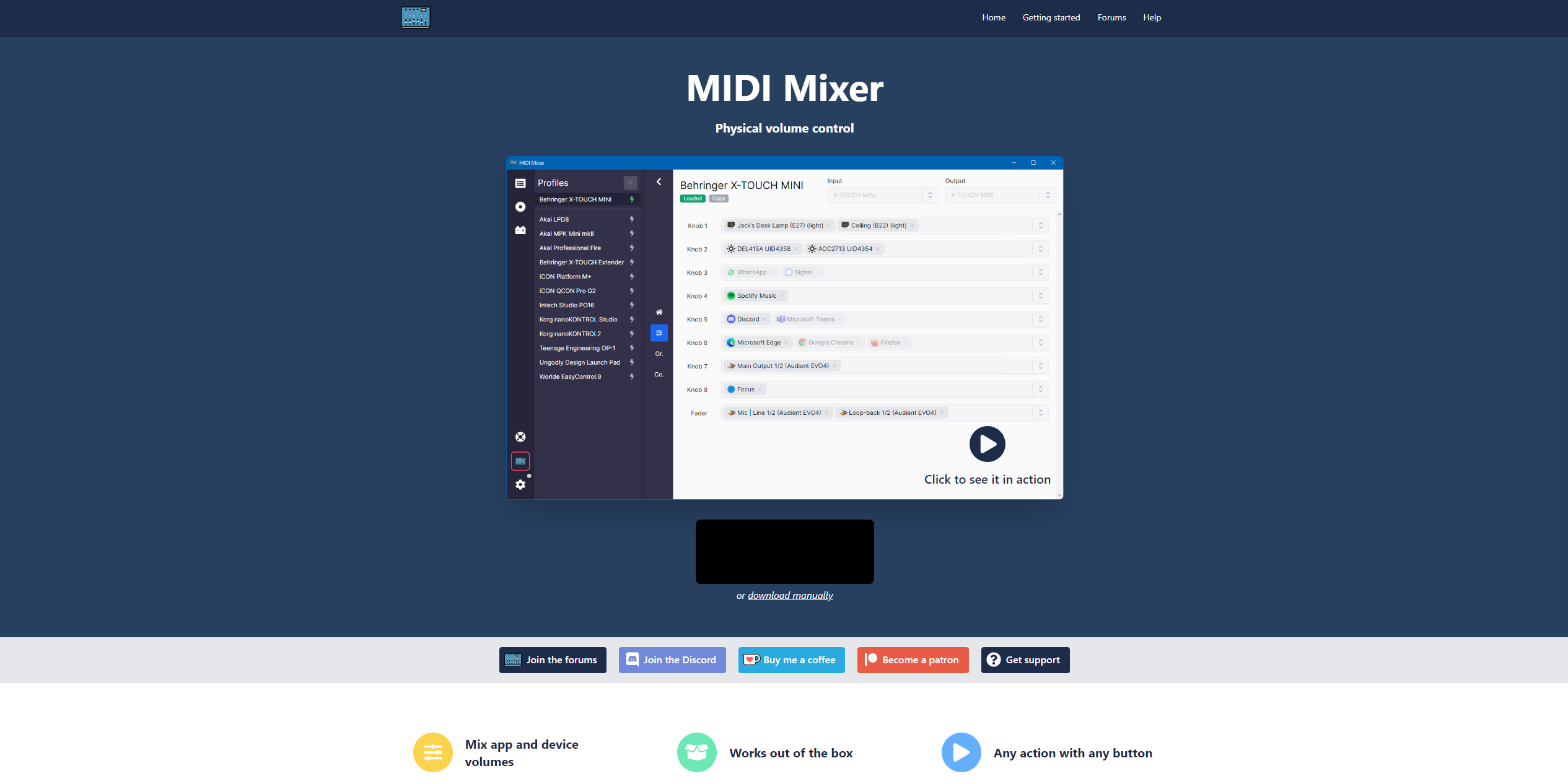
Head over to the MIDI Mixer website and download the software. Run its installer on your PC and open it up so that we can begin setting up the mixer.
Open MIDI Mixer and Create a New Profile
Now I'll walk you through how to set up MIDI Mixer in the next few steps, which will involve creating a new profile, learning the controls, setting up groups, and finally assigning volumes to control to each fader.
Create a New Profile and Select MIDI Input


Inside MIDI Mixer, hit the plus near the top left corner (circled in the first image) to create a custom profile for our mixer. Then, inside the profile, select "Arduino Micro" as the MIDI input (see second image).
Create 5 Controls and Learn Them


Inside the new profile, move down to the "Co." option on the side bar (circled in the first image).
Click the + next to "Controls" to add a new control, and name it in the name field (shown in second image).
Click "Learn Entire Control" and then move the physical fader that you want this control to correspond to. Since I'm mapping the control for Fader 1, I moved the leftmost fader. Now, the control is created, named, and learned, and you can repeat these steps to create controls for all 5 faders.
Add Control Groups


Move up from the "Co." option to the "Gr." option (circled in first image) and add/name some groups (second image). Since we only have 5 faders on this box, you can only have up to 5 groups. Each group is a place where volume controls can be placed, and each group gets assigned a physical control from the box. So, you could create a "Browsers" group and place Chrome, FireFox, Opera, and whatever browsers you want in that group (I'll show you how to put things in a group in the next step, just create groups for now). Then, that group can be assigned a fader on the mixer, and that fader will control the volume of all of the apps, in this example browsers, in that group.
After groups are added, in the groups menu, you can assign which fader you want to control each group under the Volume Control option for each group (third image).
Assign Apps/inputs/outputs to Groups

Finally, move one menu up from the "Gr." menu, and you'll see all of the groups that you created. Next to them, you can assign whatever apps, system inputs, or outputs you want to be controlled by that group. In my example I don't do this, but you can assign multiple apps/inputs/outputs to each group, so the "Games" group could have Minecraft as well as a bunch of other games on it.
And that's it! You can also explore in the settings menu of MIDI mixer other options, such as having it start with Windows, and whether or not you want to see a pop up about what you're controlling on screen when you move its corresponding fader.
That's It! You're Done! There's Just One More Thing to Mention...


And that is how to store/recall presets! Each preset stores the location for all 5 faders and therefore can save/recall an entire mix. The presets are completely handled onboard by the Arduino, and are stored to its EEPROM, meaning that they will not be forgotten after a reboot.
So, to store a preset:
- Move the faders to where you want them
- Hold the "Store" button (top right corner)
- Press whichever one of the 5 preset buttons you want to assign the preset to
- That's it. It's stored.
And now to recall:
- Press the button that corresponds with the preset you want
- That's it. It's recalled. Be careful with your hand placement, though, so that you don't get in the way of the moving faders!
Super simple, am I right? That was the goal, to make storing and recalling presets as simple as can be! And I think that's a wrap on this project. Hopefully you enjoyed this Instructable, and if you're thinking of building this project yourself, please submit your final product to the "I Made It!" section, because I'd love to see it!
Troubleshooting, Because Not Everything Goes Perfectly Every Time
Here's a few troubleshooting steps in case something goes wrong:
Issue: Faders are working backwards, or don't work right at all
Troubleshooting step: Check that you plugged the fader's potentiometer into the PCB correctly. Remember, fader pin 1 goes to + on the PCB, 2 to wiper, and 3 to -.
Issue: When recalling a preset, faders go the wrong way, hit the end, and keep trying to move, causing the device to lock up.
Troubleshooting step: Make sure the motor is plugged into the PCB the correct way around. If you're not sure, try flipping its connection and see if it makes a difference.
Issue: Buttons aren't working correctly (will cause issues with preset saves/recalls)
Troubleshooting step: Ensure the common 5V is plugged into the right place, and that all of the other button connections aren't moved around or backwards.