3D Print Price Calculator (Free Tool)
by RP HOBBYIST in Workshop > 3D Printing
71 Views, 0 Favorites, 0 Comments
3D Print Price Calculator (Free Tool)
.png)
Free Tool for 3D Print Price Calculating
I develop this free, open-source web tool and desktop application designed to help makers, hobbyists, and small businesses calculate accurate pricing for their 3D printing services.
Why I Built This
As a 3D printing enthusiast, I found it challenging to price my prints fairly. Traditional calculators either:
- Only considered material costs (ignoring electricity, labor, and wear)
- Required manual entry of every parameter
- Didn't support both FDM and Resin printing
This tool solves all these problems with:
- Smart Auto-Fill : Upload your G-code or resin slicer files to automatically extract print time, weight, and volume
- Complete Cost Calculation : Includes material, electricity, machine depreciation, labor, consumables, and profit markup
- Dual Technology Support : Separate optimized calculators for FDM (filament) and Resin (SLA/DLP) printing
- Quote Management : Save, track, and export your quotes with a built-in dashboard
Key Features
🖨️FDM Calculator - Price filament-based prints with material weight, print time
🧪Resin Calculator - Price resin prints with volume (ml) and cure time
📤Auto-Fill from Files - Upload (.gcode), (.gcode.3mf) and (.cxdlpv4) files
📊Quote Dashboard - Track total quotes, revenue, and averages
💾Save & Export - Save quotes with notes, export to PDF
⚙️Custom Settings - Configure materials, machines, and consumables
💱Multi-Currency - Support for multiple currencies
How to Access the Tool
You have two options to use the 3D Print Price Calculator:
Option A: Use the Web Tool (Recommended)
Simply visit the live web application - no installation required!
🔗Web Tool URL: https://3d-print-price-calculator.pages.dev/
Benefits:
- Works on any device (desktop, tablet, mobile)
- Always up-to-date with latest features
- No installation required
Option B: Download Desktop Software
If you prefer a standalone Windows application:
📥Download Link: 3D-Print-Price-Calculator-v1.0.0.zip
Installation Steps:
- Click the download link above
- Extract the ZIP file to a folder of your choice
- Run 3D Print Price Calculator.exe file
- The application will launch with the same features as the web version
[Tip] The web version is recommended for most users as it automatically receives updates and syncs across devices.
Select Your Currency
.png)
The tool supports multiple currencies including INR (₹), USD ($), EUR (€), GBP (£), and JPY (¥). Simply click the currency dropdown in the header to switch.
Machines - Managing Settings

Configure your 3D printers and their operating costs.
Annotation Guide: 1) Machines tab, 2) Add Machine button, 3) Machine Name column, 4) Print Type column, 5) Hourly cost column, 6) Power Consumption column, 7) Added Machine list, 8) Edit/Delete buttons
How to Add/Edit Machines:
Step 6.1: Navigate to Machines Tab
- Click the "Machines" tab in Settings
Step 6.2: Add New Machine
- Click "Add Machine" button
- Fill in the details:
- Name: e.g., "Bambu Lab A1 Mini"
- Type: FDM or Resin
- Hourly Cost: Depreciation + maintenance per hour
- Power (W): Printer power consumption in watts
Step 6.3: Calculate Hourly Cost Use this formula for hourly depreciation:
Step 6.4: Update Power Consumption
- Check your printer specs for wattage
- Typical FDM: 150-350W, Typical Resin: 50-100W
Materials - Managing Settings

Configure your material database in the Settings page.
Annotation Guide: 1) Materials tab, 2) Add Material button, 3) Material Name column, 4) Print Type column, 5) Cost per unit column, 6) Unit dropdown list, 7) Edit/Delete buttons
How to Add/Edit Materials:
Step 5.1: Access Settings
- Click the "Settings" button in the header
Step 5.2: Navigate to Materials Tab
- The Materials tab is selected by default
Step 5.3: Add New Material
- Click "Add Material" button
- Fill in the form:
- Name: e.g., "eSUN PLA+ Black"
- Type: Select FDM or Resin
- Cost: Price per unit (e.g., $25 per 1000g spool)
- Unit: grams for filament, ml for resin
Step 5.4: Edit Existing Materials
- Click the Edit icon next to any material
- Update pricing when your supplier costs change
- Click Save to confirm changes
Step 5.5: Delete Materials
- Click the Delete icon to remove unused materials
- Confirm the deletion when prompted
Consumables - Managing Settings

Track additional costs like electricity, gloves, and cleaning supplies.
Annotation Guide: 1) Consumables tab, 2) Add Consumable button, 3) Consumable Name column, 4) Value column, 5) Unit column, 6) Visible Consumable toggle button, 7) Add Consumables list, 8) Edit/Delete buttons
How to Manage Consumables:
Step 7.1: Navigate to Consumables Tab
- Click the "Consumables" tab in Settings
Step 7.2: Essential Consumables to Add
Step 7.3: Add Custom Consumables
- Click "Add Consumable"
- Enter name, value, and unit
- These will appear in the calculator's consumables selector
Step 7.4: Use of Visible Consumables Selector
- If you do not want to see added Consumables in the dropdown list, then use Turn OFF this toggle.
- e.g. you do not want to see electricity rate in Consumables dropdown list, then Turn OFF Visible Consumables toggle.
Features & How to Use - FDM Calculator

The FDM (Fused Deposition Modeling) calculator is designed for filament-based 3D printers like Creality, Prusa, Bambu Lab, etc.
Annotation Guide: 1) Upload G-code button, 2) Material dropdown, 3)Machine dropdown, 4) Print time field, 5) Filament weight field, 6) Profit Markup percentage, 7) Calculate Quote button
Step-by-Step Guide:
Step 2.1: Upload G-code File (Optional but Recommended)
Click the "Upload G-code" button
Select your (.gcode) or (.gcode.3mf) file from your slicer
The tool automatically extracts: Project name, Print time, Filament weight, and Printer model
Step 2.2: Enter Project Details
Project Name : Enter a descriptive name for your quote
Print Colour : Specify the filament color (optional)
Step 2.3: Select Material
Choose your filament type from the dropdown (PLA, PETG, ABS, etc.)
The cost per gram is automatically calculated from your material database
Step 2.4: Select Machine/Printer
Choose the printer you'll be using
Hourly operating costs are applied automatically
Step 2.5: Enter Print Parameters
Print Time (hours) : Enter total print duration (auto-filled from G-code)
Filament Weight (grams) : Enter material usage (auto-filled from G-code)
Step 2.6: Configure Additional Costs
- Labor Hours : Time for setup, post-processing, packaging
- Overhead (%) : General business overhead percentage
- Profit Markup (%) : Your desired profit margin (default: 20%)
Step 2.7: Add Consumables
- Select applicable consumables (nozzles, bed adhesive, etc.)
- These one-time costs are added to the quote
Step 2.8: Calculate Quote
- Click "Calculate Quote" button
- View the detailed price breakdown in the Quote Summary panel
Thumbnail Preview Feature

When you upload a .3mf file, the tool displays a thumbnail preview of your 3D model!
This helps you visually confirm you've selected the correct file before calculating the quote.
Features & How to Use - Resin Calculator
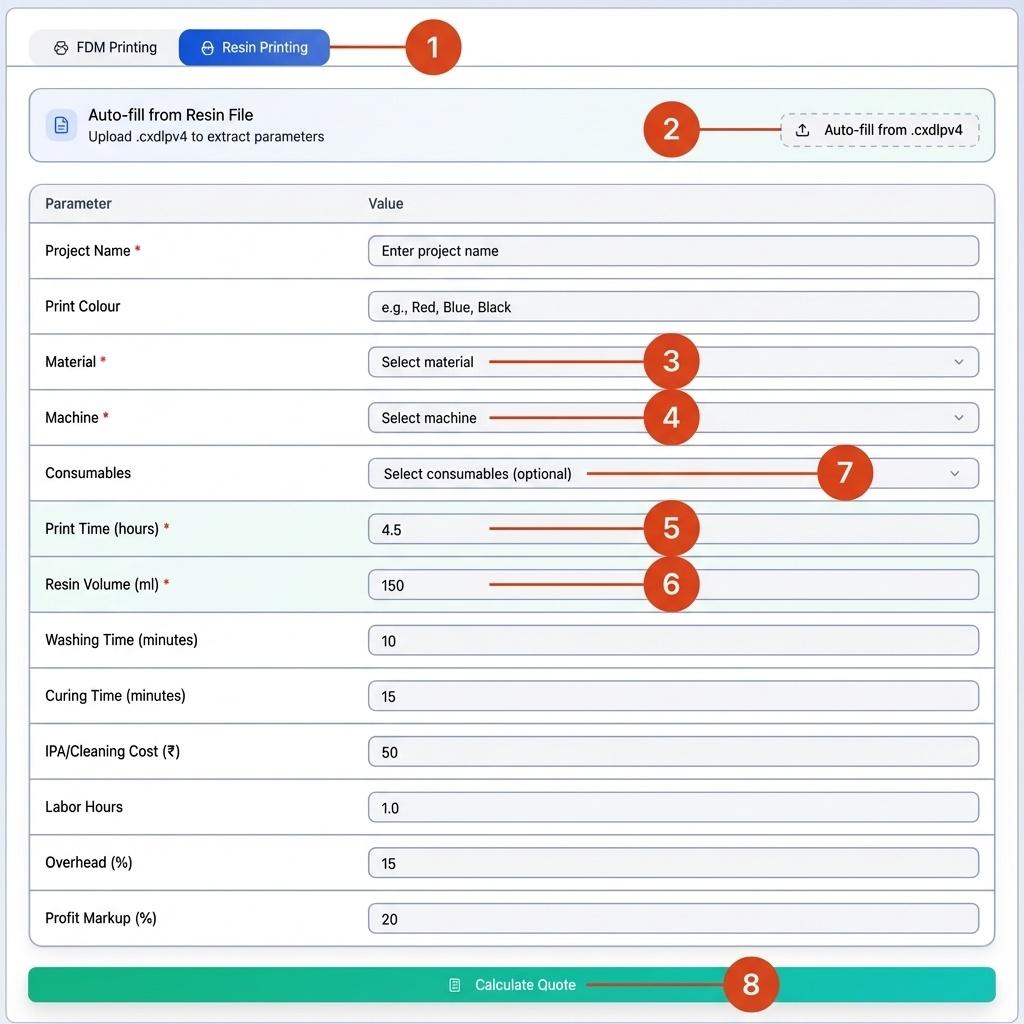
The Resin calculator is optimized for SLA/DLP/MSLA resin printers like Elegoo, Anycubic, Phrozen, etc.
Annotation Guide: 1) Resin Printing tab, 2) Upload file section, 3) Materials dropdown, 4) Machine dropdown, 5) Resin Volume field, 6) Print time field, 7) Consumables, 8) Calculate Quote button
Step 4.1: Switch to Resin Tab
- Click the "Resin Printing" tab at the top of the calculator
Step 4.2: Upload Resin File (Optional)
- Click "Upload Resin File"
- Select your .cxdlpv4 file from your resin slicer (Chitubox, etc.)
- Auto-extracts: Print time, Resin volume, Layer count
Step 4.3: Select Resin Material
- Choose your resin type (Standard, ABS-Like, Water Washable, etc.)
- Cost per ml is applied automatically
Step 4.4: Select Resin Printer
- Choose your resin printer from the dropdown
- Hourly costs and power consumption are applied
Step 4.5: Enter Print Parameters
- Resin Volume (ml): Amount of resin used
- Print Time (hours): Total print duration
- Layer Count: Number of layers (for reference)
Step 4.6: Add Consumables
- Select resin-specific consumables (FEP film, IPA, gloves, etc.)
- These costs are critical for accurate resin pricing!
Step 4.7: Calculate and Save
- Click "Calculate Quote" to see the breakdown
- Click "Save Quote" to store it in your dashboard
Modifying the Code (Open Source)
This project is 100% open source under the MIT License! You can modify, extend, and customize it for your needs.
Getting the Source Code
🔗 GitHub Repository: https://github.com/RPHobbyist/3D-Print-Price-Calculator.git
Setup for Development
Key Directories for Customization
Example: Modify the Pricing Formula
Open src/lib/quoteCalculations.ts to customize how prices are calculated:
Building for Production
Main pages - add new features
Saved Quotes Table


Below the calculator, you'll find the Saved Quotes table displaying all your saved quotes.
Annotation Guide: 1) Saved Quotes header, 2) Export to Excel button, 3) Saved Quote list, 4) Quote row data, 5) Action buttons (View, Duplicate, Edit, Delete)
Table Columns
Action Buttons
- 👁️ View: See full quote details
- 📋 Duplicate: Create a copy of the quote
- ✏️ Edit: Modify quote notes
- 🗑️ Delete: Remove the quote permanently
Export to Excel
Click the green "Export to Excel" button to download all saved quotes as a spreadsheet file for record-keeping or invoicing.
Export to Text
Click on Export button
Dashboard & Quote Summary

Once you click "Calculate Quote" and "Save Quote", the tool displays a comprehensive dashboard at the top of the page with real-time statistics.
Annotation Guide: 1) Total Quotes card, 2) Total Revenue card, 3) Avg Quote Value card, 4) Print Types card, 5) Project Name field, 6) Cost Breakdown section, 7) Total Price display, 8) Save Quote button
Dashboard Statistics Cards
The dashboard shows 4 key metrics at a glance:
Quote Summary Panel
On the right side of the calculator, you'll see the Quote Summary panel that displays:
- Project Name and Colour
- Cost Breakdown:
- Material Cost
- Machine Time
- Subtotal
- Profit Markup
- Total Price (highlighted in green)
- Save Quote button to store the quote
How to Use:
- Fill in the calculator with your project details
- Click "Calculate Quote" to generate the price
- Review the breakdown in the Quote Summary panel
- Click "Save Quote" to add it to your saved quotes
- View dashboard stats that update automatically
Export & Import Tool Settings

Users can export their tool settings like materials, machines and consumable to a JSON file and import them later.
This would be useful for:
- Backing up configurations
- Sharing presets with others
- Moving settings between devices
Step 12.1: For Exporting and Importing the tool setting
- Click on Setting button
- Go bottom of page you we see the "Import Settings" & "Export Settings" button
Suggestions for Improvement
I'd love to hear your ideas! Here are some features I'm considering:
Planned Features
- 📱 Mobile app version (Android/iOS)
- 🔗 Integration with popular slicers (OrcaSlicer, Bambu Studio)
- 📈 Advanced analytics and profit tracking
- 🏷️ Customer management system
- 📧 Email quote generation
How to Suggest Improvements
- GitHub Issues: Open an issue at GitHub Repository
- Contact Me: Visit linktr.ee/RPHobbyist
Contributing
Want to add a feature yourself?
- Fork the repository
- Create a feature branch
- Make your changes
- Submit a Pull Request
All contributions are welcome!
Thank You!
Thank you for checking out the 3D Print Price Calculator!
This tool was created to help the 3D printing community price their work fairly and professionally. I hope it helps you run a more profitable printing business or hobby.
Connect With Me
🔗 Linktree: linktr.ee/RPHobbyist
Support the Project
- ⭐ Star the GitHub repo to show your support
- 🐛 Report bugs to help improve the tool
- 💡 Share your ideas for new features
- 🔄 Share this project with other makers
License
This project is open source under the MIT License - feel free to use, modify, and distribute!
Happy Printing! 🖨️
Made with ❤️ by Rp Hobbyist